Exporting Chart Notes to Requesting Provider
Last updated: March 11, 2026
Go to the Patient's Profile:
Navigate to Patient's Profile > Charting > View Charting Notes.
Download or Print Charting Notes:
Find the charting note(s) you need to export.
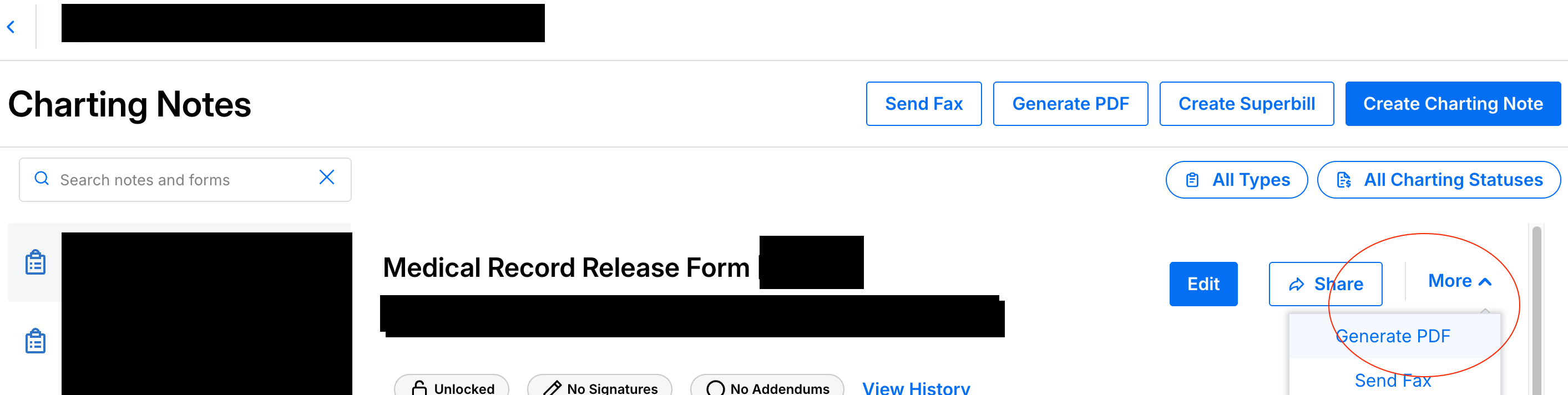
For individual notes, click More > Generate PDF
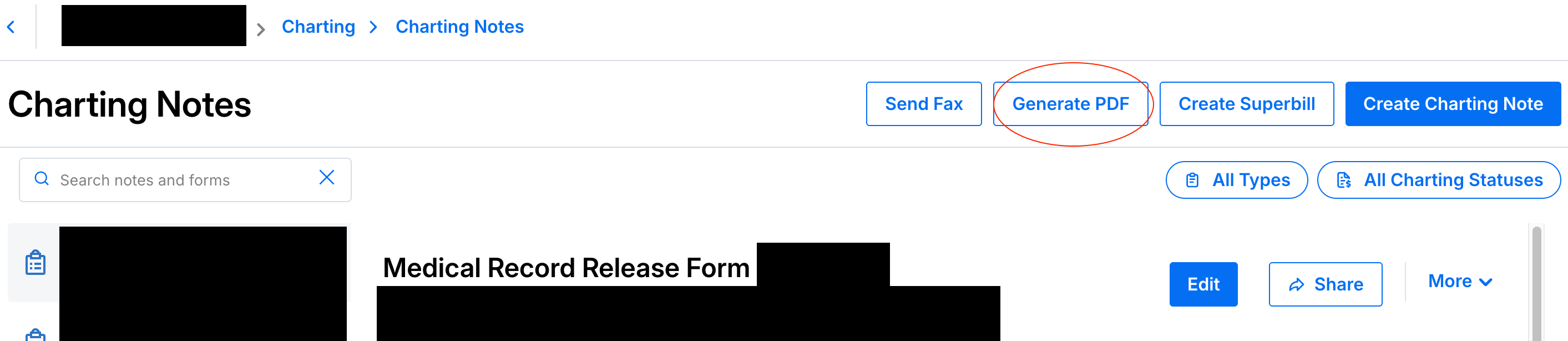
For multiple notes, click “Generate PDF” and select the checkboxes of all notes to generate as a single PDF.
Add Letterhead (Optional): You can include a default or custom letterhead with your business name, logo, and contact details.
Save or Share the PDF:
If you select fewer than 15 notes, the PDF will open in a new tab for saving.
For more than 15 notes, the PDF will be saved in the Documents section of the client's profile for download. This ensures you can securely share the records with the requesting physician
After downloading the PDF, you can fax to the requesting provider.