Associate Chart Notes with an Appointment
Last updated: August 18, 2026
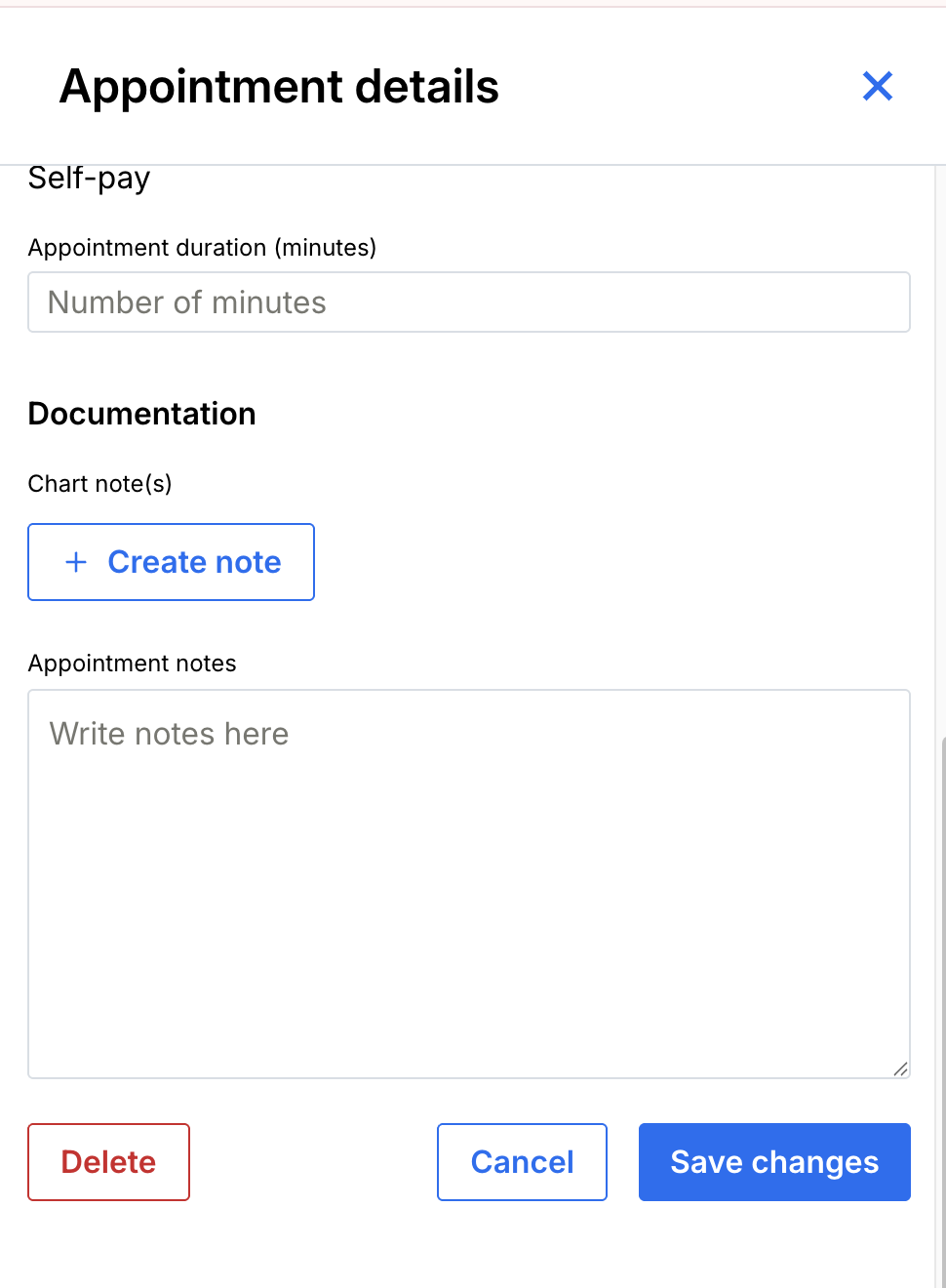
You can access charting directly from the Session Details of an appointment. To add a new chart note for a session, click Create Note to open the charting screen.
If you'd like to associate more than one chart note with a single appointment, go back to the Calendar, click on the appointment, and click Create Note again to add as many chart notes as needed.
Linking and Unlinking Chart Notes
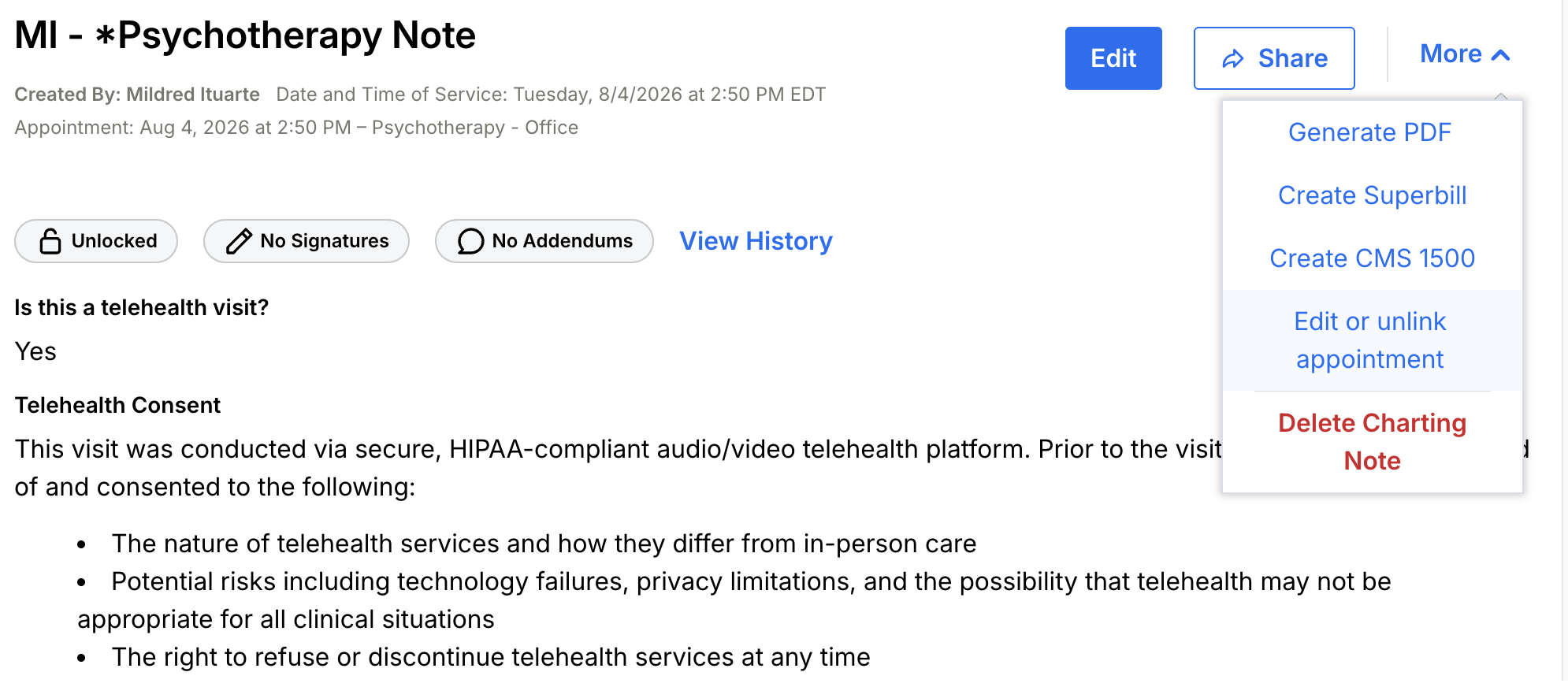
When viewing or editing a patient's chart note, you'll see an inline appointment display in the header indicating which session the note is connected to.
If a chart note is incorrectly associated with an appointment — or needs to be connected to a different session — providers with the "Can unlink chart notes from appointments" permission enabled can manually adjust the linkage:
Click More in chart note view mode, or [...] in charting edit mode.
Select Edit or unlink appointment.
Select a different appointment from the dropdown, or check "Do not link this note to an appointment" to unlink it.
Click Save.
If you modify the linkage of a signed or locked note, a warning will display, and the change will be securely logged in the chart note's Audit Trail (under Chart History).
Good to know:
A user must have the "Can unlink chart notes from appointments" permission enabled to link, unlink, or re-link appointments from chart notes.
Linking, unlinking, and re-linking appointments is available for individual patient chart notes only — not for group charting notes.