Patient Portal Settings
Last updated: August 7, 2026
When a patient is added to Osmind, they receive their access to their secure Patient Portal. Their Patient Portal allows them to securely work with their wellness provider and to maintain important aspects of their account (such as making payments, sharing documents, booking appointments, and more).
In some cases, you may want to restrict a patient from accessing certain aspects of their patient portal (or taking certain actions). For example, perhaps in a child account, a parent would not like their child to access the "Billing" tab. Learn more about working with children and families.
Within Osmind, providers can customize which aspects of the Patient Portal will display for a patient. This is customizable on a per-patient, group, or global basis.
Access Patient Portal Settings in a Patient's Account
Navigate to the Patient's tab within Osmind > select your patient
From their profile go to Actions > Settings > Patient Portal Settings
Here you'll see a list of Patient Portal sections that your patient will automatically have access to. To restrict their access, deselect the box next to the feature. Click SAVE to confirm these changes. You can revisit your patient's profile at any time to modify.
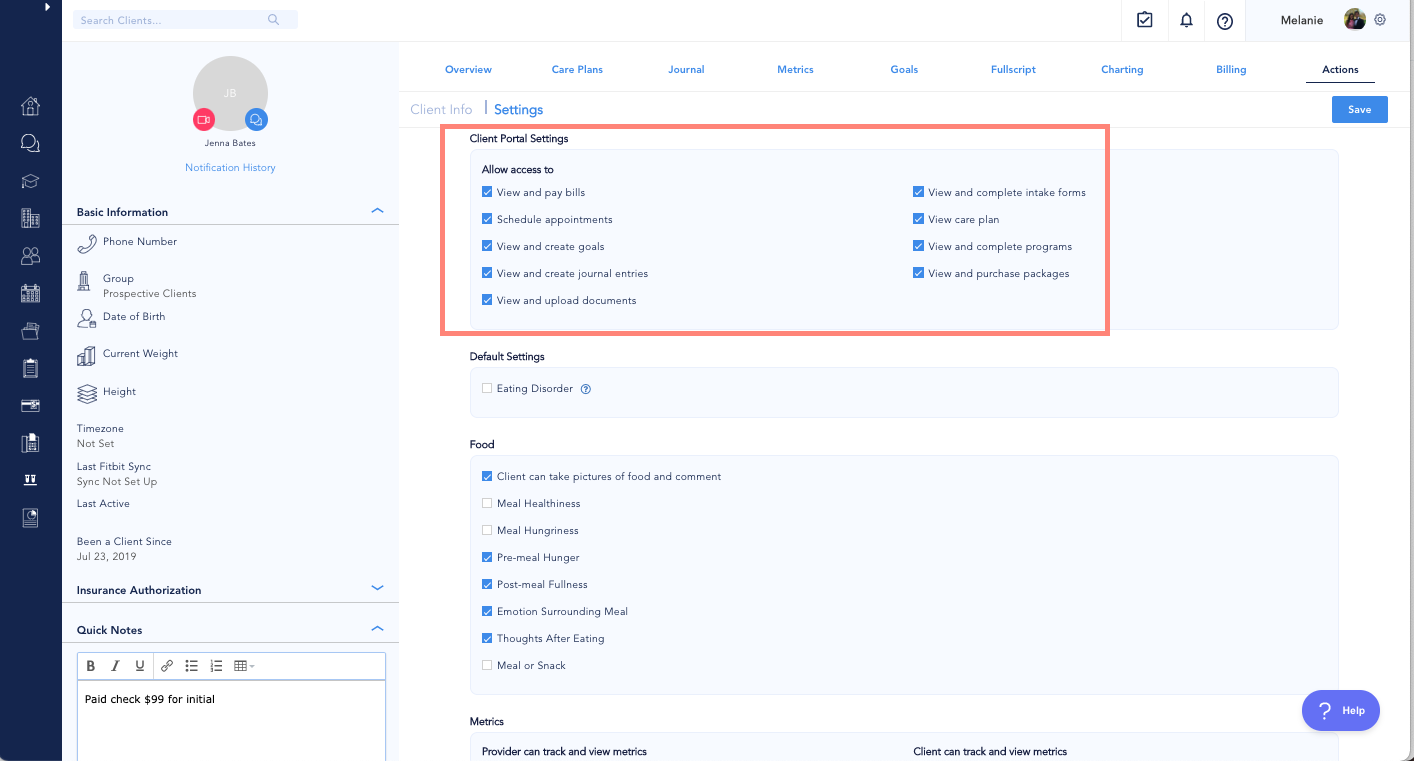
Patient Portal Settings
Uncheck the settings that you do not wish to apply to your patient's account. If you wish to change these default settings for multiple/all patients, you may also adjust the settings for a group or as a global default.
View and pay bills
Schedule appointments
View and create goals
View and create journal entries
View and upload documents
View and complete intake forms
View care plans
View and complete programs
View and purchase packages
If you would prefer a patient to not be able to log into Osmind, please email getsupport@osmind.org to restrict patient access.
Patient accounts can only be archived, not deleted within Osmind.