Charting Experience on Mobile Devices
Last updated: August 28, 2026
The Osmind mobile app lets providers view chart notes directly from their device, making it easy to review patient documentation during home visits, in-person sessions, and on-call work. This article covers what you can view, how to navigate and filter your chart notes list.
Viewing chart notes is currently supported on mobile. Creating and editing chart notes from a mobile device is not yet available.
How to Access Chart Notes on Mobile
Navigate to the Patients > Select Patient
From the Patient Profile > Select Charting Notes
What You Can View
From the chart notes list on mobile, you can open any chart note to review its full contents. The following information is visible for each note:
Date & timestamp
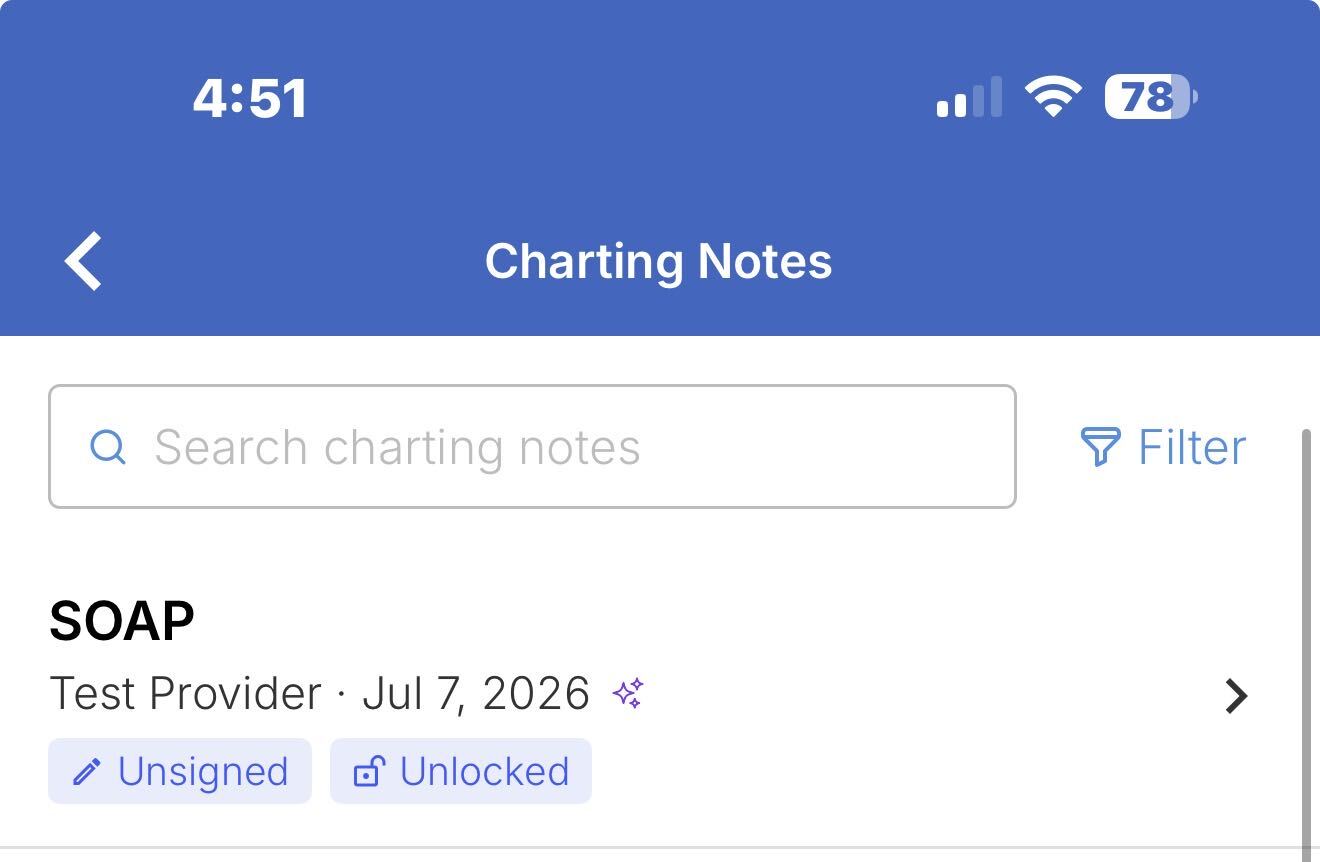
Note status: whether the note is signed, unsigned, locked, or unlocked
Note content
History log: a record of changes and activity on the note
Signatures: any provider signatures applied to the note
Addendums: additional entries appended to the note after the original was completed
Navigating Chart Notes
Searching
Use the search field at the top of the chart notes list to find a specific note by keyword. Search looks across note names and content.
Sorting
Tap the sort control to change the order notes are displayed. Available sort options:
Newest first (default)
Oldest first
Note name (A to Z or Z to A)
Filtering
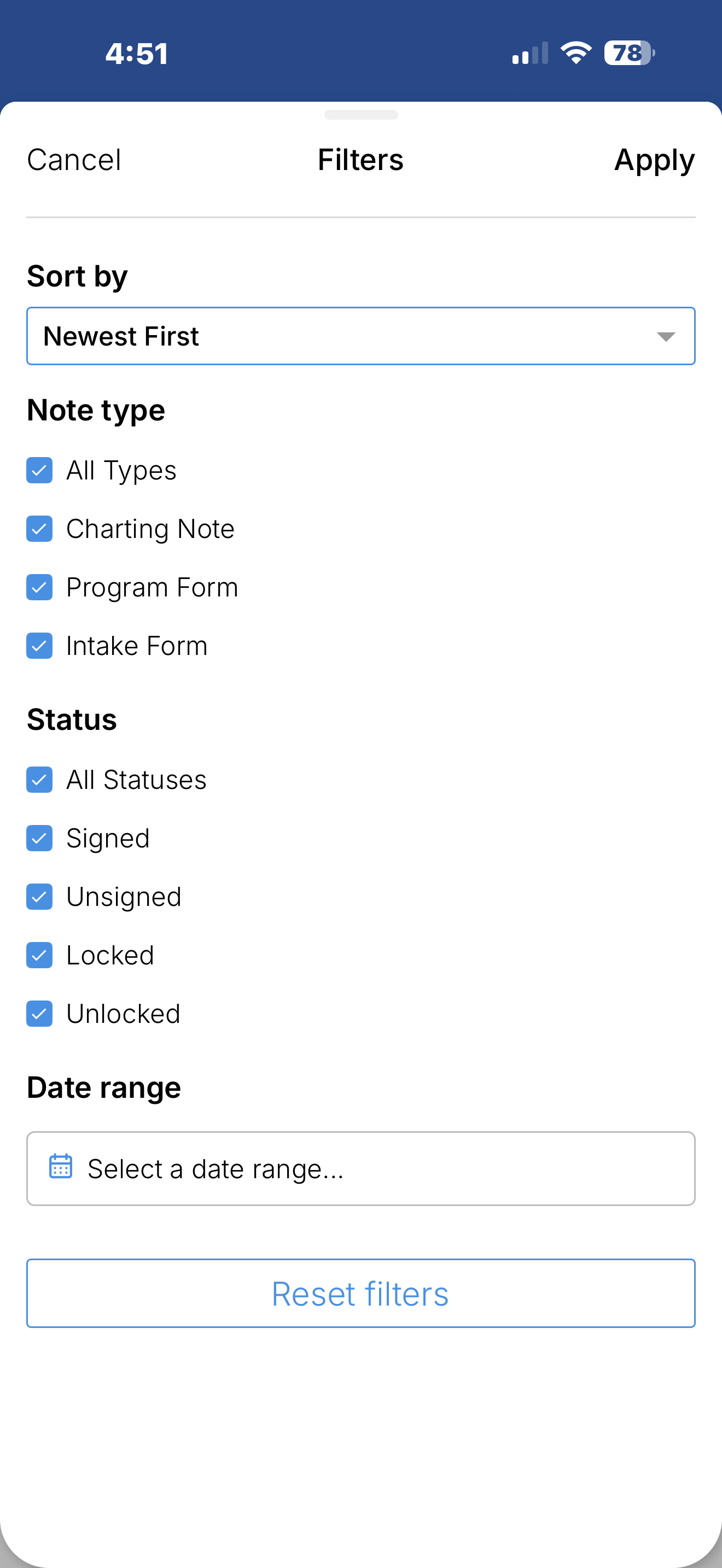
Use the filter controls to narrow the list to the notes most relevant to your workflow. Filters can be applied individually or in combination.
Filter by Note Type
Shows notes of a specific type. Default is all types.
All types (default)
Charting note
Program form
Intake form
Filter by Status
Shows notes matching a specific status. Default is all statuses.
All statuses (default)
Signed
Unsigned
Locked
Unlocked
Filter by Date Range
Shows notes created or last updated within a specific date window. Tap the date range filter and select a start and end date to apply.