Auto-Score Forms (Including GAD-7 and PHQ-9)
Last updated: August 7, 2026
Osmind's Form Builder supports the creation of intelligent, versatile forms with auto-scoring functionality. Auto-score forms can be linked to custom metrics, enabling providers to track and visualize patient data points over time.
Osmind's Forms Library already includes two auto-scored forms for behavioral health practitioners:
GAD-7 (Generalized Anxiety Disorder 7): a self-reported questionnaire for screening and measuring the severity of generalized anxiety disorder.
PHQ-9 (Patient Health Questionnaire): a nine-question, self-administered tool used to screen adult patients for the presence and severity of depression.
Providers can request patients complete either form, or add them to an intake flow for patient onboarding. Both forms auto-score, making it easy to collect completed forms and assess results — results can also be linked to a Custom Metric.
Locate and Send the GAD-7 or PHQ-9
Navigate to Forms, then select General Anxiety Disorder (GAD-7) or Patient Health Questionnaire (PHQ-9)
Click to open and view the form
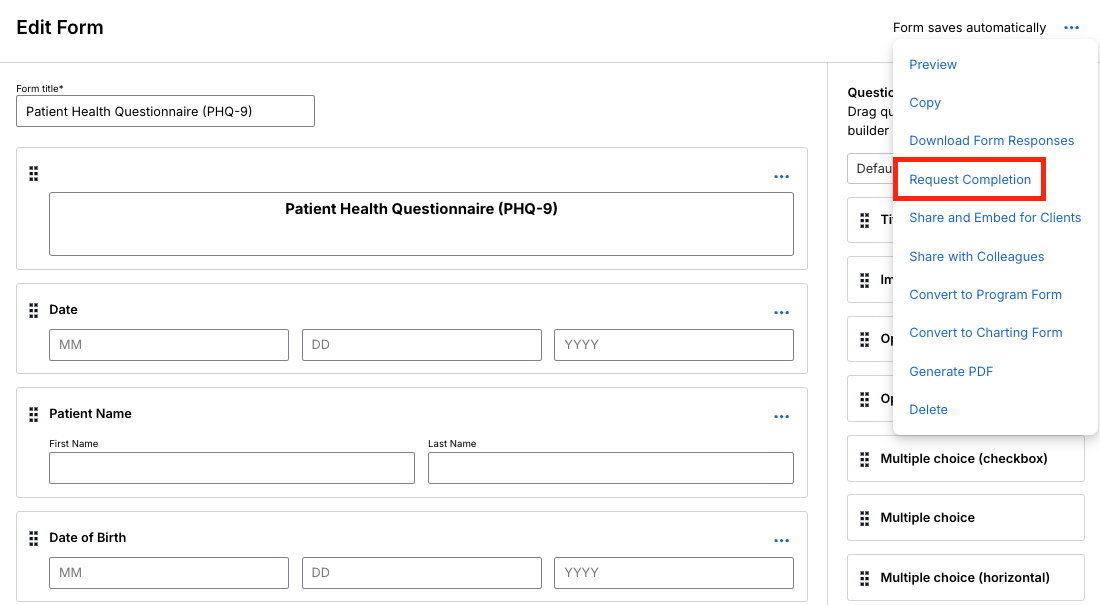
Request a patient (or group of patients) complete it by clicking [...] > Request Completion
Note: Edits can be made to either form, but both are designed to auto-score. Changing the multiple-choice options for the scored questions can impact the auto-score functionality. We recommend only updating the sections related to general patient information (e.g., date, name).
View Patient Results
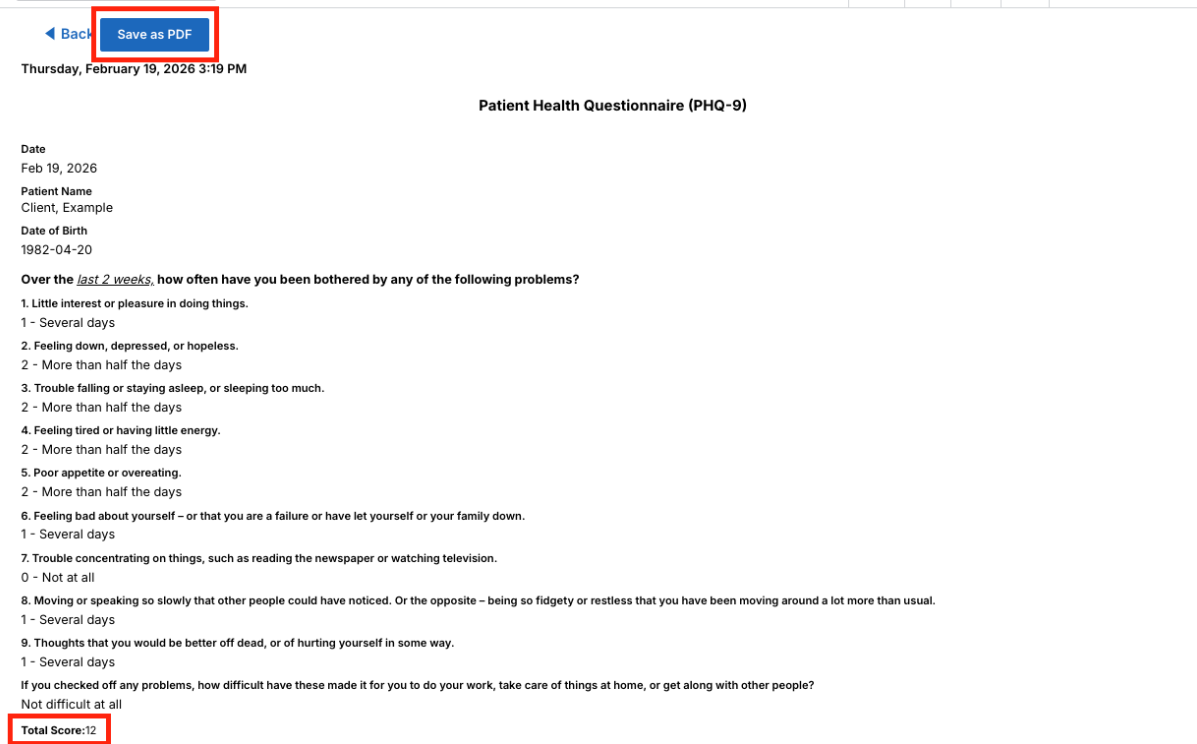
Once a patient completes the form, results can be viewed within their Patient Profile. Both forms auto-score results, visible at the bottom of the form.
Patient Profile > Charting > View Patient Forms
Search and locate the form (GAD-7 or PHQ-9)
Click View to see results
A PDF version of the completed form can be saved by clicking Save as PDF
View all patient results: An export of all completed form responses can be generated as a CSV file.
Navigate to Forms, locate the GAD-7 or PHQ-9 form
Click [...] > Download Form Responses
Notes on auto-scoring:
Osmind can set up forms to auto-score based on the sum of answers — custom calculations beyond a sum are not supported.
For auto-scoring to work, each answer choice needs its numerical value included as the first character in the string of text.
For matrix fields specifically, the form needs to be formatted as 2 columns, with the second column's values as text boxes. Checkboxes will cause an error when viewing a completed form. Additionally, the score from a single matrix field cannot be split into different subtotals — all score numbers in a matrix field must go into one subtotal.
A form field can only be tied to one auto-scoring section at a time. If a question needs to appear in two different auto-scored parts of a form, you'll need to create two separate fields — one for each section.