Add a Contact to a Patient’s Account
Last updated: June 8, 2026
Osmind allows you to add additional contacts to a patient’s account so that designated people (such as parents, guardians, caregivers, or family members) can receive notifications, reminders, and billing information on behalf of the patient. This helps pediatric providers, care teams, and practices managing shared access for family workflows.
When to Add a Contact
Adding a contact is helpful when:
A parent or guardian needs access to email notifications, appointments, or billing details for a minor.
A caregiver or family member assists the patient in scheduling or payment management.
You want to ensure reminders or other automated messages are sent to the appropriate responsible party.
How to Add a Contact to a Patient’s Profile
Go to the Patient Profile for the appropriate patient.
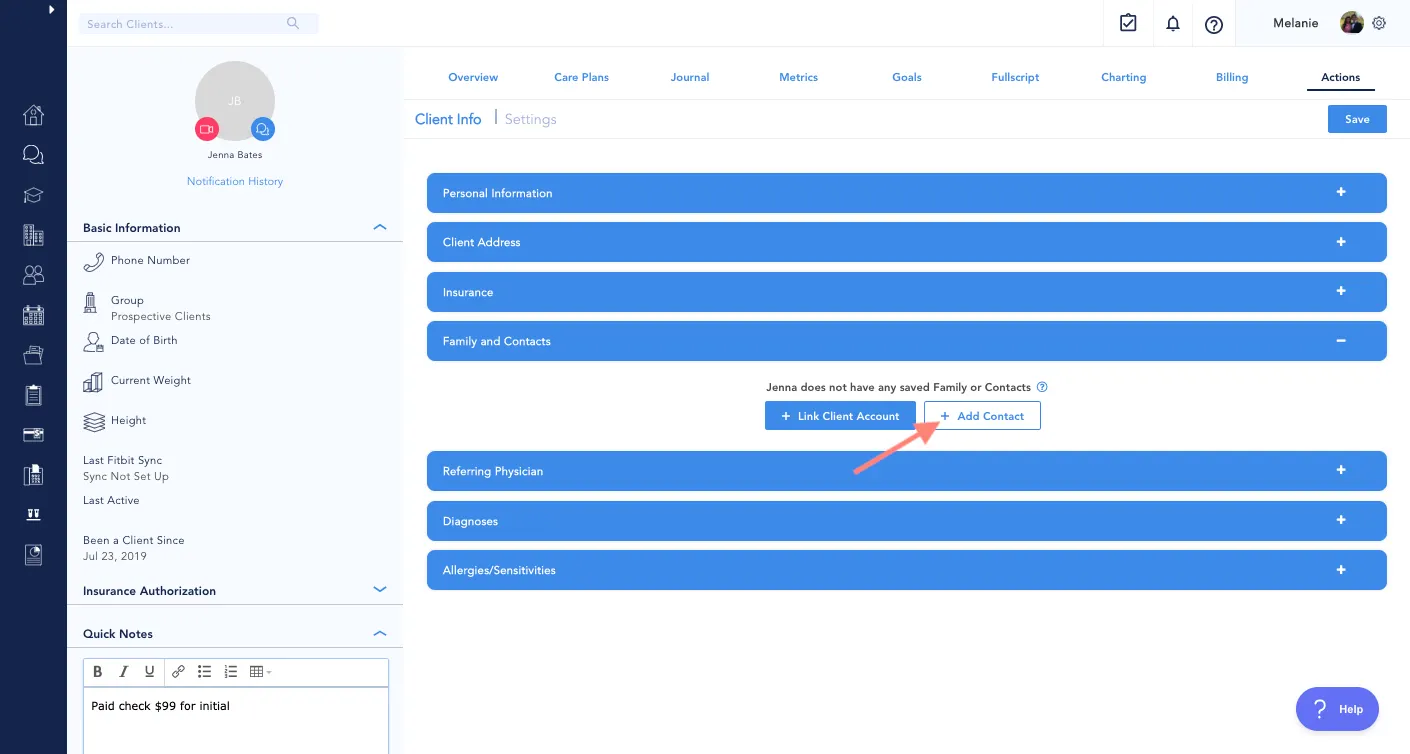
Locate Actions > Family and Contacts section.
Click Add Contact.
Enter the contact’s first name, last name, and email address.
Choose which notifications this contact should receive:
Appointment reminders
Superbills or invoices
Portal invites
Other administrative emails
Save the contact
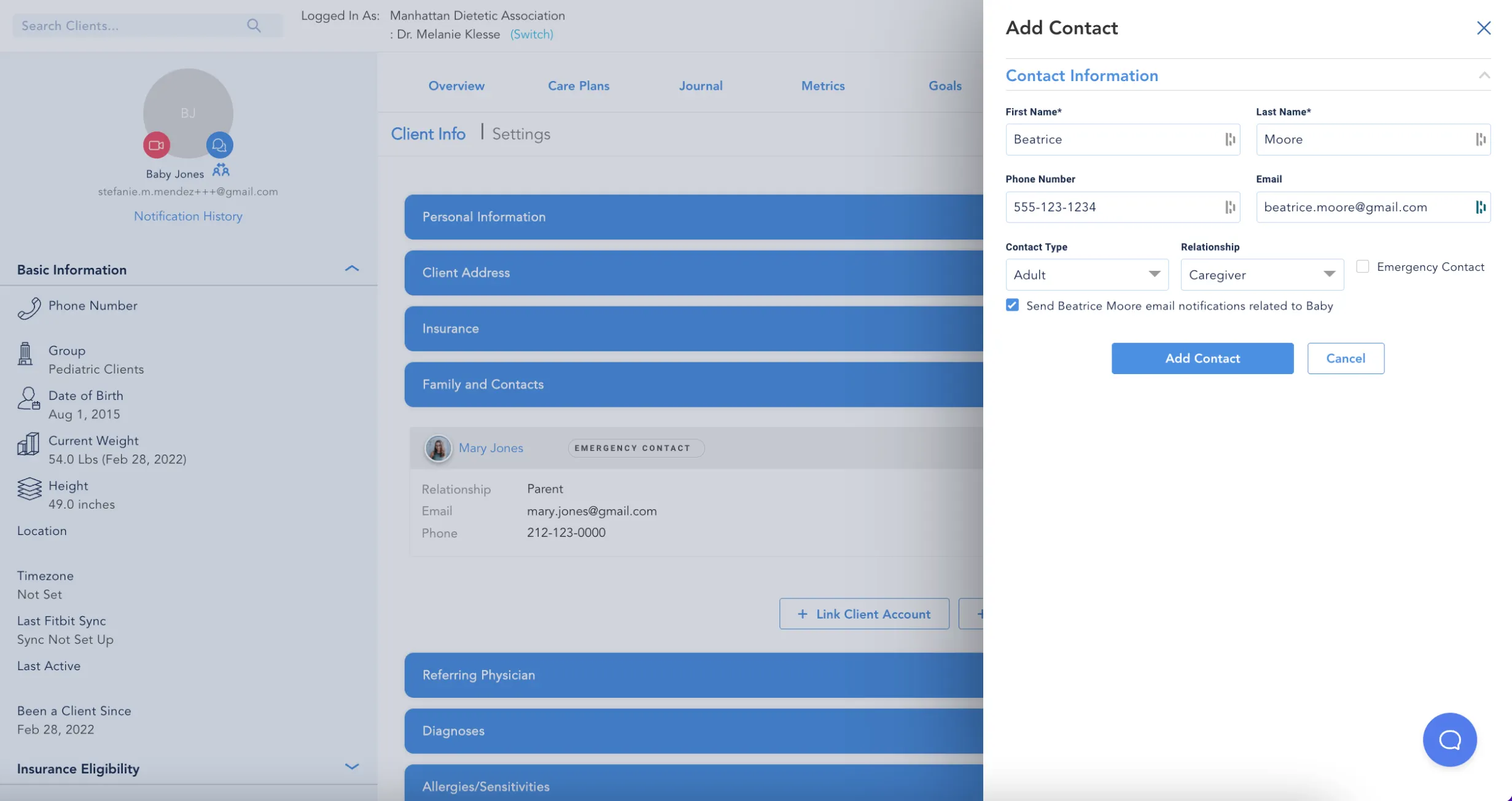
Once added, the contact will receive the notifications selected and can be included in the patient’s communication flows as appropriate.
Note: Adding a contact does not automatically grant full access to the patient’s portal. Portal access must be granted separately if you want the contact to log into the portal on behalf of the patient.
What the Contact Receives
Contacts may receive:
Appointment confirmations and reminders
Billing notifications and superbills
Portal invitations (if portal access is granted)
Other messages directed to the patient that you select during setup
You can always edit or remove contacts later if circumstances change.
Managing Contacts
After adding a contact, you can:
Edit contact details — Update email address, name, or notification settings.
Remove a contact — Remove people no longer responsible for patient communications.
Client Profile > Actions > Client Info > Family and Contacts
Click the [...] next to the contact
Select Remove Contact

Resend portal invites — If a portal access invitation wasn’t received or was misplaced.
These actions help keep patient communication preferences up to date and ensure the right people are receiving the right messages.
Use Cases & Best Practices
For pediatric patients, add a parent or guardian contact so appointment reminders and billing notifications go to them.
For patients with caregivers (e.g., adult children or family members who assist with administrative tasks), add the caregiver as a contact with appropriate permissions.
Only grant portal access when you intend for the contact to log into the patient’s portal — otherwise, use the notification settings to control what the contact receives.
Good contact management supports streamlined communication, reduces missed messages, and clarifies roles for patients and their families.