Care Teams
Last updated: August 7, 2026
Osmind's Care Teams feature enables multiple providers within an organization to be associated with a single patient. This allows the patient to securely work with multiple providers for more comprehensive care. For multi-disciplinary care, each provider can create their own paperwork, intake flows, appointments, packages, and more — facilitating specialized care.
Account admins have control over, and insight into, care team members. These settings can be configured on a per-member basis, within their member settings.
Utilizing Care Teams
Care team members are able to do the following in Osmind:
Schedule with the patient when assigned as a care team member (patients can also self-book with their assigned provider and/or other designated care team members)
View and engage with patient journal entries
Chat with a patient when assigned as a care team member
Securely chat with other team members internally
Review intake forms and charting templates for a patient (this may also be possible for a provider who is not part of a patient's care team, depending on your organization permission settings)
Add Care Team Members When Manually Adding a Patient
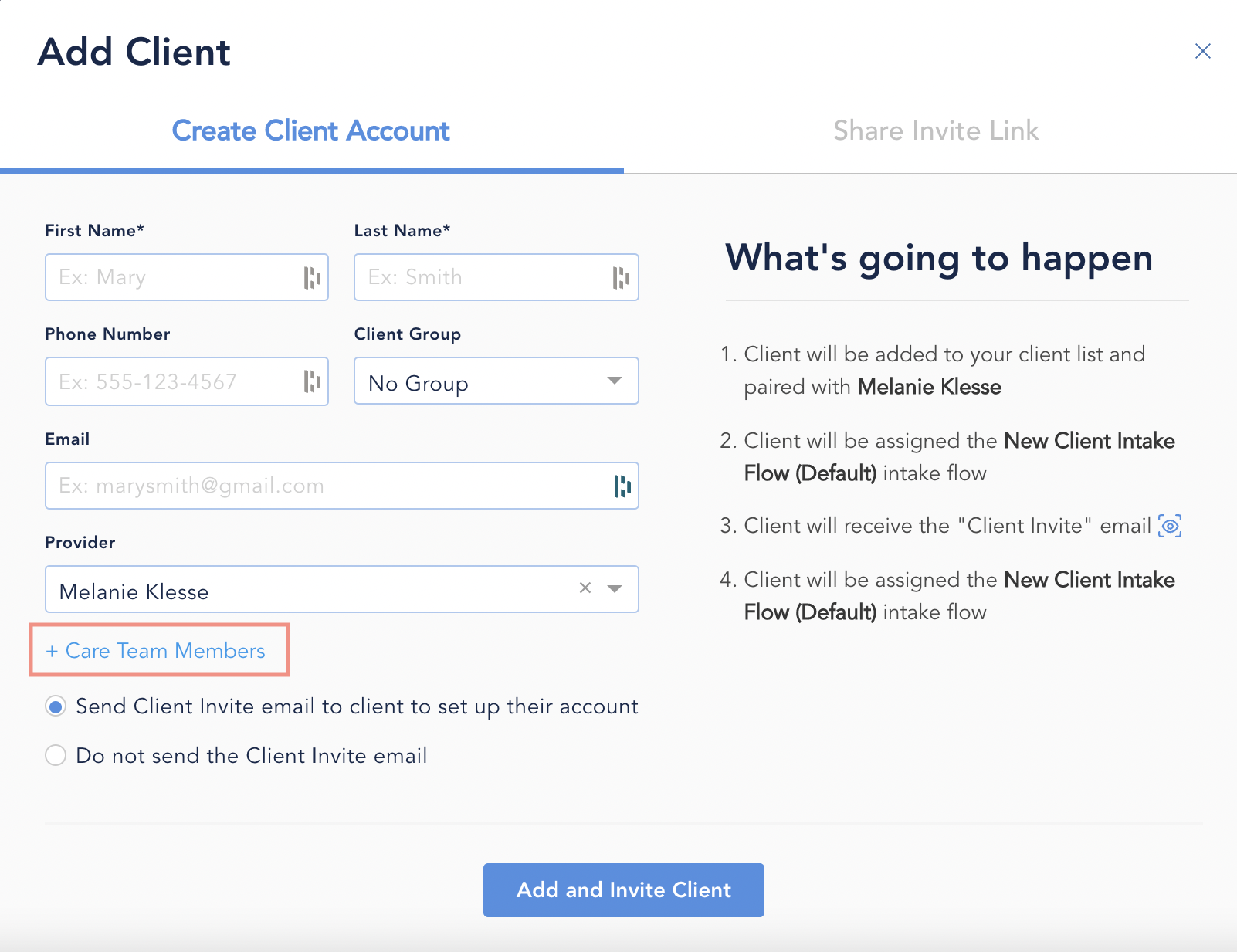
When adding a new patient to Osmind, follow the on-screen prompts to complete the patient information. You'll see an option for + Care Team Members > Select team members to add from the dropdown.
Note: The patient's primary provider must be listed under the Required Specific Providers area on the appointment type for the primary provider to be able to see other care team members' availability.
Add/Remove Care Team Members Within a Patient Profile
You can manually update a patient's profile at any time to add or remove a care team member.
Navigate to Patient Profile > Actions > Personal Information
Add the additional provider(s) you'd like the patient to be associated with
Note: Team members designated as a Support role can also be added as care team members, if they have the setting "Can be added as a care team member" enabled in their member permissions.
Bulk Add Care Team Members
Care team members can be added to multiple patient accounts at once.
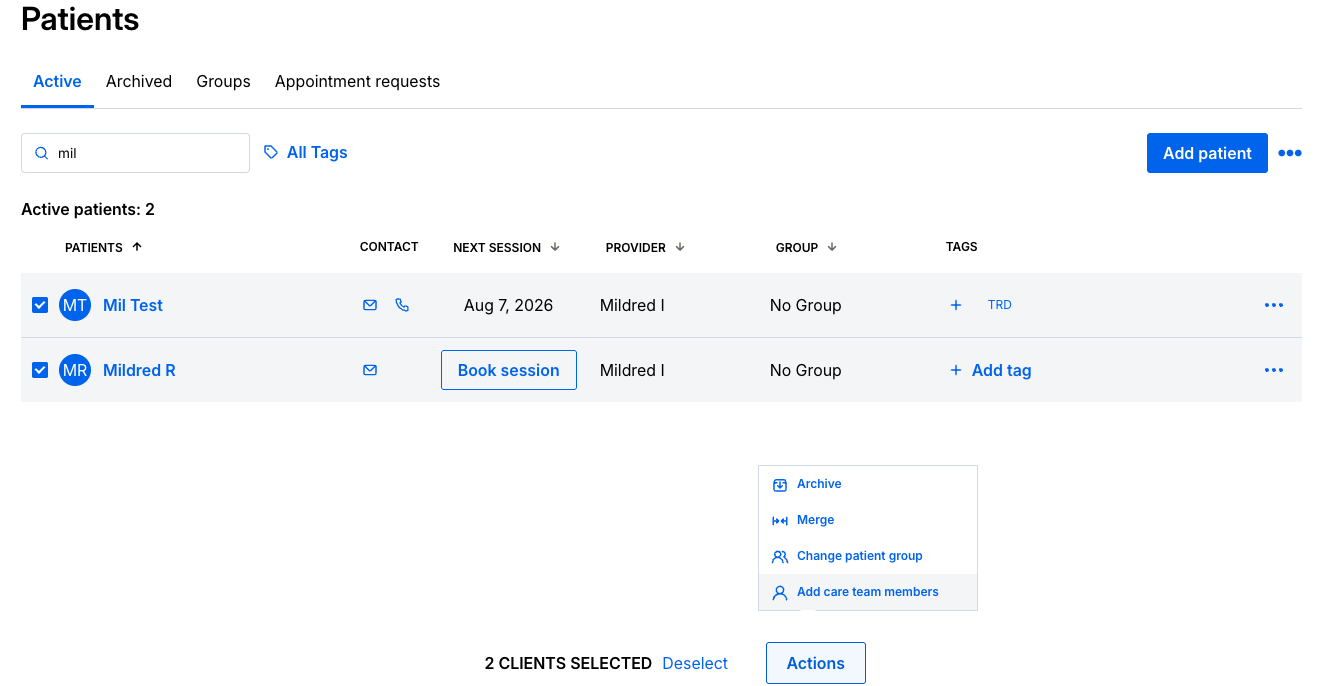
Navigate to your Patients List and select the patients you'd like to add care team members for
Once you select 2+ patients, a menu bar will appear > Actions > Add Care Team Members
Search for and select the care team member(s) to associate with the selected patients