Appointment Reminders to Patients (Email and SMS Text)
Last updated: August 7, 2026
Osmind's Calendar is designed to streamline scheduling and automate communication to patients. One benefit of Osmind's Calendar is automated appointment reminders, sent via email and/or SMS text. Automated confirmations and reminders help ensure patients are aware of their upcoming appointments, and reduce no-show rates.
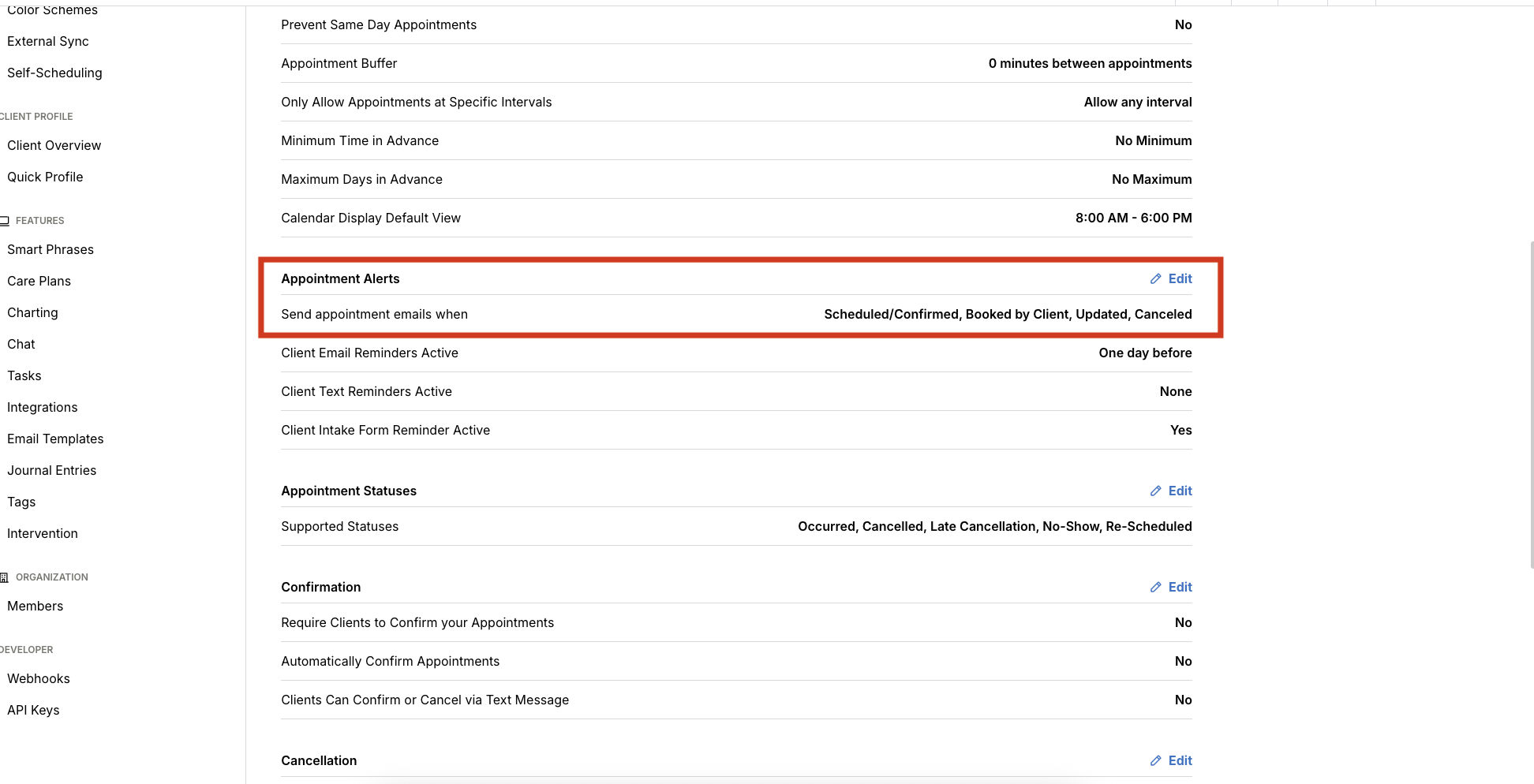
Account admins can customize the frequency and manner of appointment reminders within their appointment settings:
Navigate to Settings > Calendar > Appointments > Appointment Alerts
Email Reminders to Patients
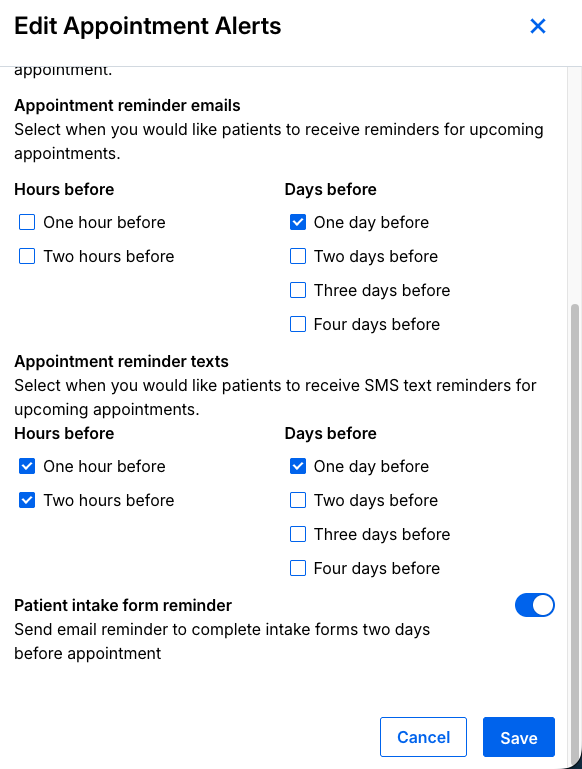
Select when you'd like patients to receive email reminders for upcoming appointments. Appointment reminder emails can be partially customized within Email Template settings.
Frequency (select any combination):
One hour before
Two hours before
One day before
Two days before
Three days before
Four days before
SMS Text Message Reminders to Patients
Select when you'd like patients to receive SMS text reminders for upcoming appointments. SMS messages cannot be customized.
Frequency (select any combination):
One hour before
Two hours before
One day before
Two days before
Three days before
Four days before
Note: Same-day appointment reminders will only send if the appointment was booked in time for that specific reminder window (either one or two hours prior to the start). For example, if an appointment is booked for 30 minutes from now, the patient will receive an appointment confirmation email, but not a reminder.
The reminder text will read:
"Your session with [Company Name] is scheduled for [Date], [Time and Timezone]. To view details, visit [appointment link]."
The reminder text message for patients cannot be customized at this time.
Keeping Track of Your Reminders
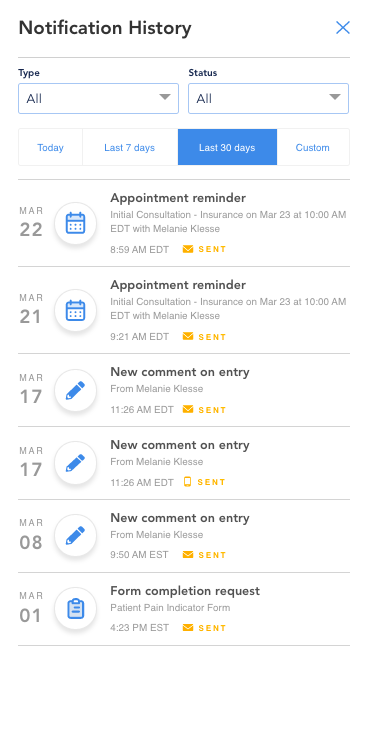
Once reminders are set up, you may want to check in periodically to confirm they're reaching patients. From any patient's page in Osmind, look for the Notification History link just above their Basic Info section.
Clicking this opens a side panel with the complete history of that patient's notifications, including status (Sent, Delivered, Bounced), which you can filter as needed.