Reschedule or Cancel Appointments
Last updated: February 17, 2026
Using Osmind’s Calendar, appointments can be booked, rescheduled, and canceled in multiple ways. Osmind is designed to keep scheduling simple for both providers and patients, while still allowing practices to customize workflows to match their policies.
This article explains how to reschedule or cancel appointments that are already scheduled, as well as what happens when a patient takes these actions themselves.
In This Article
Reschedule an Appointment
Cancel an Appointment
Patient Cancels or Reschedules an Appointment
View a Report of Canceled Appointments
Reschedule an Appointment
To edit or reschedule an appointment that is already scheduled:
Navigate to your Calendar in Osmind
Either:
Click the appointment you want to edit, or
Drag and drop the appointment block to a new time slot
If you click the appointment:
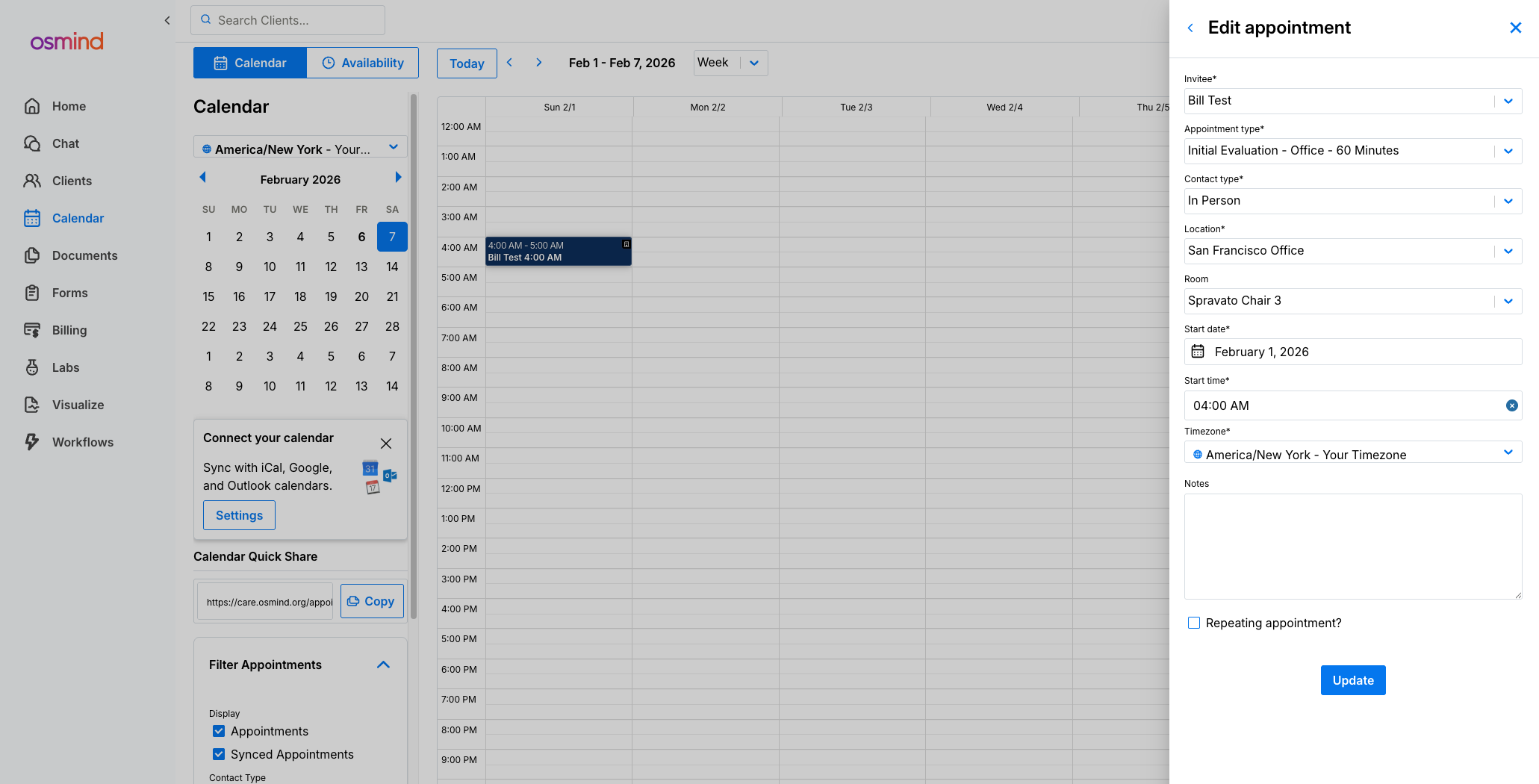
A side panel will appear
Click the pencil icon in the top-right corner
If you drag and drop the appointment:
A confirmation panel will appear asking you to confirm the change
Make your updates and click Save
When the date or time of an existing appointment is changed, the patient will receive an email notification informing them that their appointment has been updated.
Important Note on Rescheduling Behavior
If you instead:
Create a new appointment with the updated date and time, and
Set the original appointment’s status to Rescheduled
The patient will not receive an email stating that the original appointment was rescheduled. They will only receive a new appointment confirmation for the newly scheduled appointment.
Cancel an Appointment
To cancel an appointment:
Click the appointment on your calendar
Click the 'Delete' icon
When you cancel an appointment:
The patient receives a cancellation notification email
You can choose to:
Set the appointment status to Cancelled (appointment remains visible), or
Remove the appointment entirely from your calendar
If you remove the appointment entirely, it will not appear in reports.
A confirmation screen will appear asking you to confirm the cancellation before it is finalized.
Patient Cancels or Reschedules an Appointment
If your settings allow patients to self-cancel or self-reschedule, the following behaviors apply.
When a Patient Cancels an Appointment
You will receive an email notification of the cancellation (assuming notifications are enabled)
The appointment will appear grayed out on the calendar
The appointment status will display as Cancelled for both the patient and provider
When a Patient Reschedules an Appointment
The appointment automatically moves to the new date and time selected by the patient
The provider receives an email notification with updated appointment details
A notification will also appear under the bell icon, which can be clicked to view the full appointment details
Note:
It is not currently possible to see whether an appointment was canceled or rescheduled by a patient or a provider. Practices can contact Osmind Support to request this information from backend data logs.
View a Report of Canceled Appointments
To analyze cancellation trends—such as identifying frequent cancellations—you can generate an Appointments Report.
This report allows you to:
Review canceled appointments
Identify patterns across patients or providers
Monitor cancellation volume over time
Important reporting note:
If an appointment is deleted rather than marked as Cancelled or No Show, it will not appear in reports. To ensure accurate reporting, always update the appointment status instead of removing the appointment entirely.