Appointment Types
Last updated: July 22, 2026
Appointment Types are a central part of the Osmind One Calendar configuration that allow you to showcase the sessions that you offer to patients. Appointment Types can vary in name, length, location, contact type, be one-on-one or group, and more.
In this article:
Create an Appointment Type
Configure Appointment Types
Personalize Your Color Schemes
Enable Patients to Self-Book Appointment Types
Customize Patient Self-Scheduling
Delete Appointment Type(s)
Advanced Appointment Type Settings
Create an Appointment Type
Navigate to Calendar > More > Appointment Types
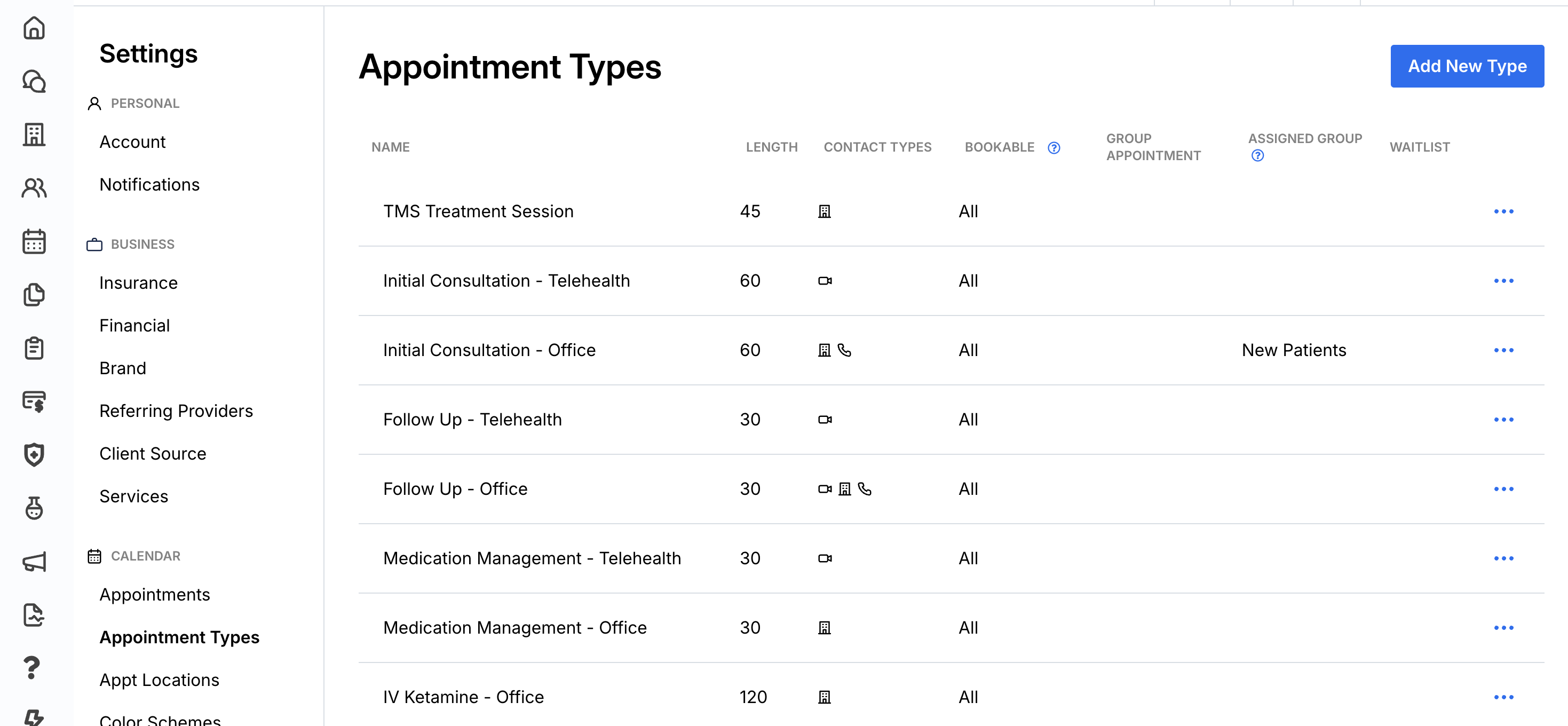
If you click on "Add New Type" or edit an existing Appointment Type, you will be prompted to configure settings.
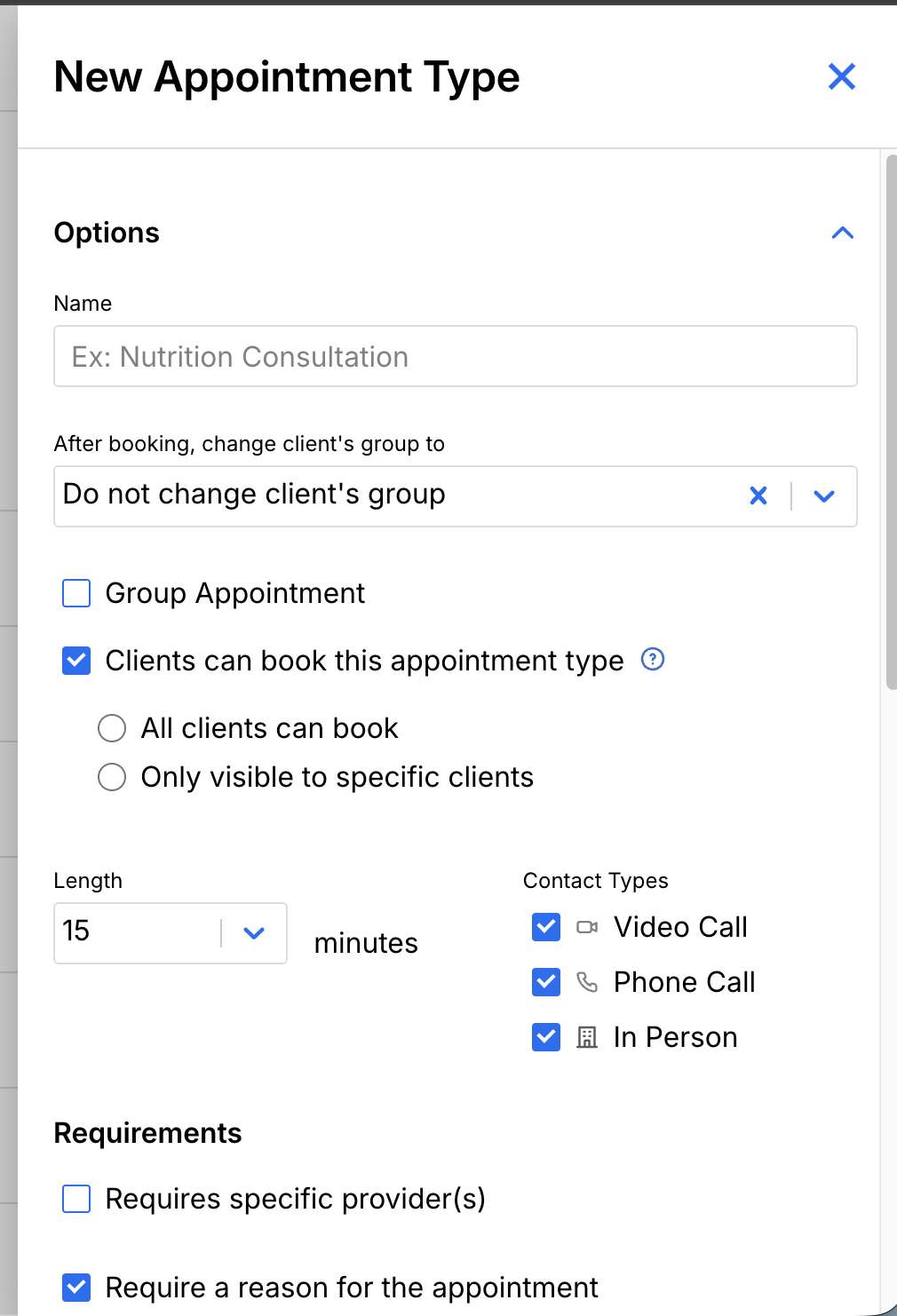
Configure Appointment Types
Osmind One allows you to configure your appointment types to optimize your session offerings.
Specifically, you can configure:
Name: May include titles like initial consultation, follow-up session, group appointment, free webinar
Length: Number of minutes of your appointment type, in 5 minute increments
Contact Type: Whether you are available by phone, in-person, or via video call for an appointment type
Locations: The office locations in which you offer this appointment type
Patients Can Book This Appointment: Indicates whether patients are able to book an appointment type with you, or whether you will need to book these on behalf of your patients.
Please note that if the "Patients can book this appointment type" setting is enabled, patients can book the appointment type through the web app, mobile app, sharing link page, and embed; whereas, if the setting is disabled, patients can only book the appointment type via the sharing link page and embed. You can further select which patients can see (and book) a specific appointment:
All patients can book
Only specific patients can book > select the patient and/or patient groups that can see (and book) this appointment type.
Personalize Your Color Schemes
Group Appointment: Whether this is a one-on-one or group session. Leave this unmarked if an appointment type is for one-on-one sessions.
After booking, change client's group to: By booking this session, is a patient automatically placed in a certain Group? This is helpful if you'd like certain patients to receive certain forms based upon them booking a session with you. By default, clients do not automatically move from one group to another. If you select a group, all your registrants will automatically move into the new group. Any new paperwork and/or documents you've shared with the new group will now be available to the patient. To prevent a patient from leaving their existing group, select "Do not change client's group." They will not move to a new group, and will retain access to all of their current group forms, programs, and documents/resources.
Requires Provider: This setting prevents a patient from booking the appointment type unless a specific provider has availability. Choose the provider(s) you'd like to associate with this appointment.
Enable Waitlist: If you'd like to allow patients to join a waitlist for a group appointment, enable this setting.
Pricing: Associate a self-pay rate, or a CPT code with an appointment type to automate your billing workflows.
Automatically charge patients for appointments
Automatically bill insurance for appointments
Personalize your color schemes
You have the option to change the colors you see on your calendar for quick reference.
Go to Settings > Color Schemes
+ Add Color Scheme
Then edit to add hex codes or select a color
These will show on your calendar (not your patient's).
Enable Patients to Self-Book Appointment Types
Within Osmind One, you have the option to make each individual appointment type "Bookable" by patients.
Navigate to the Gear icon on the top right of your provider account > Settings
Select "Appointment Types" from the menu
Find the appointment type you'd like to adjust booking settings for > Click the actions tab (three dots) > Edit
A side panel drawer will appear > Select or deselect the "Patients can book this appointment type" option
Note: Patients can still self-book an "unbookable" appointment type if you share the embed or sharing URL for the appointment. For example, if you share the booking URL with the patient via direct message or email, they can follow the prompts to book.
If you make an appointment "Bookable" by patients, patients will see it as a visible option when viewing your calendar as well as when logged into their Osmind One patient account. If disabled, patients will not see, or have the option, to book this specific appointment.
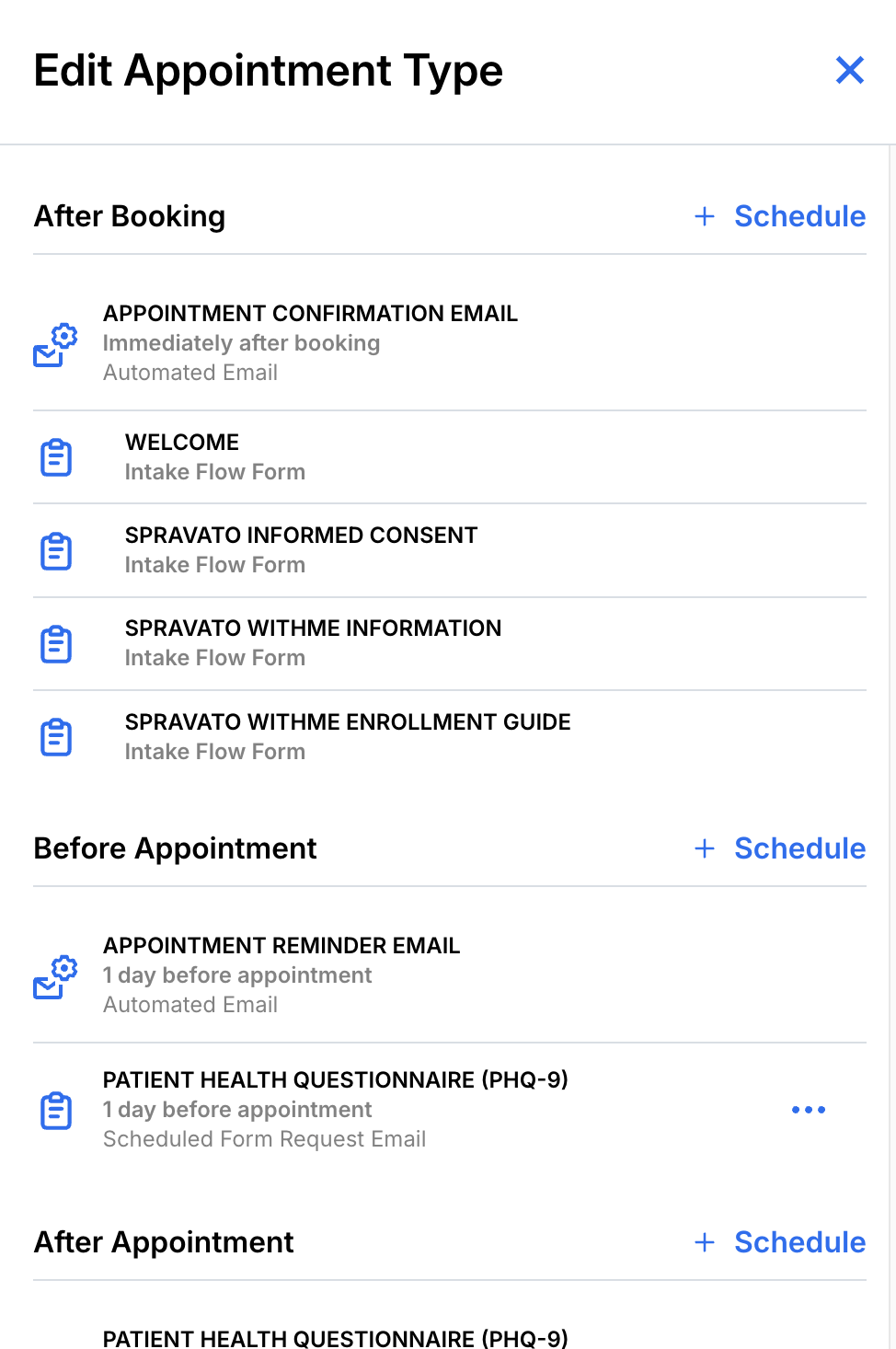
Custom Actions in Appointment Types
You have the ability to drive custom actions and reminder cadences at the appointment type level.
Note that this functionality does overlap with custom Intake Flows. Our best practice recommendation is to leverage intake flows for custom forms, and appointment types for screeners and reminder cadences.
Delete Appointment Type(s)
Appointment Types can be deleted by an account admin or team member with permissions to Edit Appointments.
Learn more: Delete an Appointment Type