AI Charting (In Pilot)
Last updated: September 4, 2026
AI Charting is the next version of Scribe and encompasses assisting clinicians in all aspects of charting. While our initial version will focus on forms, future versions may incorporate prescribing, scheduling, referrals and other workflows you all suggest. We're excited to partner with you all on developing this and are always open to feedback.
What's New in Osmind AI Charting
Generate forms with suggestions from your visit!
What changed | What it means for you |
|---|---|
Tabbed workspace | Notes, Transcript, Summary, and Form each have their own tab |
Notes and transcript drive the form | What you type during the visit is used to build the charting form |
Pause and resume | Stop capturing audio mid-visit and pick back up |
In person or telehealth | Choose per appointment; usually pre-selected for you |
Installing Recording Desktop Agent for AI Charting
AI Charting captures audio through a small desktop app that runs alongside Osmind. You install it once per computer, and after that AI Charting opens straight to your appointments.
Before you start, check your device. You'll need a Mac with Apple Silicon (M1 or newer) or a Windows PC. Intel-based Macs and iPads aren't supported.
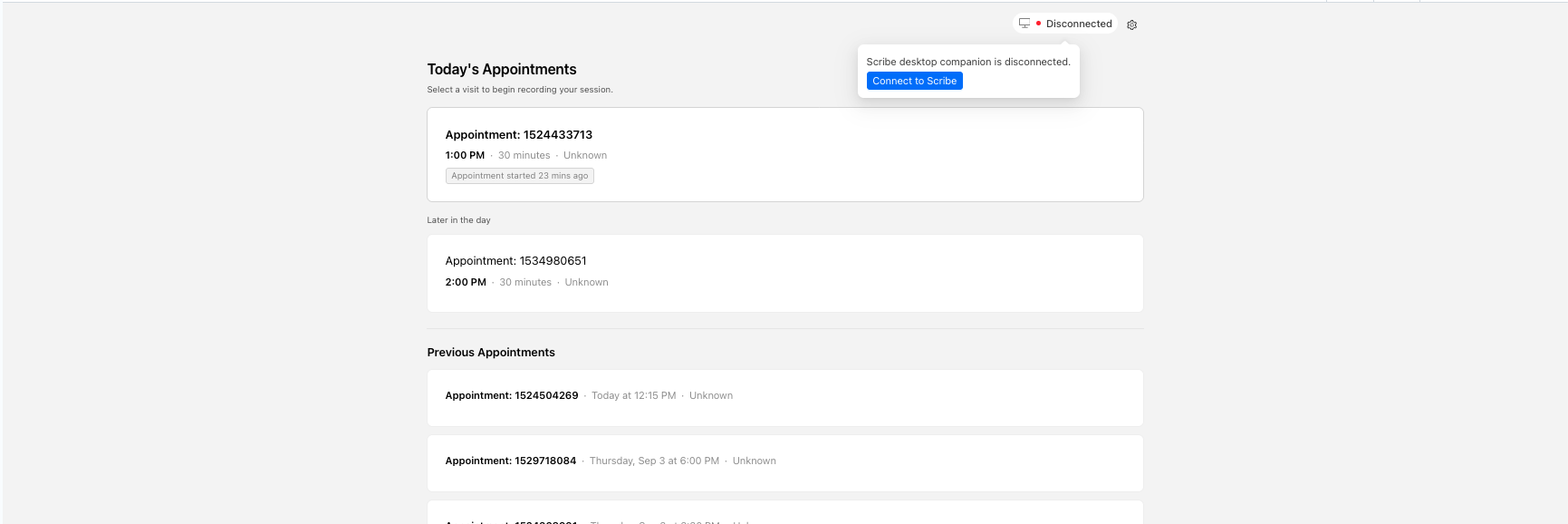
1. Open AI Charting and download the app
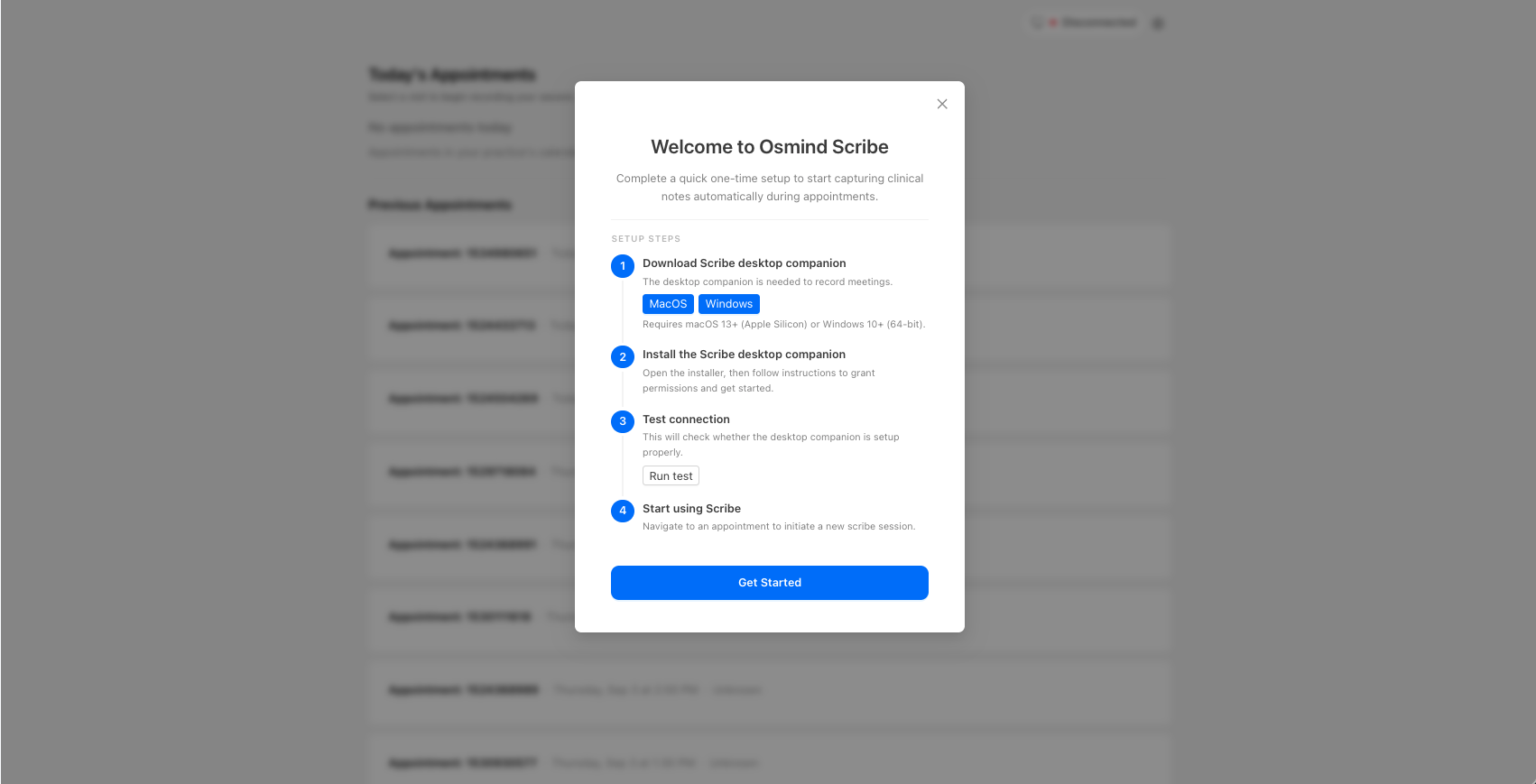
The first time you select AI Charting in the left rail, you'll see setup instructions instead of your appointment list. Download the desktop app from the link there, choosing Mac or Windows.
2. Install and sign in
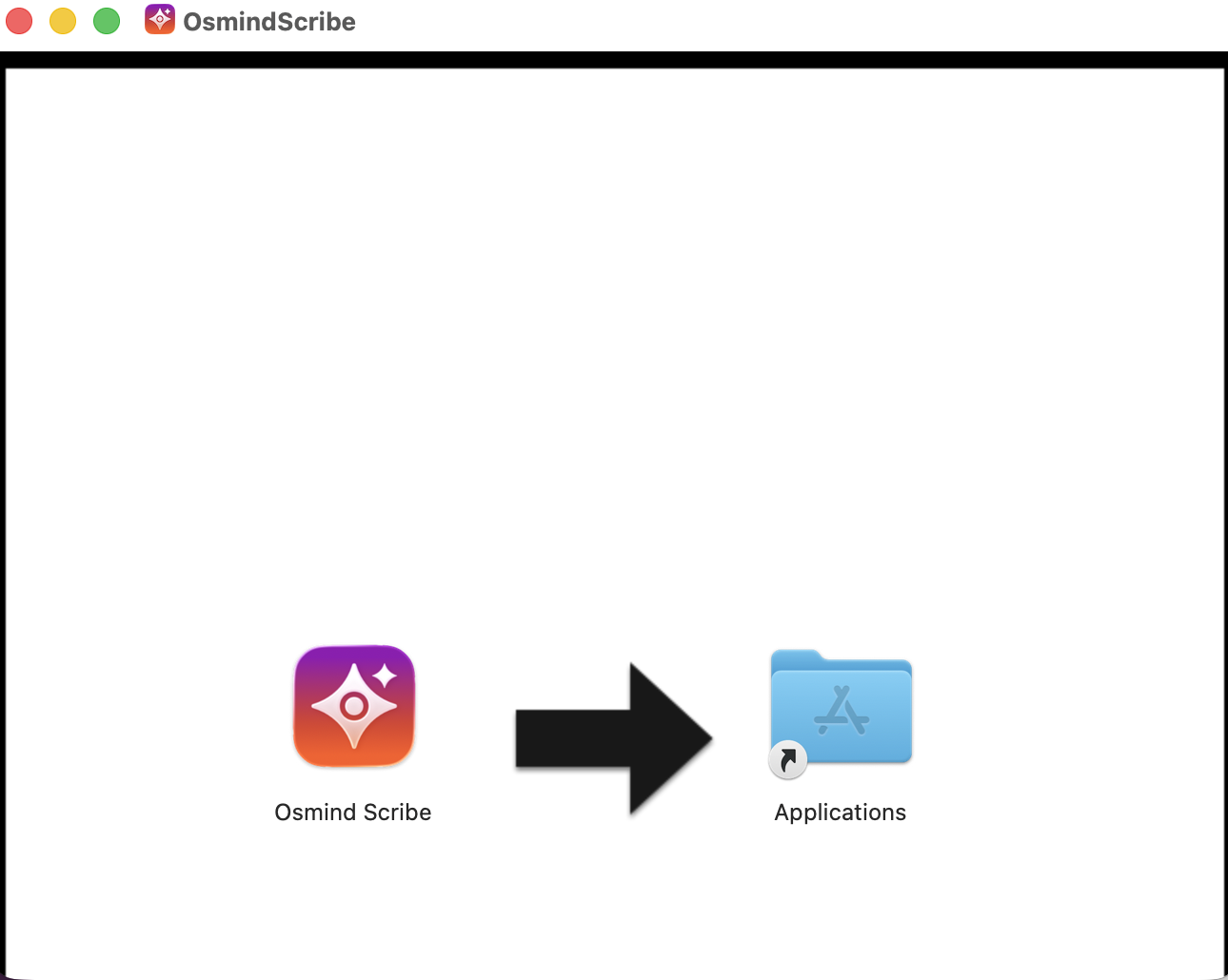
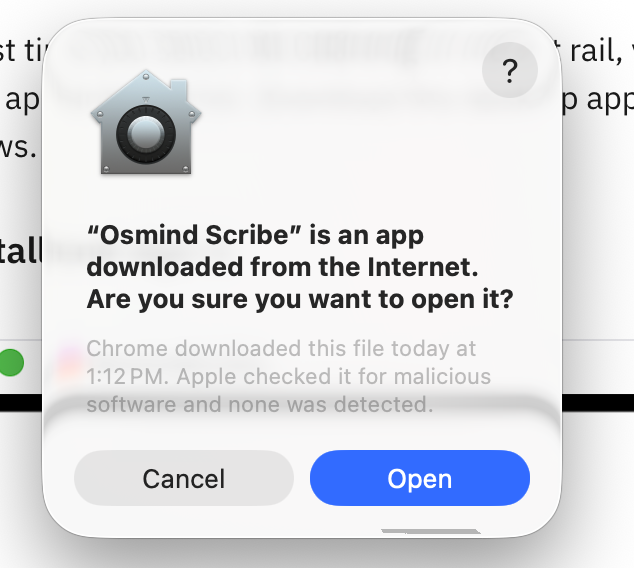
Open the downloaded file to install it, then sign in with your Osmind credentials. This links the app to your account so it knows which appointments are yours.
3. Allow microphone and camera access
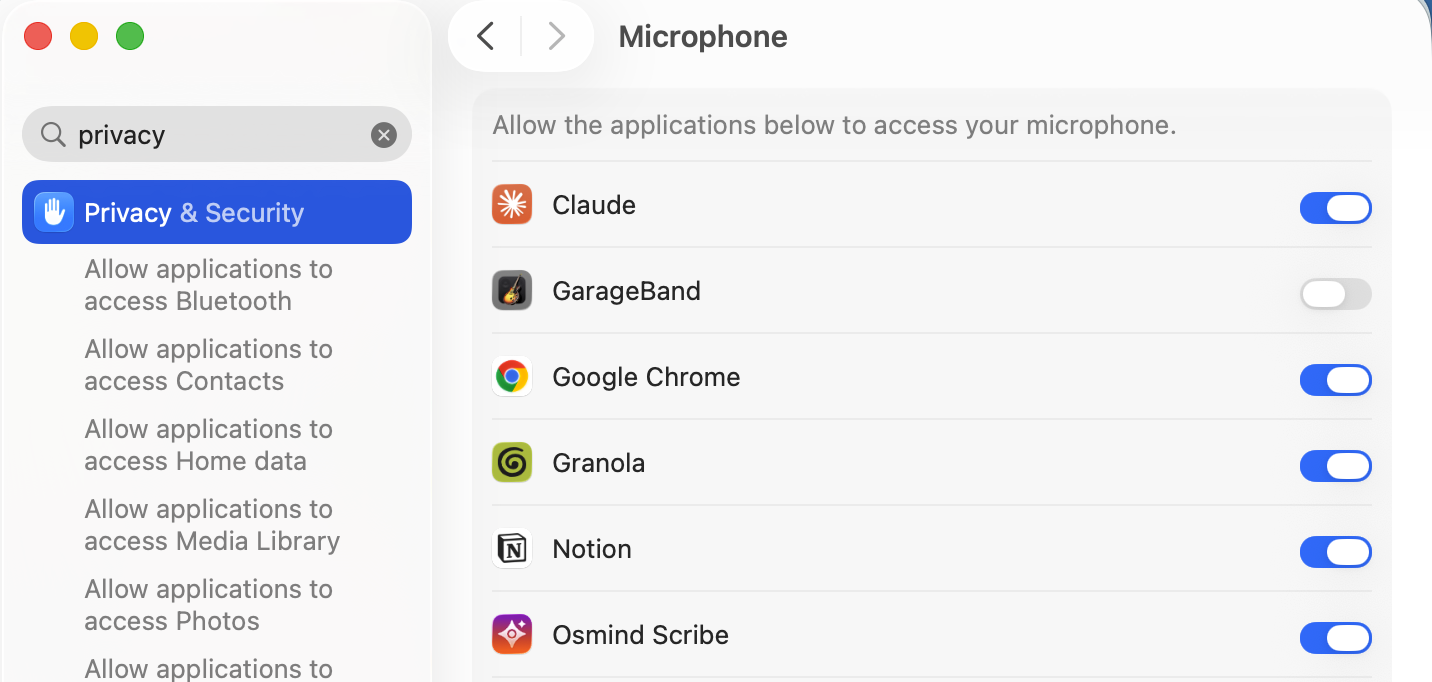
Your computer will ask for microphone and camera permission. Both need to be allowed, or recording won't capture audio.
Mac: System Settings > Privacy & Security > Microphone, then the same under Camera. Turn on Osmind Scribe.
Windows: Settings > Privacy & security > Microphone, then the same under Camera. Turn on Osmind Scribe.
4. Go back to Osmind
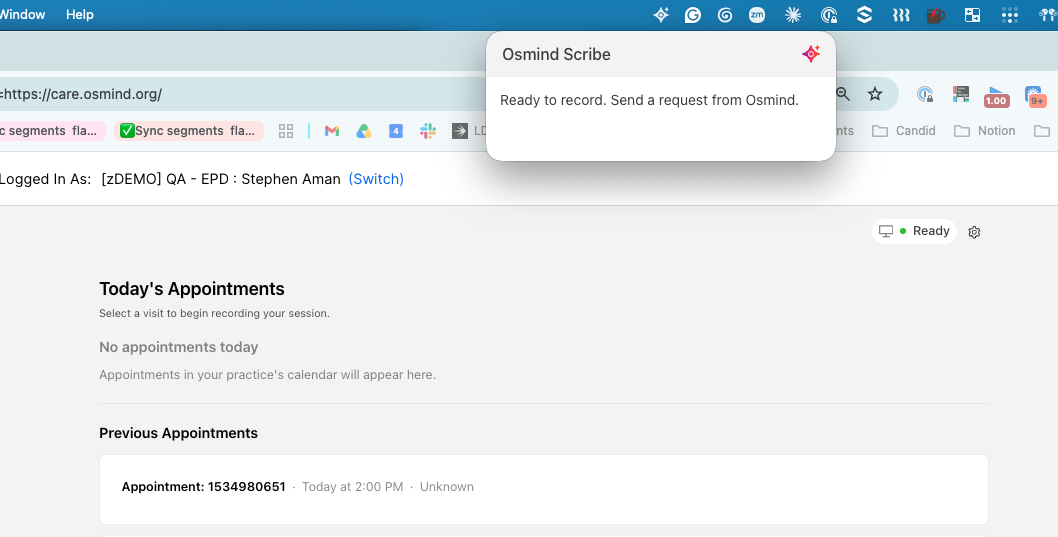
Once the app is installed and signed in, selecting AI Charting shows your appointment list instead of the setup screen. If you're desktop app icon (top right of the screen) shows 'Ready', you're ready to record.
Each clinician installs the app on each computer they chart from. If you move between a laptop and a desk machine, install it on both.
If something goes wrong
What you see | What to do |
|---|---|
"This application is not supported on this Mac" | The machine has an Intel chip. Apple Silicon Macs and Windows PCs only for now. |
No audio in the transcript | Recheck the permissions in step 3, then close anything else using the microphone — another Zoom window, a separate note-taking app, or another recorder. Competing apps can take over the mic. |
The setup screen keeps appearing | The app isn't signed in. Open it directly and sign in, then return to Osmind. |
Anything else | Email stephen.aman@osmind.org or reach out to your Osmind contact. |
Using AI Charting
1. Start from your appointment list
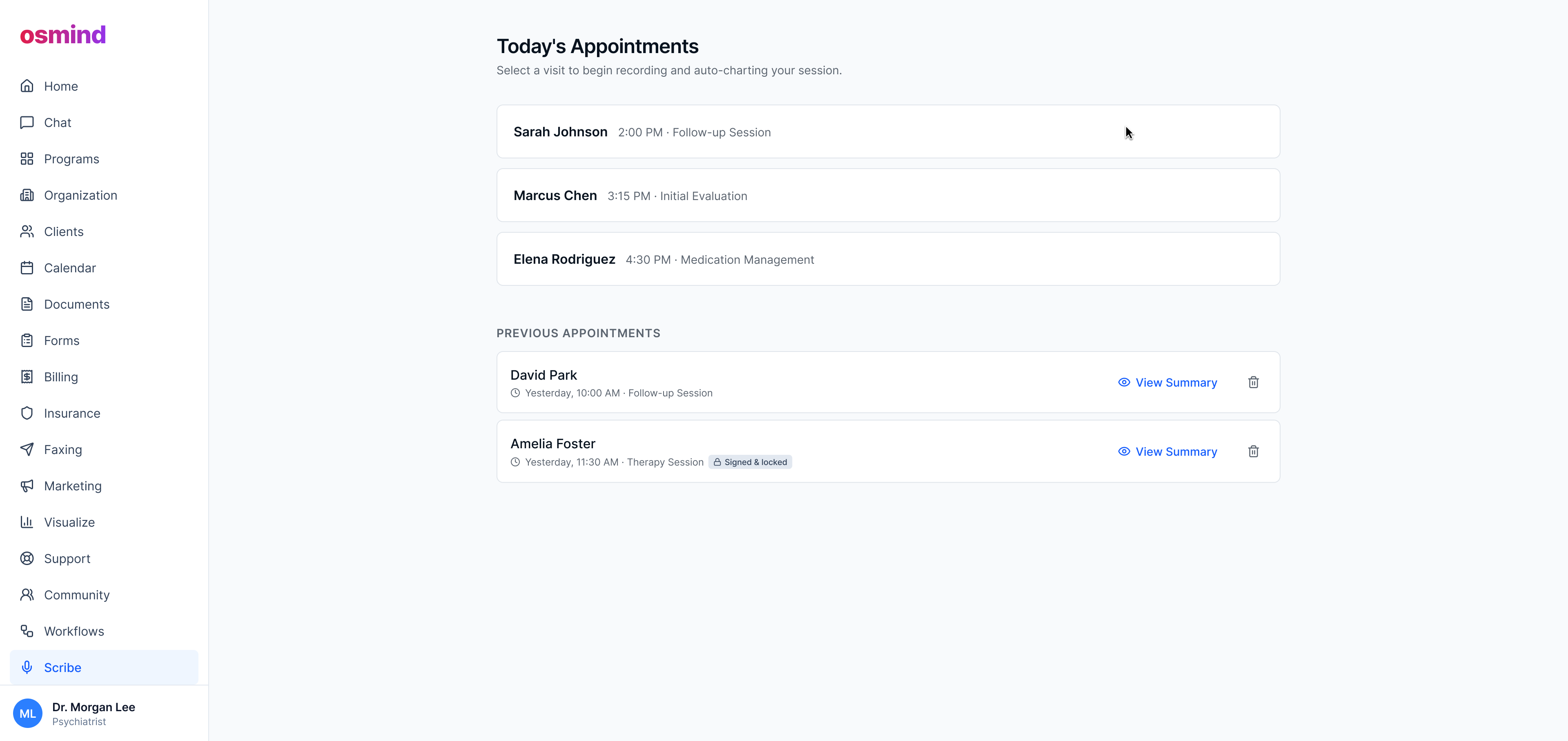
Open AI Charting from the left rail, pick your appointment, and acknowledge consent. Consent is logged automatically, one time per patient.
2. Take notes while you talk
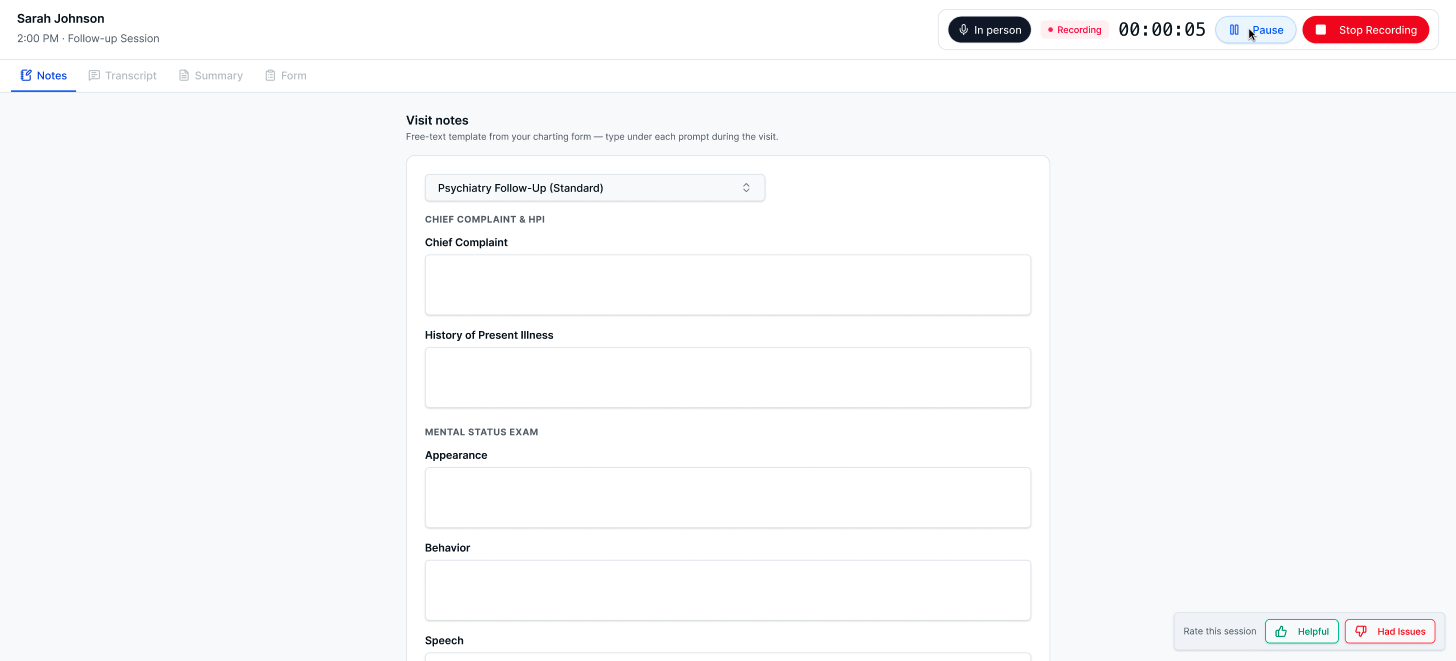
The Notes tab opens with a heading for each section of your charting form — chief complaint, mental status exam, risk, assessment and plan. Type shorthand under any of them. Both your notes and the session audio are used to build the form.
Select In person or Telehealth, then Start.
The Transcript, Summary, and Form tabs are greyed out while you record. They unlock as soon as you stop.
3. Pause when you need to
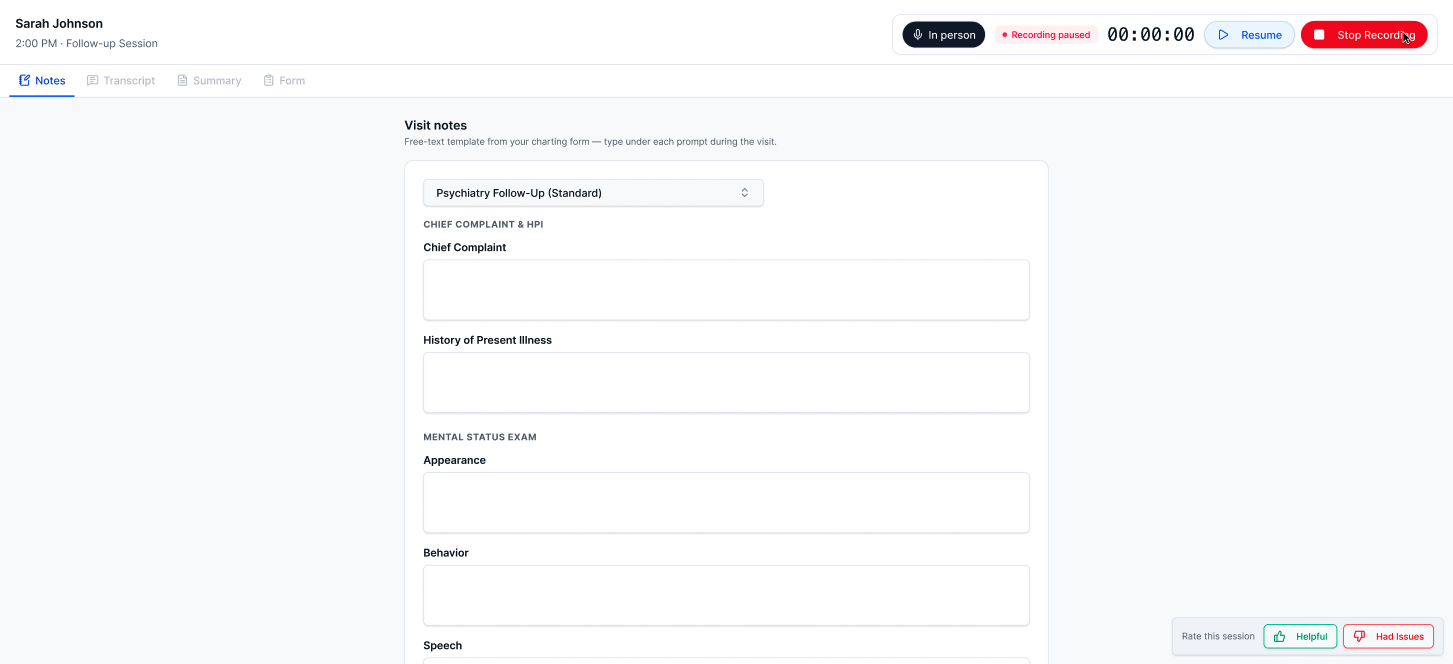
Pause stops capturing audio and the indicator changes so there's no question about whether you're being recorded. Resume picks back up in the same session.
If a visit has a second segment after a break, use Continue Recording rather than starting a new session — it appends to the same note.
4. Review the transcript and summary
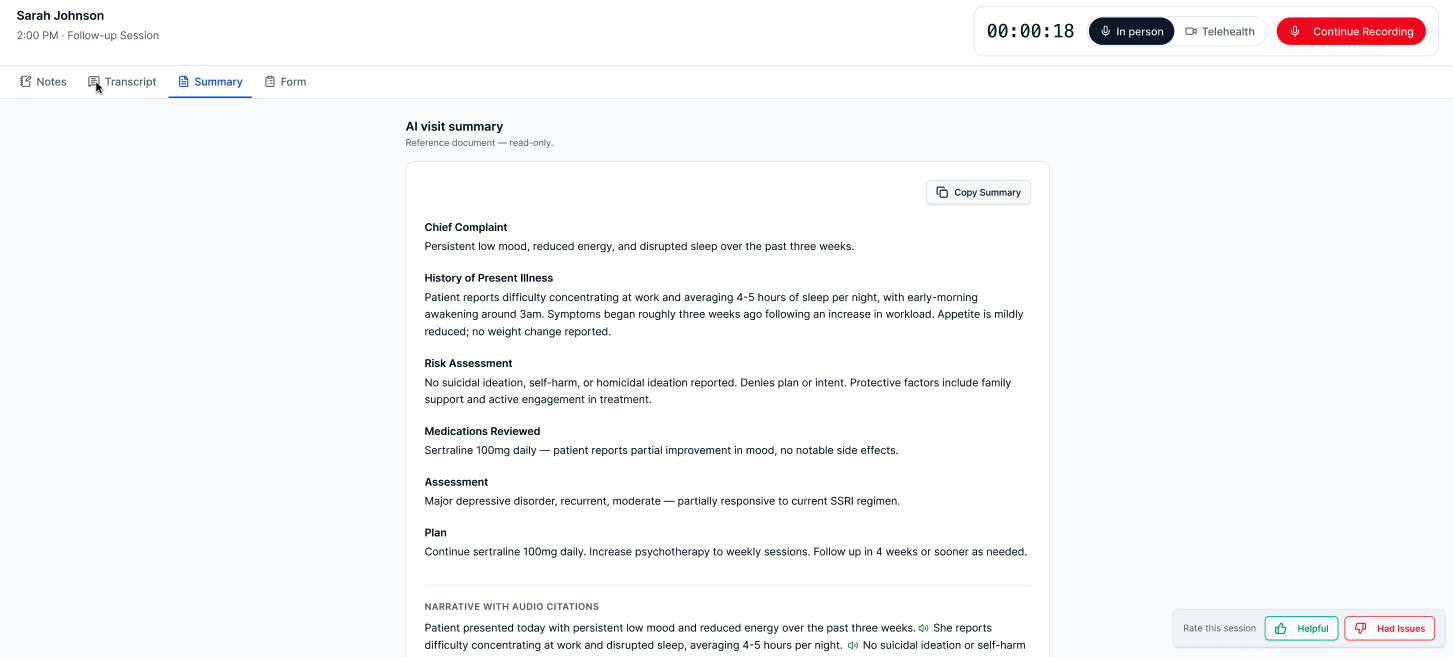
After you stop, the Transcript tab holds the speaker-labeled record and the Summary tab holds the generated visit summary. Each has its own copy button.
5. Generate the charting form
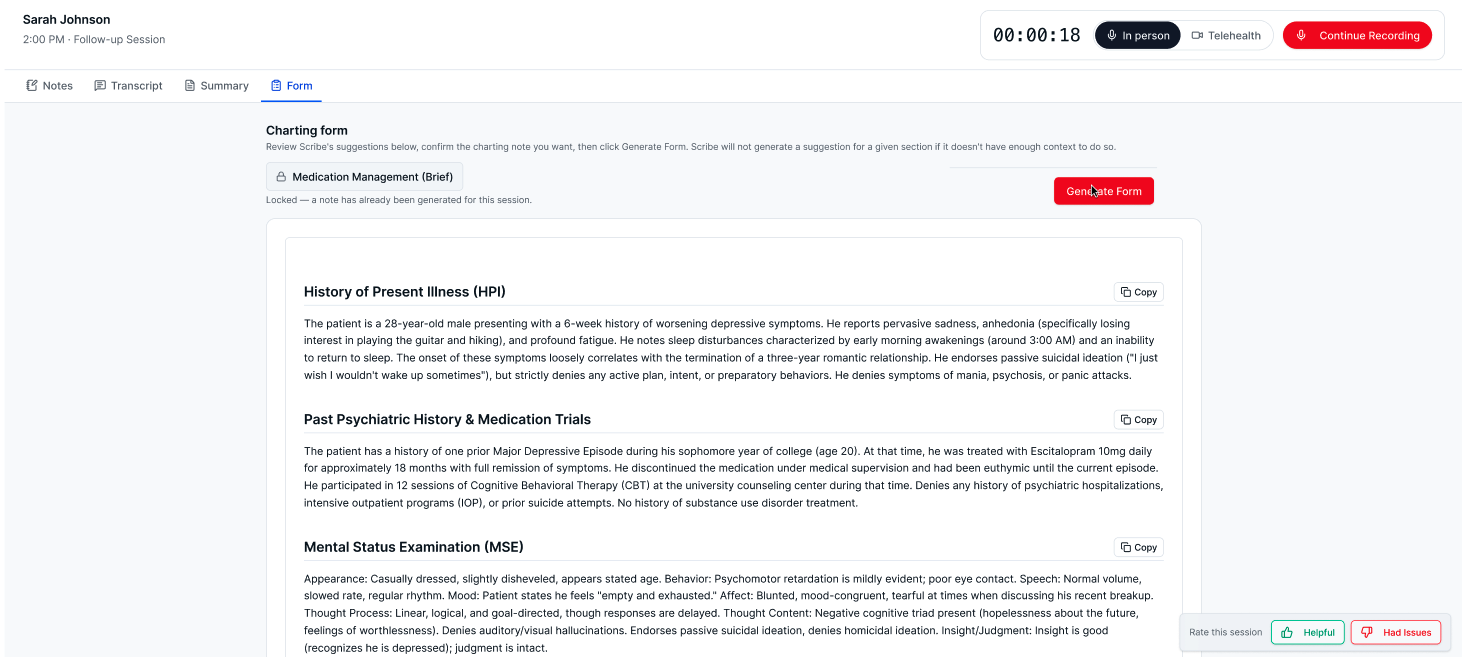
On the Form tab, select Generate Form which will create your charting form in a new tab with all your suggestions inserted. Review what was filled in, complete anything left blank, then Sign & Lock your form to finish and sign in the patient's chart
Recording in person
Built-in laptop microphones aren't built to pick up two people across a room, and audio quality is the single biggest driver of transcript accuracy.
Use an external mic with 360-degree pickup. We recommend the Jabra Speak 510. Any omnidirectional mic beats a laptop mic.
Put it in the middle of the room, roughly equidistant between you and your patient — not next to your laptop. Placement matters more than which mic you buy.
Wired USB is more reliable than Bluetooth for a full session.
Smaller, quieter rooms transcribe noticeably better. Echo hurts.
Consent and state law: recording laws vary by state and some require all parties' consent. Keep following your practice's existing consent process — the consent step here is in addition to it, not a replacement.
Pricing
AI Charting is free for pilot practices through 2026. There is nothing to opt into and nothing to be billed for while you're in the pilot.
We know that if you're moving off another scribe, you need to know what this costs later. We'll publish pricing here, and tell pilot practices directly, well before anything changes for you.
Common questions
Does it transcribe in real time or after the visit?
The transcript and summary are generated after you stop recording. Real-time transcription is something we're working toward.
Do I need to keep the app open?
No. Recording runs in the background and continues if you close the browser or step away.
Can I use an iPad?
Not currently — the desktop app runs on Mac and Windows only.
Who can see my recordings?
Only the clinician who recorded the session can see that session's transcript, summary, and notes.
Where AI Charting is heading
These are in discussion, not commitments — and no dates. Pilot feedback is the main reason the order changes. If something's missing that would make a real difference to your day, tell us and we'll look at adding it.
Next: editing the prompt and formatting behind the suggestions yourself, and a patient's full session history on their chart.
After that: searching across a patient's past transcripts and summaries, asking questions answered from their own record, recommended follow-up tasks, audio citations, and real-time transcription.
Also under discussion: more than one form per session, prior authorization letters, medications and allergies auto-fill, auto-scheduling and patient-facing visit summaries.
Feedback and help
Use the feedback button in the lower right or email stephen.aman@osmind.org for any product issues, feedback or requests!