Sync Osmind with Google Calendar, Outlook Calendar, and iCal
Last updated: September 25, 2026
Osmind allows you to sync your calendar with Google Calendar, Outlook, and Apple Calendar (iCal) so that your availability stays up to date across platforms and double-booking is avoided.
This article explains how calendar syncing works in Osmind and how to connect each calendar type.
Overview of Calendar Syncing
Calendar syncing helps keep your availability aligned between Osmind and external calendars. The direction of syncing depends on the calendar provider:
Google Calendar: Two-way sync
Outlook Calendar: Two-way sync
Apple Calendar (iCal): One-way sync (Osmind → Apple Calendar)
Accessing Calendar Sync Settings
To manage calendar syncing:
Click the gear icon (Settings) in Osmind
Navigate to Calendar Settings
Scroll to the Calendar Sync section
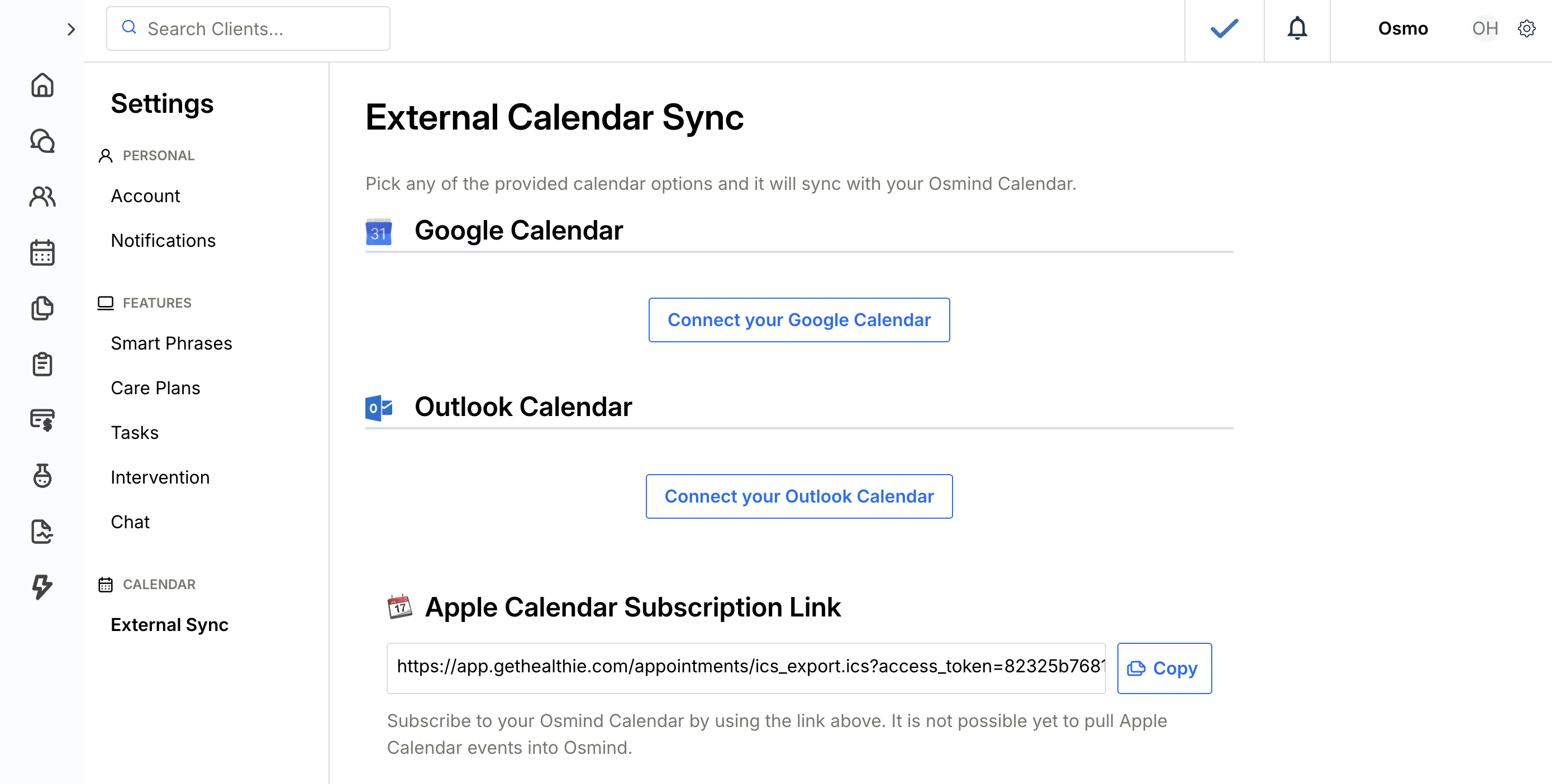
Syncing with Google Calendar (Two-Way Sync)
After a successful sync, please allow up to 30 minutes for your Google events to populate in Osmind.
Connect Google Calendar
In Settings, select External Sync, then Connect your Google Calendar
Click Connect my Google Calendar
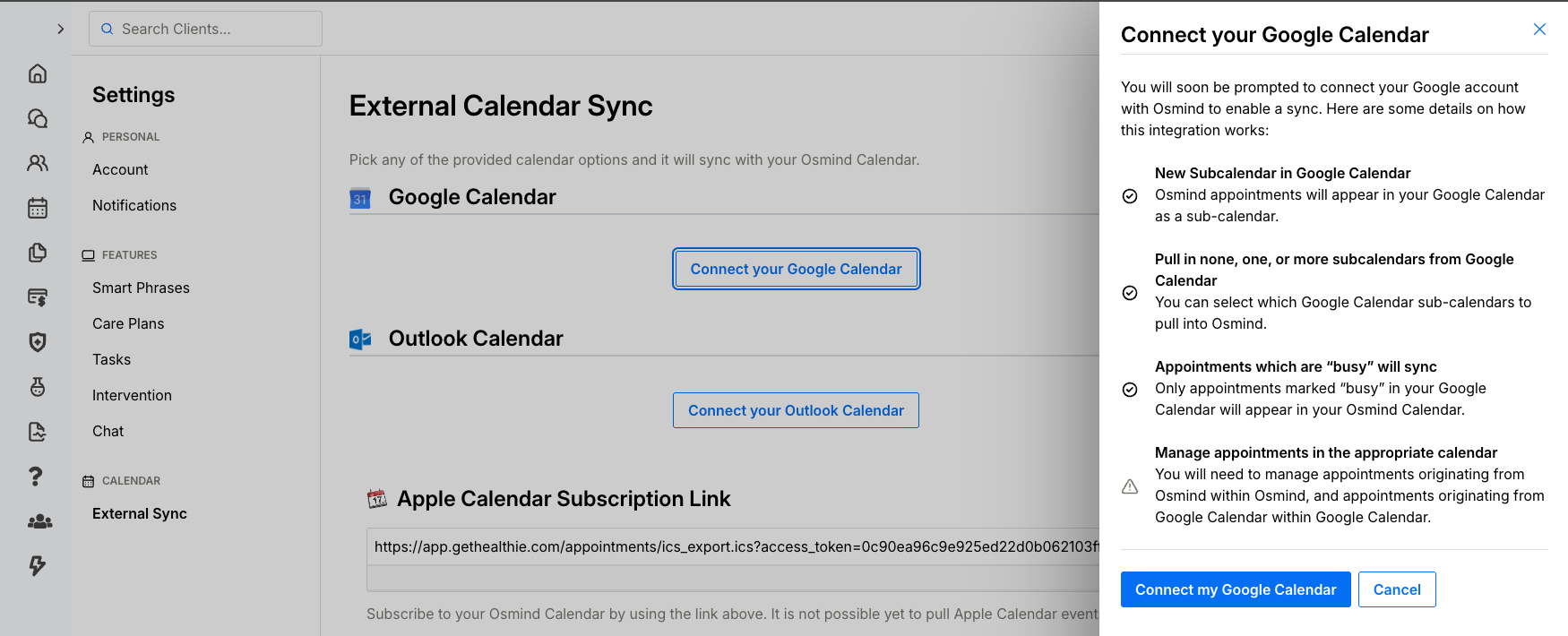
This will launch the GCal authorization screen. You will be prompted to log into your Google account associated with your GCal to confirm that Osmind has access to your calendar to pull / push your schedule.
If prompted, please make sure to check the box that allows Osmind to "See, edit, share and permanently delete all the calendars you can access using Google Calendar." The sync will not function properly if this permission is not granted. Then, click Continue.
You will then be brought back to Osmind, where you will see a success bar notifying you that the sync has been completed. It can take up to 24 hours for the Sync to pull / push all appointments created.
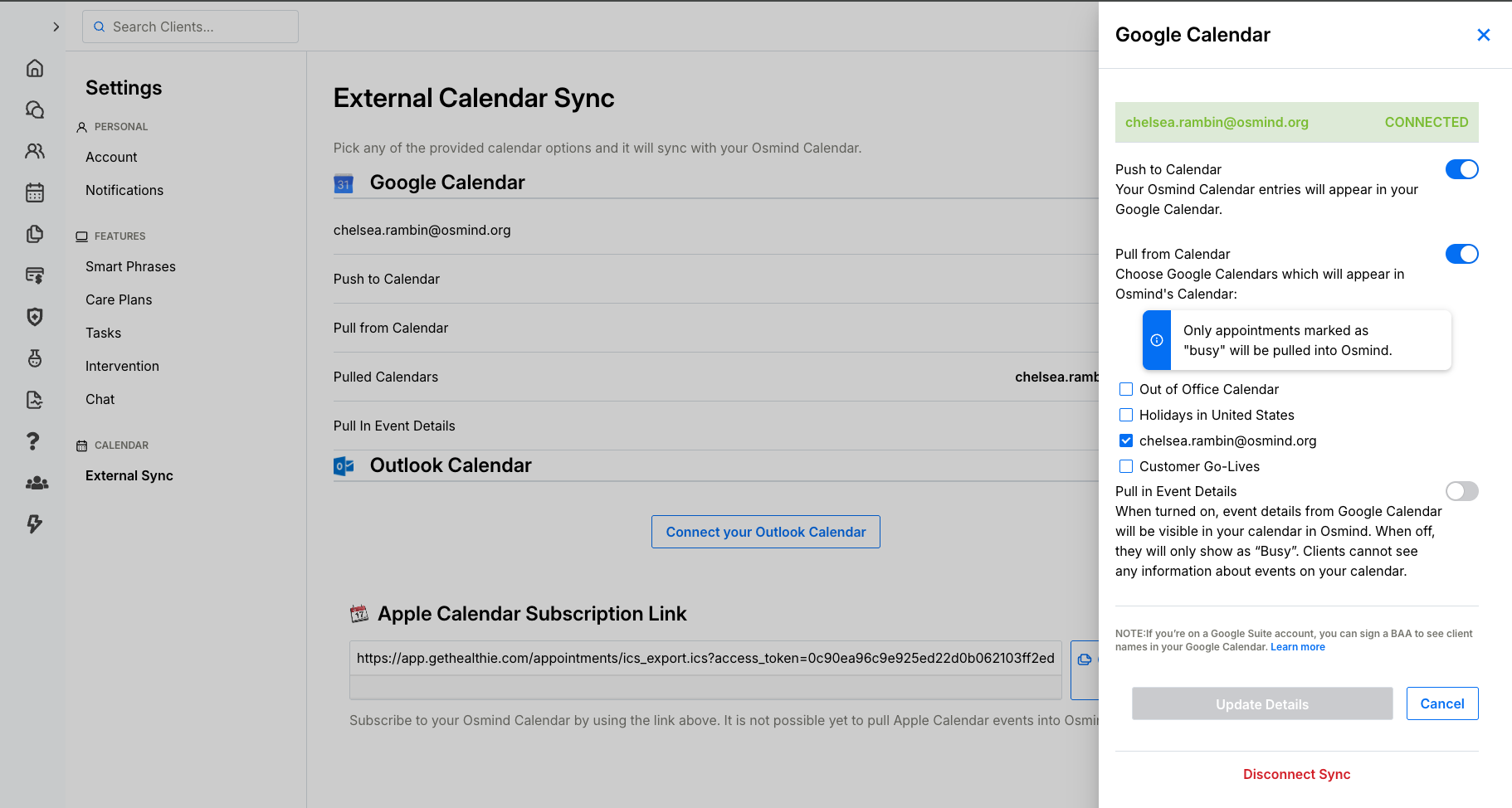
Additionally, you'll see a few additional settings options for Google Calendar that can be enabled/disabled:
Push to Calendar: your Osmind calendar events will appear in your Google Calendar
Pull from Calendar: choose which Google calendars that will appear in your Osmind calendar (if you have multiple calendars)
Pull event details: when turned on, event details from Google Calendar will be visible in your calendar in Osmind. When off, they will only show as "Busy." Clients cannot see any information about events on your calendar.
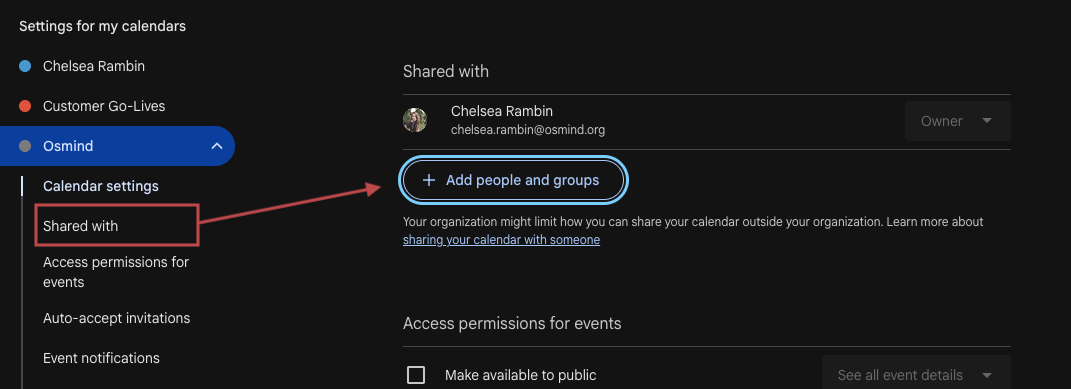
In certain cases, such as working in a group practice, you may want your appointments to be visible to other team members on Google Cal. This will prevent any meetings or appointments from being double-booked from team members who only have access to your Google Cal, and not your Osmind calendar.
To be sure these appointments are displayed, navigate to your Google Calendar, find the Osmind calendar under "My Calendars", and select "Settings and Sharing". Click on the drop down menu and select "Shared with."
You can then click on the "Add people and groups" button and invite other members of your organization to view your Osmind appointments through your Google Cal.
How Google Calendar Sync Works
Google Calendar syncing is two-way:
Osmind appointments appear on your Google Calendar
Events marked as Busy on Google Calendar block availability in Osmind
Updates made in either system sync to the other
Event titles from external calendars may not display in Osmind, but time blocks will apply
This helps prevent double-booking while allowing you to manage your schedule across both platforms.
Important Google Calendar Rules & Limitations
Google Calendar events do not create appointments in Osmind
Google Calendar edits should not be used to manage Osmind appointments
Deleting a Google event will not cancel an Osmind appointment
Appointment notes, patient details, and telehealth links remain in Osmind only
Osmind should always be treated as the source of truth for scheduling.
Multiple Google Calendars
If your Google account has multiple calendars:
Osmind may sync with your primary calendar
Busy events across synced calendars can block availability
Review which calendars are marked as “Busy” in Google settings
Troubleshooting Google Calendar Sync
If availability isn’t blocking correctly:
Confirm events are marked Busy, not Free
Allow time for sync refresh (can take several minutes)
Disconnect and reconnect Google Calendar if permissions changed. To diconnect and reconnect Osmind to a Google Calendar:
select Disconnect Sync within Osmind's External Sync settings
delete Osmind Calendar within your Google Calendar
delete Osmind as a third-party app by clicking your Google profile image, then "Manage your Google account", then "Third-party apps & services". Scroll down and click "Osmind", then Delete all connections you have with Osmind.
reconnect your Google calendar via the instructions above
Ensure you’re logged into the correct Google account
Delete an Osmind calendar within Google Calendar
In the event that you have synced & unsynced your calendar with Osmind, you may notice several Osmind calendars listed within Google Calendar.
The unused Osmind calendars can be unsubscribed by navigating to Google Calendar > Settings > 'Settings for my calendars' > Osmind > Delete calendar. We recommend double-checking which calendars are actively synced to avoid accidentally deleting the wrong one.
Syncing with Outlook Calendar (Two-Way Sync)
Connect Outlook Calendar
In Calendar Sync, select Outlook Calendar
Click Connect Outlook Calendar
Sign in to your Microsoft account
Approve calendar access permissions
How Outlook Calendar Sync Works
Outlook syncing is also two-way:
Osmind appointments appear on your Outlook calendar
Busy events in Outlook block availability in Osmind
Changes sync between Osmind and Outlook based on refresh timing
Sync timing may vary depending on Outlook version (desktop vs web)
If Outlook Calendar Has Stopped Syncing
Sometimes Outlook Calendar changes the permissions it grants to third-party tools like Osmind's calendar. When that happens, Osmind no longer has the permissions it needs to connect with your Outlook calendar, and new appointments or events from Osmind will stop appearing on your calendar.
Fortunately, there are simple steps you can take to restore these permissions.
Pop-up blockers must be disabled for a calendar sync to work.
Step 1
Navigate to your External Sync settings and click "Edit" next to Outlook Calendar.
Scroll to the bottom of the side panel that appears, and click "Disconnect Sync."
Step 2
In Outlook Calendar, navigate to the sidebar using the correct Outlook account and delete all instances of Osmind.
Step 3
Confirm that Osmind is not listed under "My Calendars."
Step 4
Go back to your External Sync settings and sync your Outlook Calendar again.
Make sure that you allow Osmind access to your calendar when prompted.
Step 5
Wait up to an hour to see changes take effect.
If you are still having issues with your Outlook Calendar sync after completing these steps, email us at getsupport@osmind.org.
Syncing with Apple Calendar (iCal – One-Way Sync)
Apple Calendar syncing uses an iCal subscription, which is one-way only.
Connect Apple Calendar (iCal)
Navigate to Calendar Sync settings
Copy your iCal subscription URL
Open Apple Calendar
Select File → New Calendar Subscription
Paste the iCal URL and save
How Apple Calendar Sync Works
Osmind appointments appear in Apple Calendar
Changes made in Apple Calendar do not sync back to Osmind
Apple Calendar events do not block availability in Osmind
All scheduling and availability management must be done in Osmind
Managing Multiple Calendar Connections
You can connect multiple external calendars
Google and Outlook calendars can both block availability
Review connected calendars to avoid unintended scheduling conflicts
Disconnecting a Calendar
To disconnect a calendar:
Navigate to Calendar Sync settings
Find the connected calendar
Click Disconnect
Once disconnected, that calendar will no longer sync events or availability with Osmind.
Important Notes & Limitations
Sync timing may not be instantaneous
Event details may be limited depending on provider
External calendars should not be used to create Osmind appointments
All patient scheduling should be completed within Osmind
Summary
Osmind supports calendar syncing with Google, Outlook, and Apple Calendar to help keep availability accurate and prevent double-booking. Google and Outlook offer two-way syncing, while Apple Calendar supports one-way viewing only. For best results, manage appointments and availability directly in Osmind.