Manage Appointment Requests
Last updated: August 7, 2026
Osmind's Appointment Requests feature lets providers capture interest from both new and existing patients — even when their calendar is full. By allowing patients to request specific dates and times for appointments, this feature helps practices stay organized, prevent lost leads, and streamline follow-up.
This functionality is separate from the Group Appointment Waitlist feature, which applies only to appointment types for group sessions.
Enable Appointment Requests for Your Account
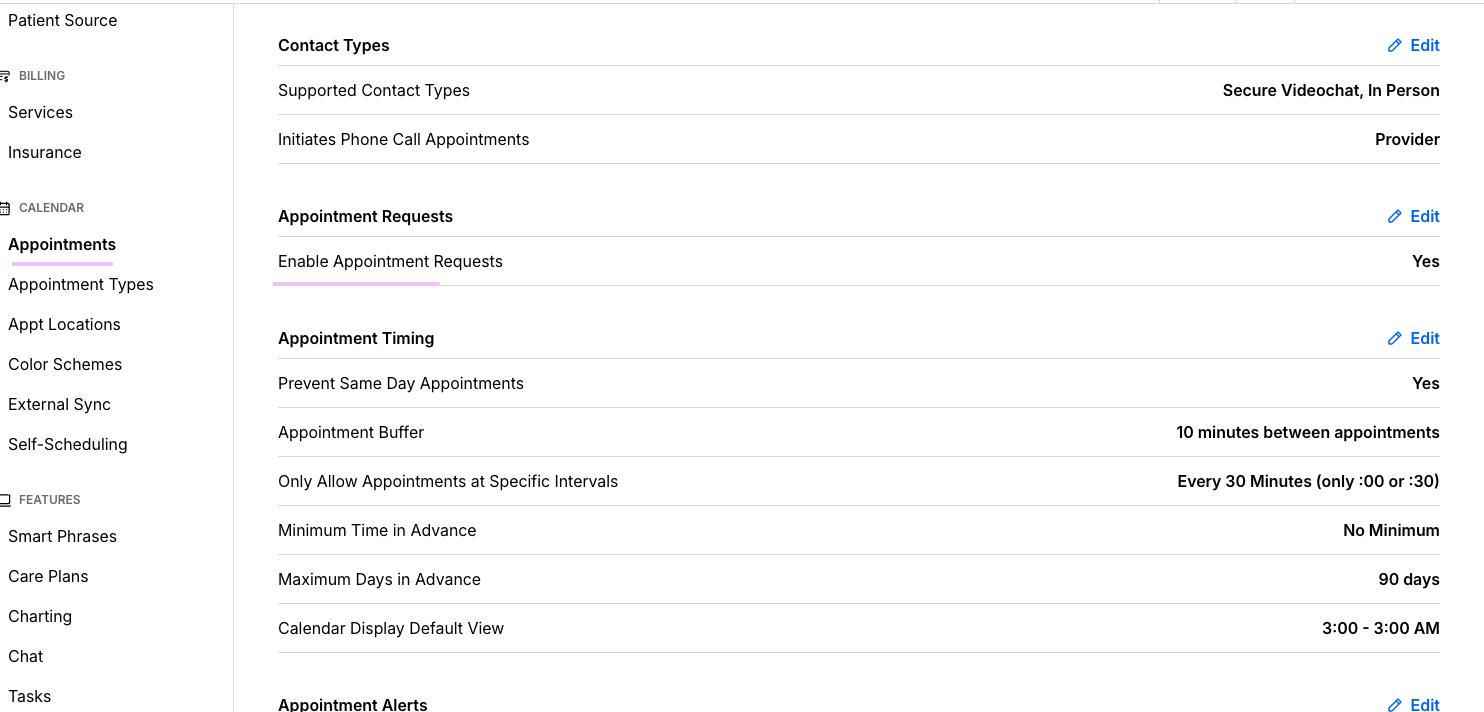
Appointment Requests can be enabled by the account owner within Settings > Appointments > Enable Appointment Requests.
How Patients Request an Appointment
When a patient moves through the standard booking flow and reaches the Date/Time selection screen, they'll have the option to submit a request if no appointment slots match their availability. A prompt will appear:
"Not seeing what you need? Submit an appointment request."
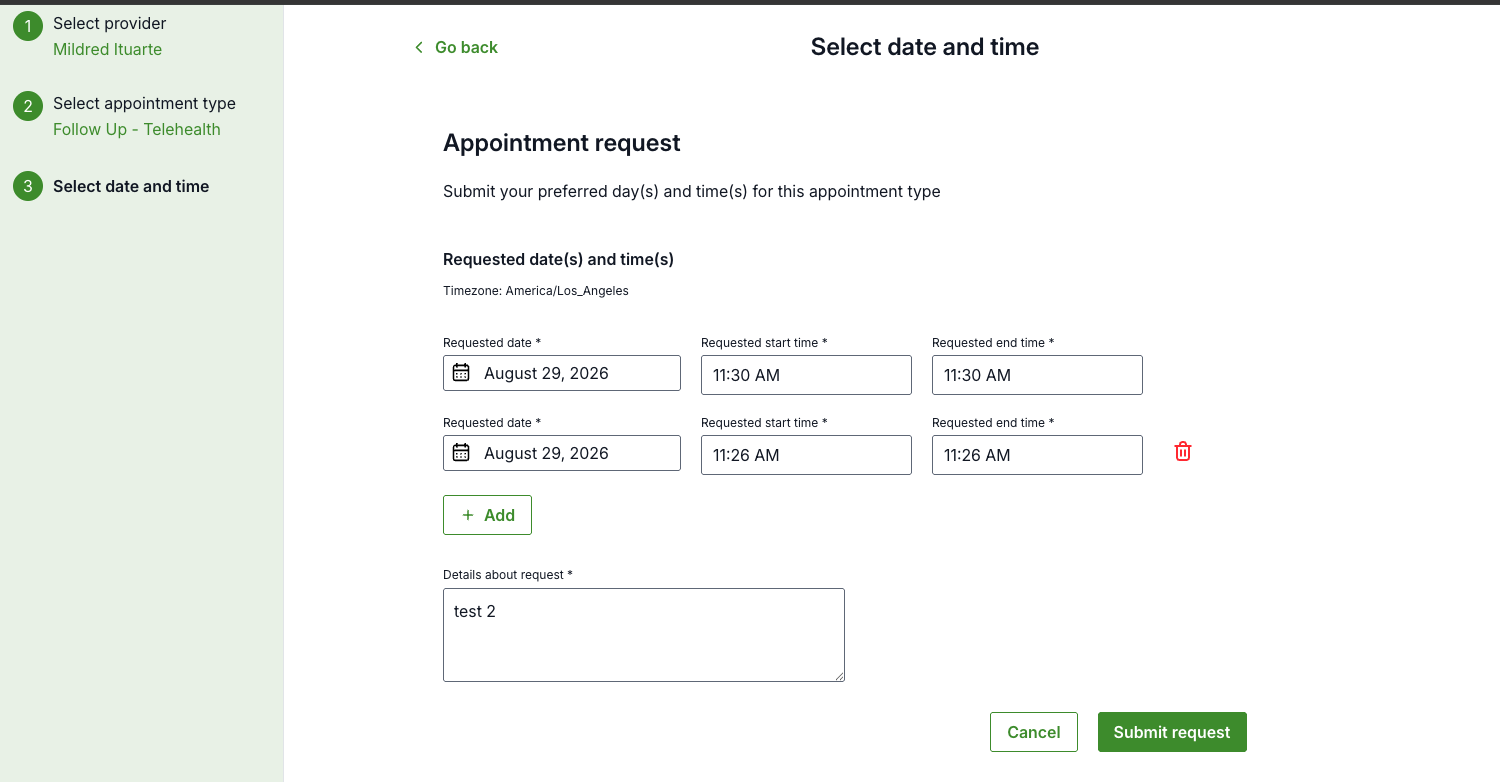
Clicking this prompt opens a dedicated appointment request form, where patients can share their preferred availability for a specific appointment type. Patients are asked to provide:
Requested date
Requested start time
Requested end time
Additional notes or context about their request
If a patient has flexibility, they can use [+ Add] to submit multiple preferred date and time combinations, giving providers more options to accommodate the request.
After submitting availability, patients are directed to a contact information form, where they must enter:
First name
Last name
Email address
Phone number
This ensures providers can follow up directly and manage the request from within their workflow.
Once submitted, patients see a confirmation screen:
You've submitted an appointment request. Thank you for your interest! Your request is now on our waitlist. We will review the waitlist and if an appointment slot becomes available that matches your preferences, we will contact you.
Patients are also looped back to the booking flow if they'd like to book another appointment.
Receiving & Managing Appointment Requests
Providers and admins are notified when a new request comes in, if they've enabled notifications in Settings > Appointment Requests.
Notifications for providers: Providers receive a notification when:
They are the requested provider
The patient indicated no provider preference
Osmind automatically maps patients to their existing account when possible, labeling them "Active Patient." Patients who can't be matched are labeled "New Patient" — new patients aren't automatically added to Osmind and don't count toward your active patient number. Matching is based on the patient's email address.
Sort Appointment Requests
Appointment requests can be sorted by:
Date added (oldest to newest)
Date added (newest first)
Appointment type (A–Z)
Requested provider name (A–Z)
Patient name (A–Z)
New patients first
Active patients first

Add Notes to Appointment Requests
Providers and admins can use [+ Add note] to leave comments on a request, visible to any staff with permission to view it.
Delete an Appointment Request
To remove a pending request, go to [...] > Delete. This action can't be undone.
Convert New Patients
New patients can be added to your Active Patient list using [...] > Convert to Patient. Converting the patient to active is required before you can schedule the requested appointment.
Once converted, patient information auto-populates into the account creation fields, and you can:
Add the patient without scheduling
Add the patient and schedule
You can optionally send a welcome email, prompting the patient to create a login and access their Osmind Patient Portal.
Add a New Patient and Schedule in the Same Workflow
Osmind's Appointment Request feature is fully integrated into your workflow, so you can convert interest into action with minimal effort. When a new patient submits a request, you can add them to your patient list and schedule their appointment in a single, streamlined process.
The following auto-populates into the "Add to Calendar" form, based on the patient's request:
Invitee (patient)
Provider
Appointment type
Contact type
Video call method (if applicable)
Start date (from the earliest date requested)
Start time (from the earliest time requested)
A double-booking warning will display if the appointment overlaps with an existing scheduled appointment.
Once the appointment is scheduled, the request is automatically removed from your Appointment Requests list, and you'll see a confirmation message:
"Appointment has been successfully booked and appointment request has been deleted."
FAQs: Appointment Requests
Does the patient get notified when an appointment request is submitted? Patients see a confirmation on their screen once submitted. If the provider books the appointment, the patient will receive an appointment confirmation and reminder, based on your account's notification settings.
Can the placement of the Appointment Requests tab be moved? The Appointment Requests tab currently lives under Patients, tied to the same permissions that control patient visibility. It can't be moved at this time.
How does Osmind determine if a patient already exists? Osmind uses the patient's email address to match requests to an existing account. If there's no email on file but an account exists, you can skip the "Convert to Patient" step, or merge patient profiles if a duplicate is created.
How can I check availability when booking a requested appointment? You'll get a double-booking warning if you try to book over an existing appointment. It can help to have your provider or organization calendar open in a second tab while booking.