Your New Osmind Sign-In Experience
Last updated: September 29, 2026
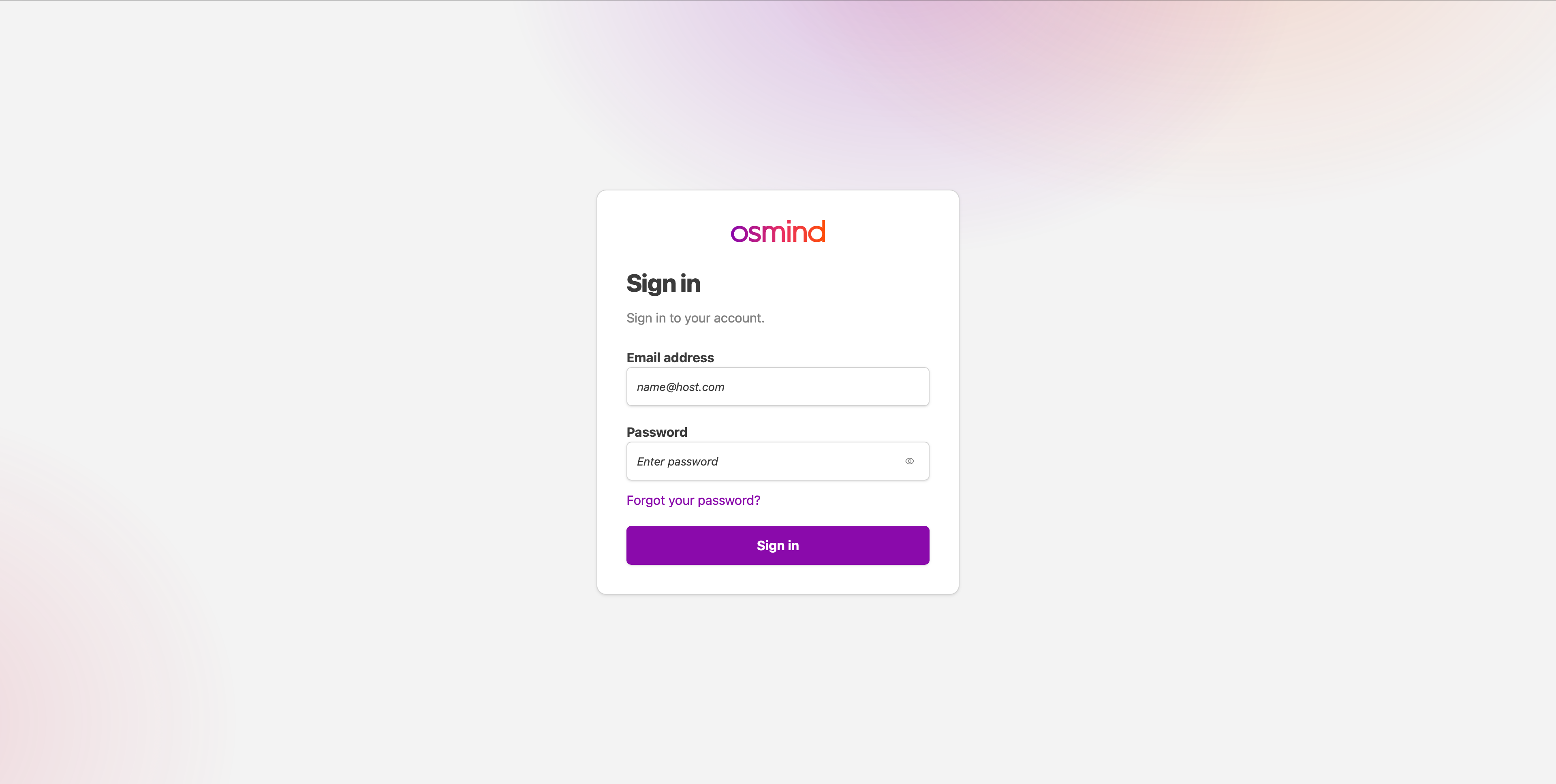
Starting Monday, September 28th, 2026, you'll see a new Osmind-branded sign-in page when you log in. Your email, password, and patient data are not changing, and you don't need to do anything to prepare.
What's new:
A refreshed sign-in page with Osmind branding. You may notice the web address now starts with
login.care.osmind.org. This is expected.Optional two-step verification (MFA) using an authenticator app, for added account security.
A simpler setup for new team members. Invite emails now say "Set up your Osmind account" and take new users straight to a page to create their password.
Updated password reset emails with the subject "Reset your Osmind password."
Patient sign-in is not affected.
Signing in
Go to Osmind as you normally do.
Enter your email and password on the new sign-in page.
If you've turned on two-step verification, enter the 6-digit code from your authenticator app.
Setting up two-step verification (optional)
After you sign in, you may see a prompt to add two-step verification. This adds a second check (a 6-digit code from your phone) so no one can access your account with just your password.
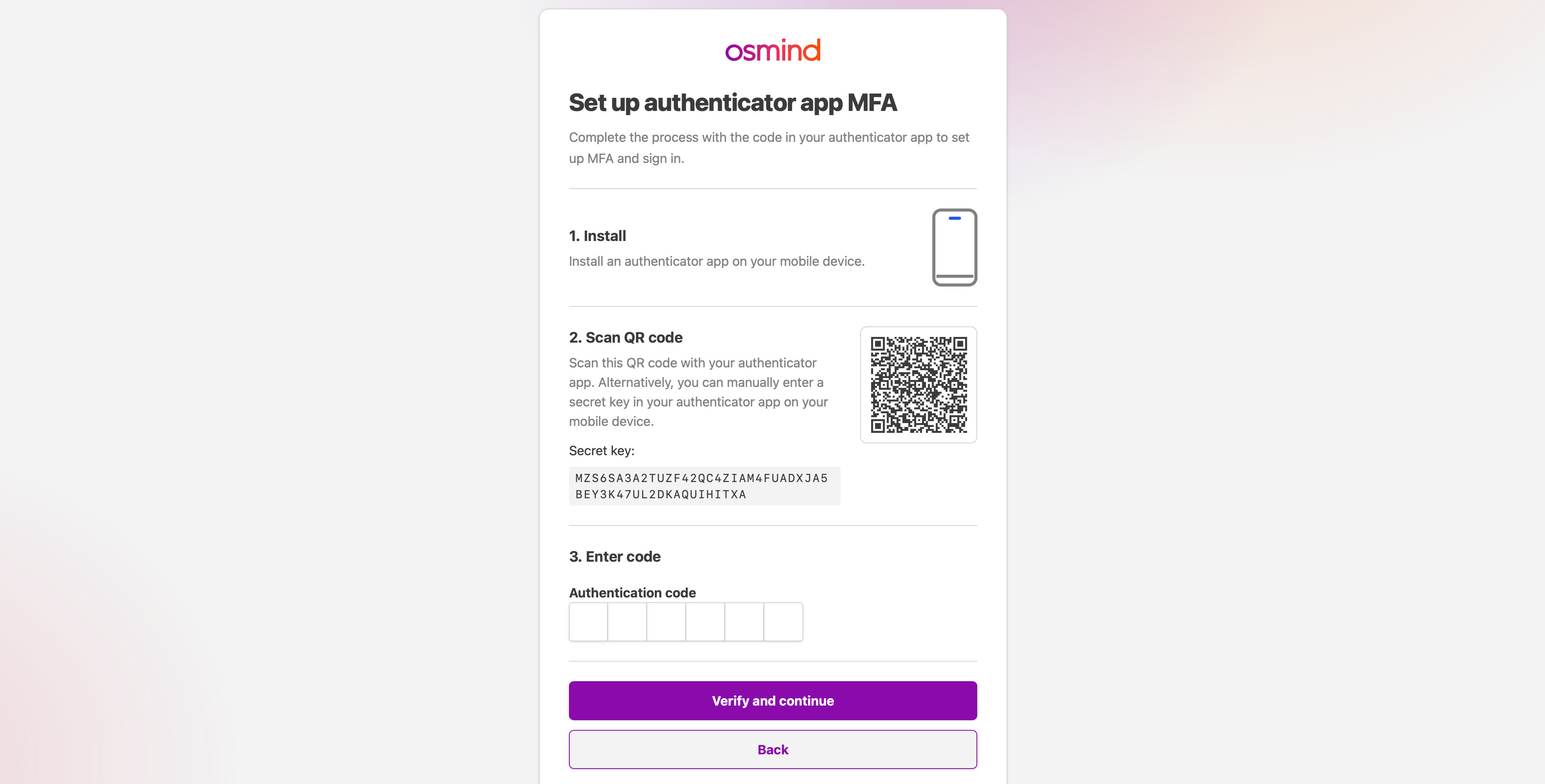
You'll need a free authenticator app, such as Google Authenticator, Microsoft Authenticator, or Authy. Text message (SMS) codes are not available yet.
To set it up:
Select Set up on the prompt.
Open your authenticator app and scan the QR code on screen.
Enter the 6-digit code shown in the app.
You're done. Next time you sign in, you'll enter a code from the app after your password.
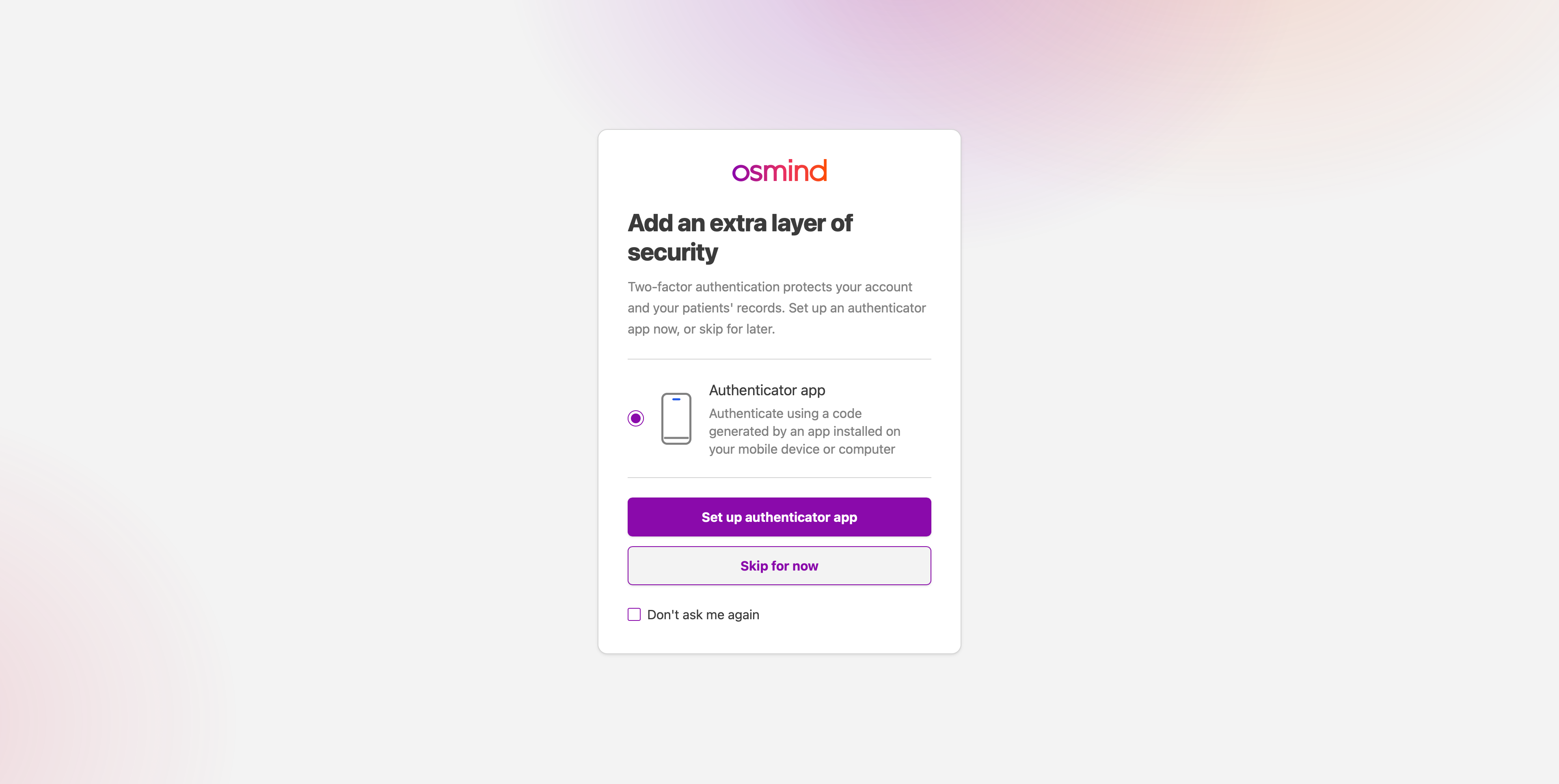
Not ready? You have two options:
Skip for now: We'll ask again the next time you sign in.
Don't ask me again: We'll stop asking. If you change your mind later, contact support and we'll turn the prompt back on for you. [Confirm with eng: is this a manual attribute reset today?]
New team members: setting up your account
Open the email with the subject "Set up your Osmind account" from
no-reply@care.osmind.org.Select Set Up My Account.
Create your password and accept the Terms of Use and Privacy Policy.
You'll be signed in to Osmind.
Each setup link works once. If yours has expired or was already used, ask your practice admin to resend the invite, or contact support.
Resetting your password
On the sign-in page, select Forgot password.
Enter your email. You'll receive a verification code by email.
Enter the code and choose a new password.
Sign in with your new password.
Lost your phone or changed devices?
If you set up two-step verification and no longer have access to your authenticator app, select I lost my device on the code screen or contact Osmind Support. For your security, our team will verify your identity and then reset two-step verification so you can set it up again on your new device.
FAQ
Is two-step verification required?
Not right now. It's optional, but we recommend it. We'll give advance notice before it becomes required.
Why does the web address look different?
The new page is hosted at login.care.osmind.org. It's an official Osmind page.
I can't sign in. What should I do?
Try resetting your password first. If that doesn't work, contact Osmind Support.