E-prescribing: Add & Manage Soft Tokens
Last updated: October 9, 2026
Soft tokens are mobile apps that generate one-time passcodes to confirm your identity when prescribing controlled substances. This added security is required for electronic prescribing. This article explains how to add a new soft token to your account, and how to disable or re-enable a token.
Steps to Add a Soft Token
To add a new soft token you must already have an active token and have access to it.
Getting a new phone? Add your new phone as a token before you trade in or reset your old one. An app transferred to a new phone gets a new Credential ID and must be registered as a new token.
If you have gotten a new phone and do not have access to any active token, you will need to go through the identity proofing process again to add a new token. Please contact us at getsupport@osmind.org.
1. Download a Soft Token
Symantec, the same company that makes Symantec hard tokens, also makes an application called VIP Access by Symantec that generates a one-time-pin.
To download a soft token (VIP Access by Symantec) to your phone or tablet:
If you already use VIP Access with another EHR system, you can reuse your existing VIP Access app for Osmind EPCS instead of downloading a new one. Simply select VIP Access when prompted for a token during setup and enter the Credential ID and security code from your existing app.
Go directly to https://vip.symantec.com/ to download VIP Access
Go to the Google Play or Apple App store to download VIP Access by Symantec
Note: The DEA requires that the soft token be on a different device from the device that you are using to prescribe a controlled substance. Most people use their phone or tablet.
2. Associate the soft token to your account
Login to Rcopia directly through Osmind, under the e-Prescribing tab in any patient chart.
Go to the hamburger (main) menu on the top left.
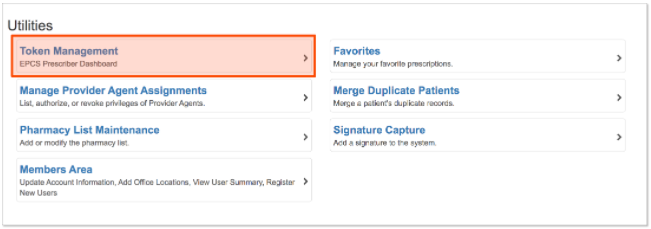
Select Utilities.
Select Token Management.
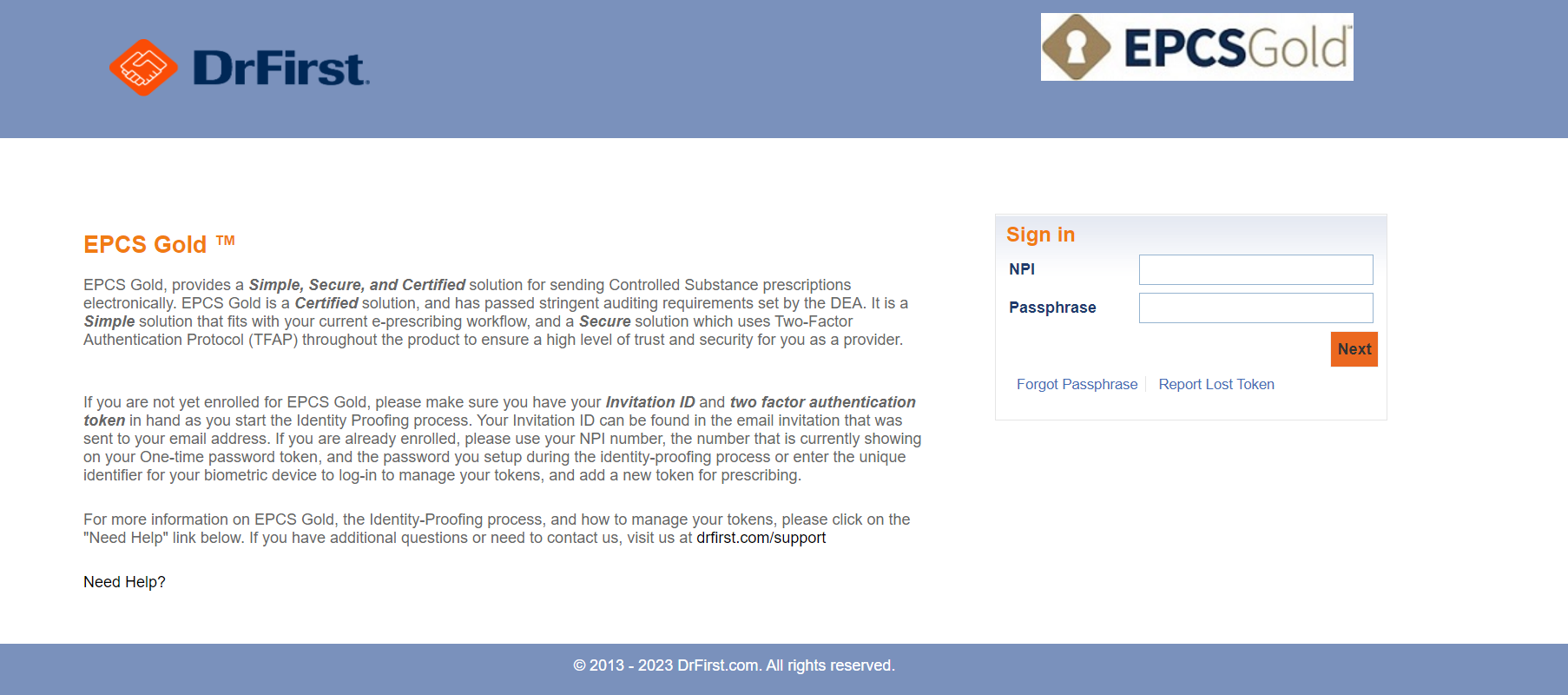
Login with your NPI and passphrase. The Passphrase is the password you use to electronically prescribe controlled substances (EPCS); you created this passphrase when completing the EPCS enrollment.
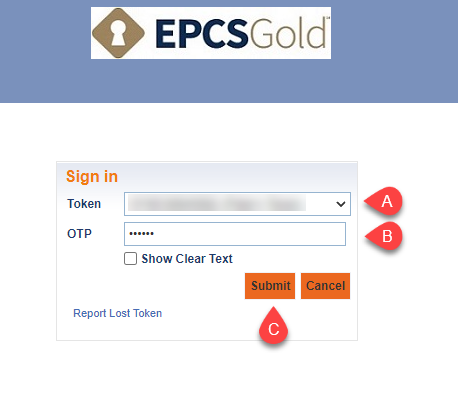
Enter a one-time-pin (OTP) from a token that is already associated to your account.
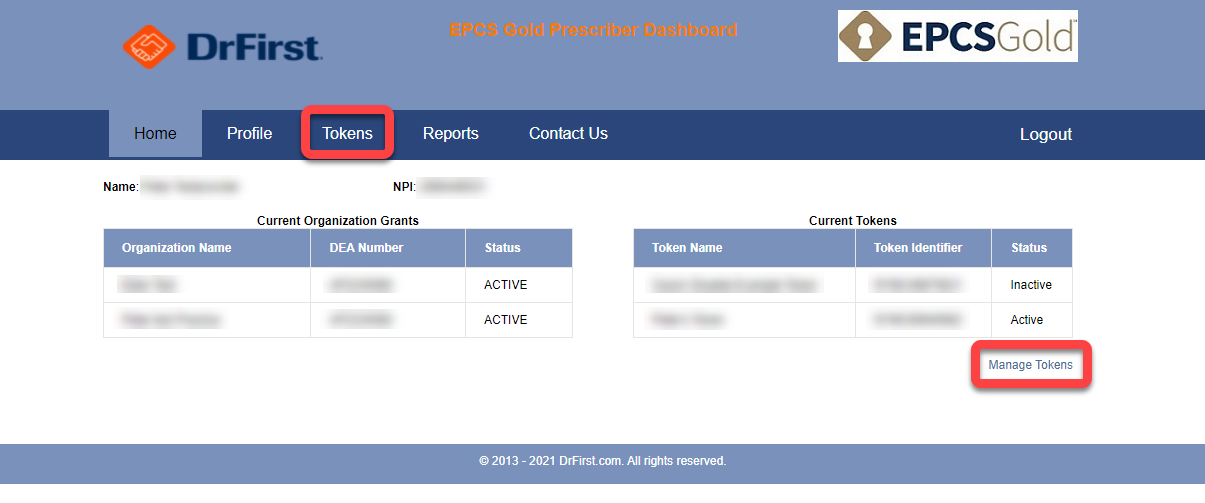
If you are not already at the token management screen, select either Tokens tab at the top or click the Manage Tokens button at the bottom right of the page. Both will take you to token management.
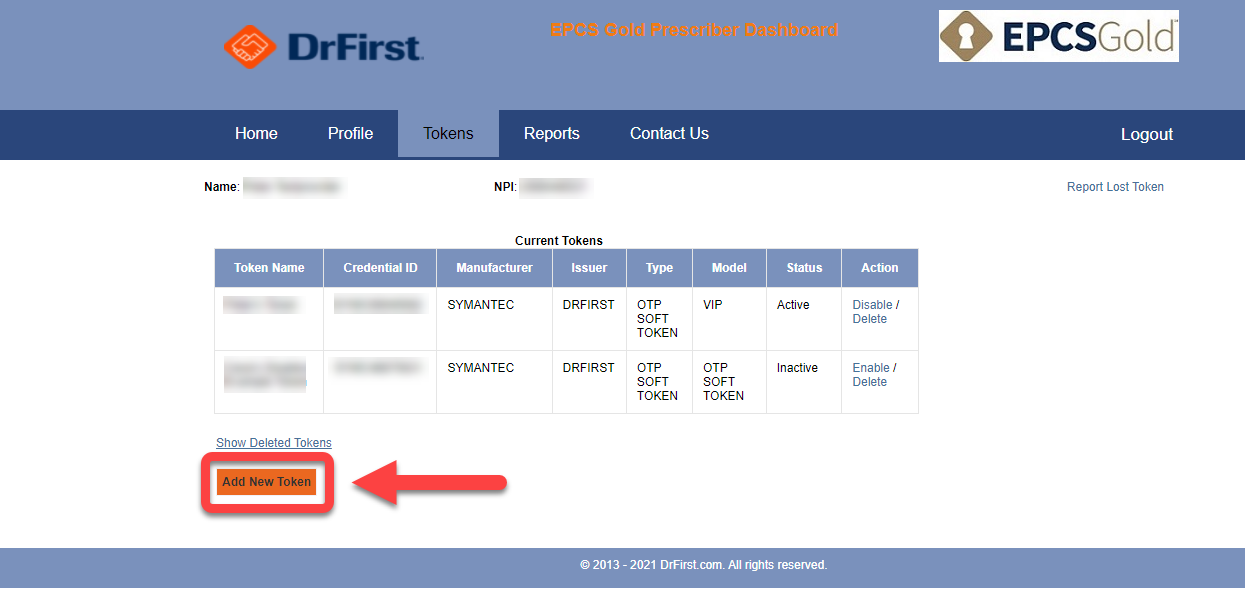
From here, select Add New Token.
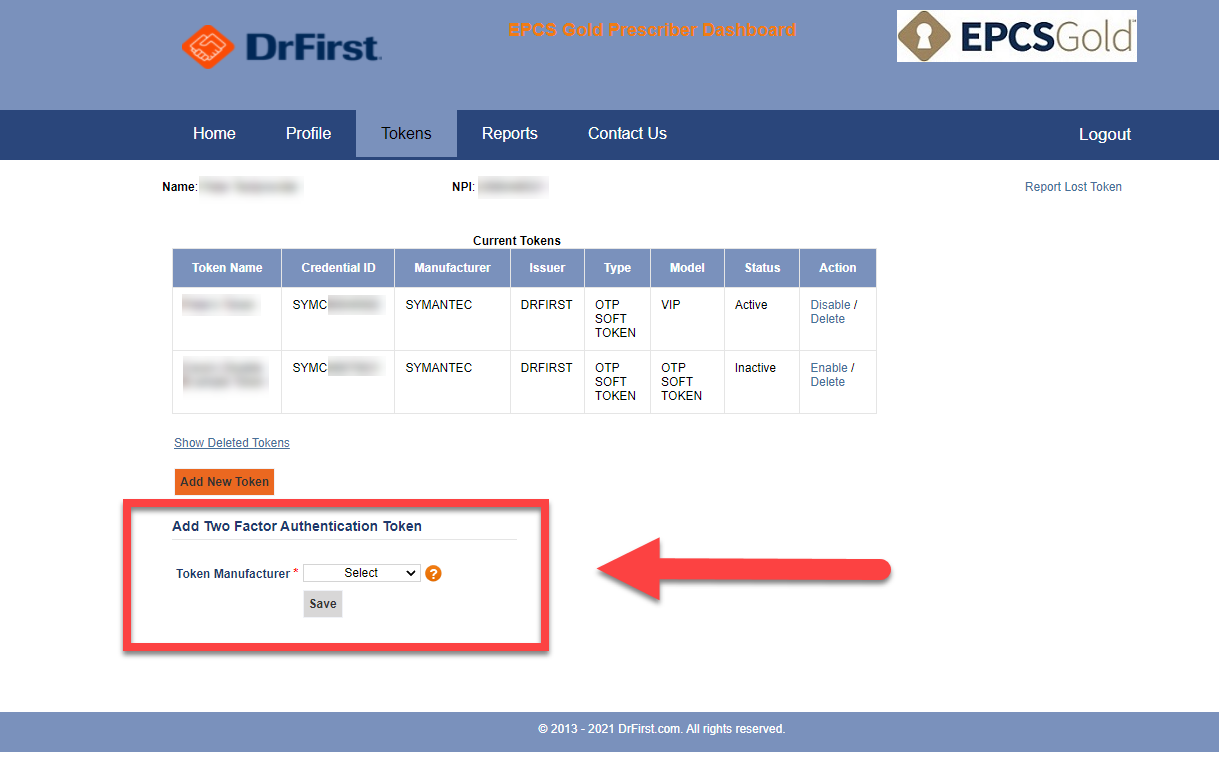
A new section named Add Two Factor Authentication Token will appear below the button. From the drop-down menu, select Symantec as the Token Manufacturer.
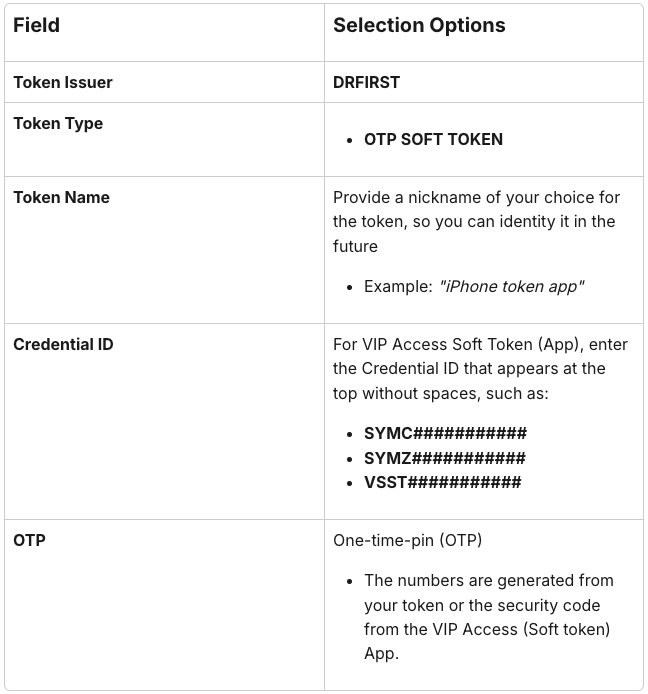
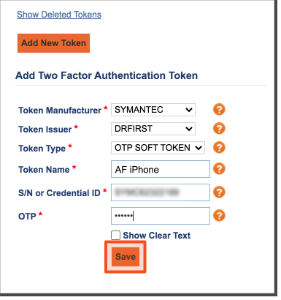
Fill out the fields for soft token as follows:
Token Manufacturer: SYMANTEC
Token Issuer: DRFIRST
Token Type: OTP SOFT TOKEN
Token Name: A nickname you'll recognize, e.g., "iPhone VIP" (do not use an underscore "_")
Serial Number / Credential ID: Shown at the top of the VIP Access app, entered with no spaces (e.g., SYMC########, SYMZ########, or VSST########)
One-Time PIN (OTP): The 6-digit code currently showing in the app
Important: Three failed save attempts will lock your account. Enter the Credential ID exactly as shown in the app.
Save. Your token is now associated with your account.
Tip: We recommend registering a second token (for example, VIP Access on a tablet) so you never lose EPCS access if your phone is lost, replaced, or reset.
Optional: For iPhone/iPad Users: Once you have installed the token on your device, if you have an Apple Watch there is an optional Apple Watch version that will display the code on your watch.
Disable or Re-enable a Token
Use this when retiring an old phone, or if a device is temporarily unavailable. Only disable an old token after your new token is active — if you have no active token left, you'll need to complete EPCS enrollment again.
Log in to Token Management (steps 1–7 above).
On the Tokens tab, find the token and click Disable in the Action column.
Select a reason and click Disable.
Choose the reason carefully: only Temporarily Unavailable can be undone. Selecting Lost, Damaged, or any other reason disables the token permanently.
To re-enable a temporarily disabled token, click the Activate icon in the Action column, enter the one-time PIN from that token, and click Activate Token.