E-Prescribing: Cancel Prescriptions
Last updated: February 12, 2026
This article explains how to cancel a prescription in DrFirst, which is different from stopping a medication.
Stopping a medication
When you stop a medication in E-Prescribing Desktop (Rcopia) it will remove the drug from a patient’s Active Medications and no notifications that it was stopped will be sent to the pharmacy.
Canceling a prescription
When you are canceling a prescription a notification will be sent to the pharmacy to cancel it. You will also have the option to stop the medication, which will remove it from the active medications.
You can cancel a prescription from either the Prescription Summary or the Prescription Management panel. Both panels will display any pending, sent, cancelled or undeliverable prescriptions for a patient.
To conduct a search, fill out the 5 fields as you see fit (Provider, Patient, Drug Type, Status, and Date Range).
Once you have filled out the fields you need, click the orange Search button
Under the Prescription Summary or Prescription Management make sure that you have the correct patient pulled up.

Find the drug you would like to cancel and look for the Actions column on the right side of the screen.
Under Actions click the cancel prescription button (button with the "x").
Be sure to select a reason for canceling the prescription in the drop-down menu on the Cancel Prescription screen.
From the Cancel Prescription screen, you have the option to put a check mark next to Also Stop Medication, which will remove the medication from the patient's active medication list.
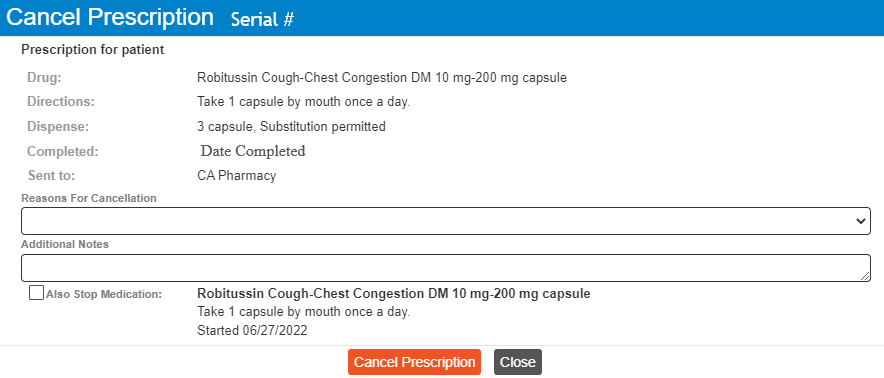
Click the orange Cancel Prescription button. At the top of the screen, you will see a notification that the prescription has been canceled.