Adding Medications, Allergies & Diagnoses in Osmind
Last updated: October 9, 2026
How Medications, Allergies & Diagnoses Sync to DrFirst
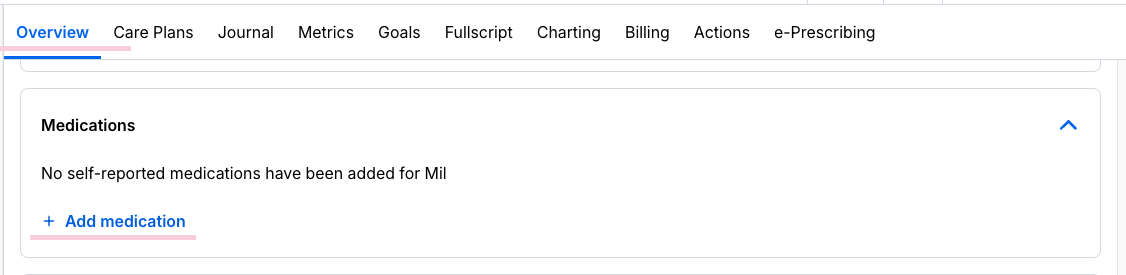
Osmind is now your one place to manage medications, allergies, and diagnoses. Enter these directly in the patient chart, and they'll sync automatically to DrFirst — no more double documentation.
Sync is one-way, from Osmind to DrFirst. Information flows from the Osmind patient chart into DrFirst, but nothing flows from DrFirst back into the Osmind chart.
You can no longer add or edit medications, allergies, or diagnoses directly in DrFirst. All edits happen in the patient chart in Osmind.
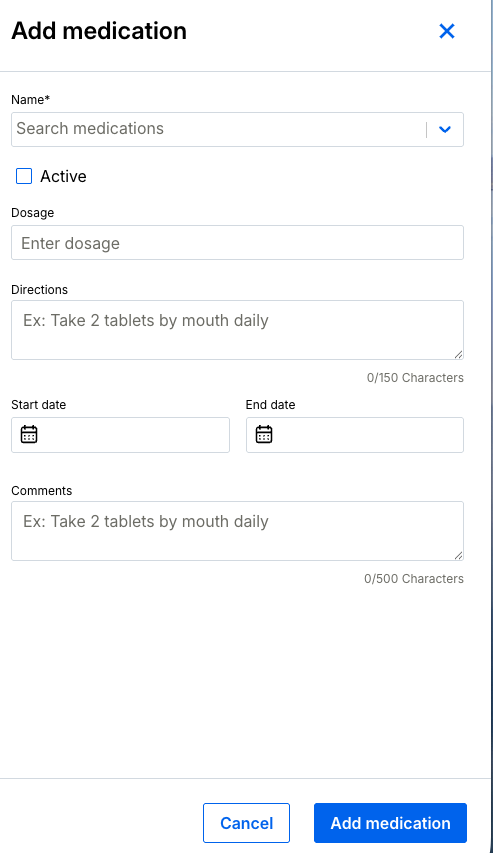
For a medication to sync successfully:
A dosage must be selected (medications without a dosage won't sync)
The "Active" box must be checked for it to appear as an active medication in DrFirst
FAQ and Troubleshooting
Why can't I add or edit medications, allergies, or diagnoses directly in DrFirst anymore? Osmind is now your one place to manage this information. Making all edits in one place — your patient chart — keeps DrFirst up to date automatically and removes the need for double documentation.
My medication or allergy didn't sync to DrFirst — what do I do? If something doesn't sync, you'll see a task in your task list explaining why. Common reasons:
Missing dosage — add a dosage to the medication in the chart and it will sync automatically
Not a recognized prescribable product — this usually means the entry is a compounding ingredient rather than a specific drug; choose a prescribable medication instead
Any other sync error will ask you to reach out to support — our team will help get it mapped correctly
I prescribed a medication directly in DrFirst. Will it show up in the Osmind chart? No. If a medication is prescribed directly in DrFirst (for example, through Create New Rx) without being added to the patient chart first, it will not sync back to Osmind. Add the medication to the patient's chart in Osmind, with a dosage selected and "Active" checked, so the chart stays accurate. To avoid this, always add medications to the chart first, then prescribe.
Note: For password/passphrase issues, sending failures, and DrFirst (Rcopia) settings, see E-Prescribing: Add Medications & Send a Script.