E-Prescribing: Electronic Prior Authorization (ePA+)
Last updated: October 8, 2026
Electronic prior authorization (ePA) is built directly into your e-prescribing workflow through DrFirst Rcopia. When a medication requires prior authorization, the process starts automatically when you send or save your prescription — no manual initiation is needed.
Go to your patient's profile as you normally would to prescribe a medication and open e-Prescribing.
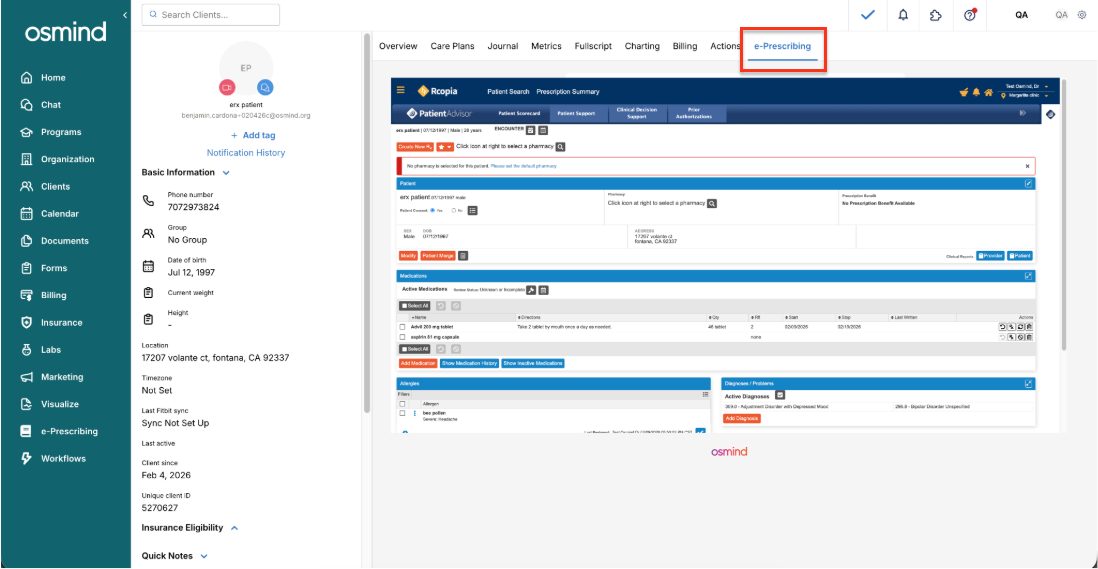
2. Start your prescription The ePA process works from any prescribing entry point Search, Favorites, Renew, and Prescribe. When searching for a medication, you may see a PA label next to a dose.
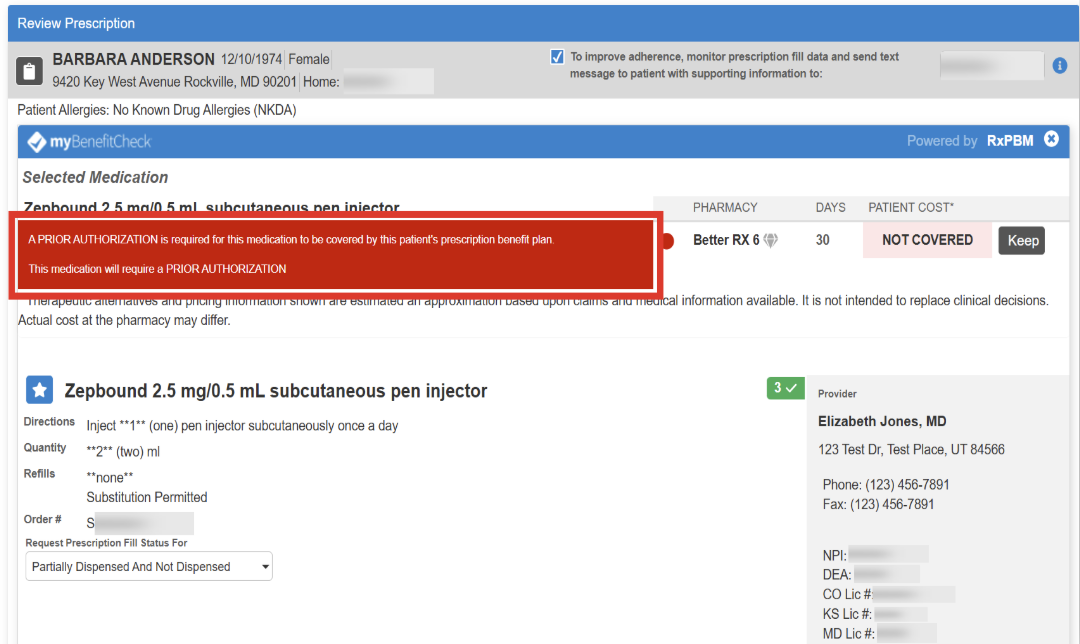
Complete prescription details as usual and proceed to the Review Prescription page.
If the selected medication requires prior authorization, a message on the Review Prescription screen will let you know ePA is needed and that the process has already begun — this message is informational, no action is required. ePA initiates automatically in the background after your prescription is finalized and sent. You can continue working immediately!
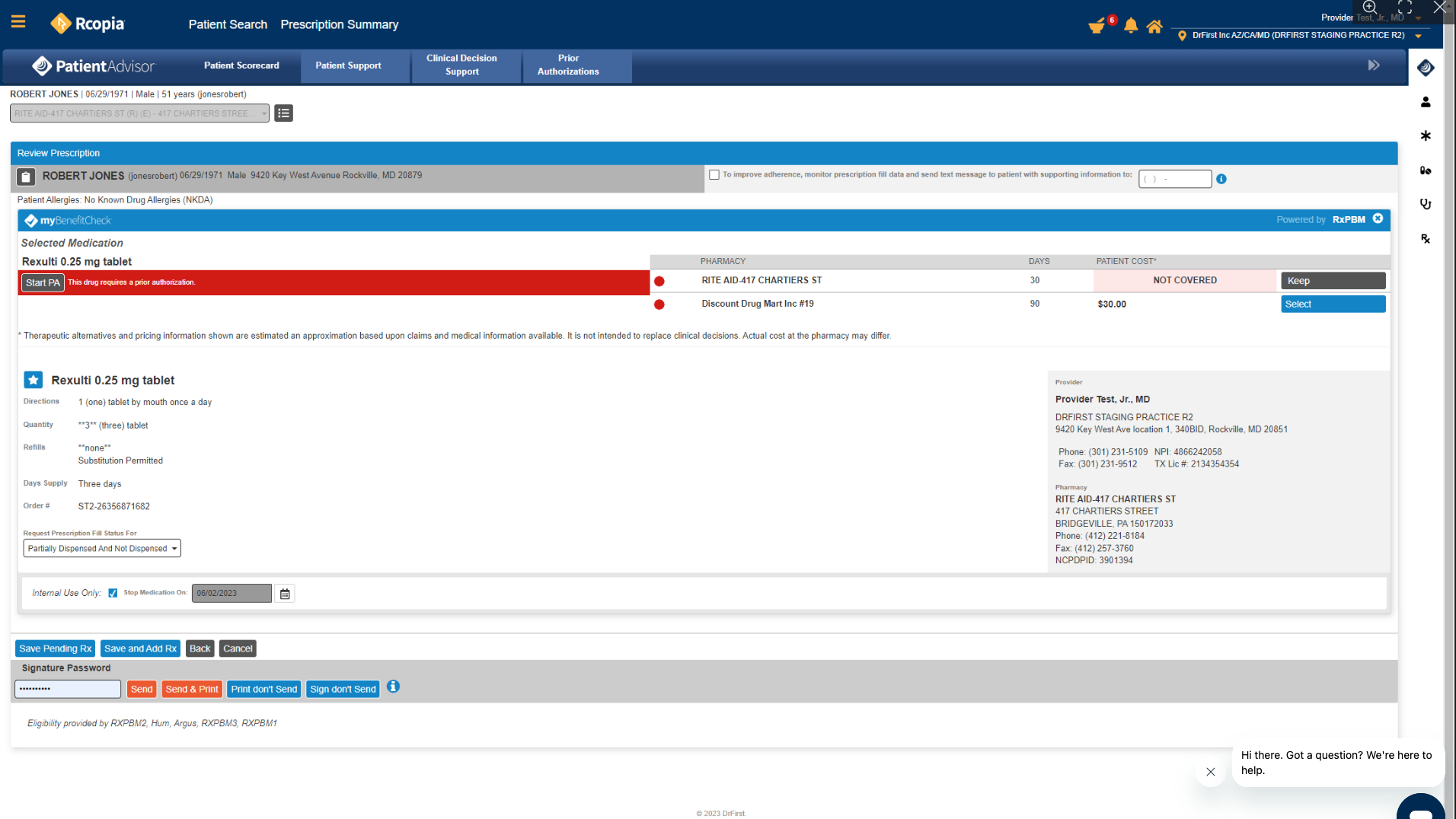
5. Monitor action-required notifications
Check the mortar and pestle icon at the top of your e-Prescribing screen to see if any of your prior authorizations require action.
A red badge with a number means one or more prior authorizations are waiting for your attention.
A grey icon with no count means nothing currently requires action. It isn't clickable in this state.
Important: Payer decisions — including approvals, denials, and rejections — do not trigger the badge. A zero badge means no cases need your action, not that all cases are resolved. Open the Prior Authorizations dashboard from the More Menu (≡) any time to review payer updates.
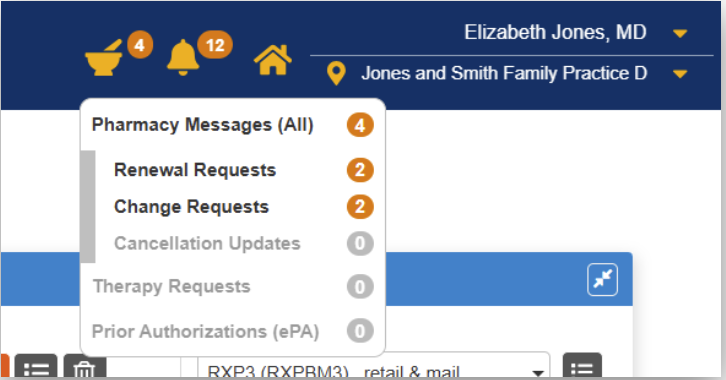
E-Prescribing Desktop header, mortar and pestle icon with prior authorization actions needed count
You can check case statuses at any time — including when the badge is at zero — by opening the Prior Authorizations dashboard from the More Menu (≡).
Step 6: Open and respond to prior authorization questions
Access the Prior Authorizations dashboard at any time from the More Menu (≡). It opens as a full-screen overlay. You'll see all open prior authorization cases, with:
Patient Name — the patient needing the ePA
Drug — the medication requiring prior authorization
Patient DOB
Prescriber Name
Created Date
Status — current standing of the request
Remaining Questions — individual required questions still unanswered (not question sets — this number can change as you go, since some questions only appear based on earlier answers)
AI Status — reflects automated answering based on clinical info already on file; "Completed" means the automated step finished and filled in what it could
Deadline for Reply
Actions — Answer Questions, the Eye icon (view details), or X (cancel the request)
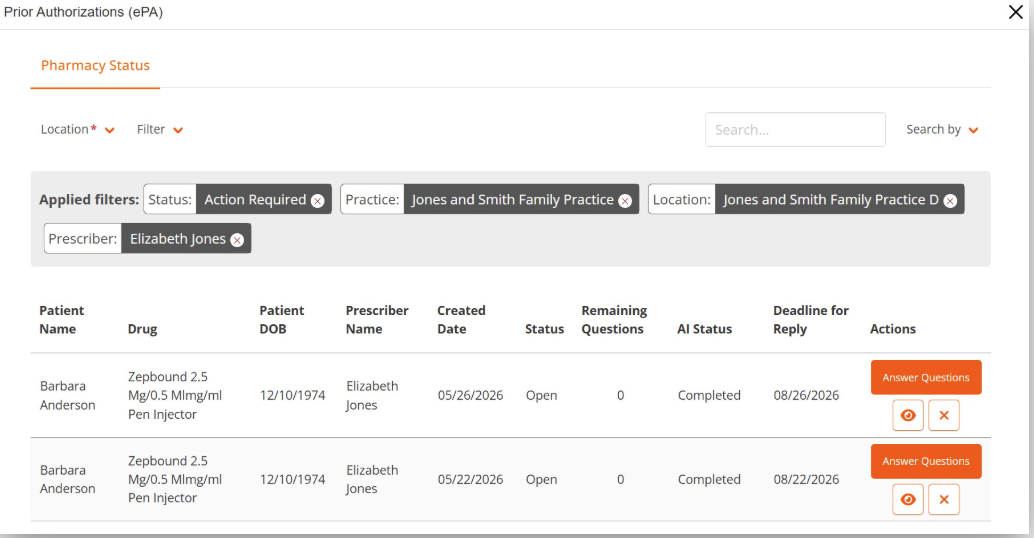
Prior Authorizations dashboard, open cases with current statuses
When a question set needs your response, the case status changes to Action Required. Click the Eye icon to view case details, then:
Click Answer Questions with AI to launch AI-assisted answering. The system pulls available patient information (e.g., from Medication History) to pre-populate answers — no upload required. Optionally, click Choose File to attach additional clinical documentation first, to help improve answer accuracy.
Or click Answer Questions Manually to bypass AI-assisted answering and enter each answer yourself.
Review answers for accuracy, make corrections as needed, and complete any remaining questions. Select Submit to send your responses to the payer — the case status updates to Submitted to Plan.
Note: The payer or PBM determines which questions appear and how many — this will vary case to case.
Step 7: Close the Prior Authorizations dashboard
Close the dashboard by:
Selecting the X in the top-right corner, or
Pressing Esc, or
Clicking anywhere on the background behind the overlay
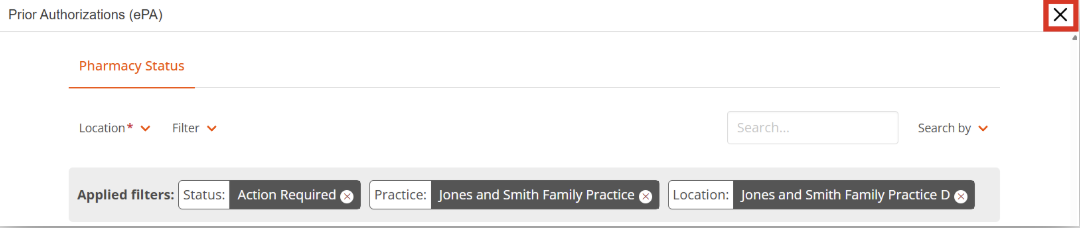
Prior Authorizations dashboard, X button to close the overlay
The badge count updates automatically when you close the dashboard, to reflect any actions taken.
Monitor prior authorization statuses
Access the Prior Authorizations dashboard at any time from the More Menu (≡) to check the status of any case — even when the badge count is zero. Not all statuses trigger the badge. The badge only increments when your action is required.
Status | What it means |
|---|---|
Action Required | The payer has returned a question set that requires your input before they can review the case. This is the only status that increments the mortar and pestle badge. |
Submitted to Plan | Your responses have been submitted and delivered to the payer. The case is now awaiting a response from the payer. |
Response Received | The payer has responded to the request. The response may be an approval, a partial approval, a denial, a cancellation acknowledgment, or a closure by the plan. Open the case to view the specific outcome and any payer-provided details. |
Understand prior authorization IDs
When reviewing a case, you may see several different numbers associated with the authorization. Here is what each one means:
ID | What it means |
|---|---|
Approval Number | The payer provides this number upon approval. Use it to seek reimbursement and confirm that the payer agrees to be billed for the care. |
Submission ID | DrFirst's internal tracking number for the authorization. The payer cannot see this number. Use it to reference a specific case when contacting the DrFirst team. |
Case Number / Reference Number | A tracking number provided by some payers once the authorization enters their system. Not all payers provide this. In some cases, the payer may use this number as the Approval Number if the authorization is approved. |
What ePA does not handle
Determination status: All information in a response comes directly from the payer, and DrFirst does not alter or edit it. If you have a concern, use the response details to follow up directly with the payer.
Appeals: DrFirst handles only the submission and monitoring of prior authorizations. If an appeal is necessary, DrFirst will provide all available information from the payer so that you can pursue the appeal directly.