E-Prescribing: Pharmacy Management
Last updated: May 25, 2026
See below for useful resources from DrFirst on adding and managing patient's pharmacies.
Pharmacy Management
Go to your patient's profile within Osmind then go to the e-Prescribe tab.
The Pharmacy drop-down menu holds information for up to five pharmacies for the patient. Here you can search for new pharmacies and remove pharmacies that are no longer needed. You can also obtain pharmacy information such as NCPDP, address, phone, and fax.
Add pharmacy to patient's profile
Click the Pharmacy drop-down menu, then select Browse Pharmacy.

Use the filters to narrow down your pharmacy search, then select Search. You do not have to fill out all the information, just enough to find the type of pharmacy you want. Less is more, if you don't find pharmacy by street, try only the zip code.

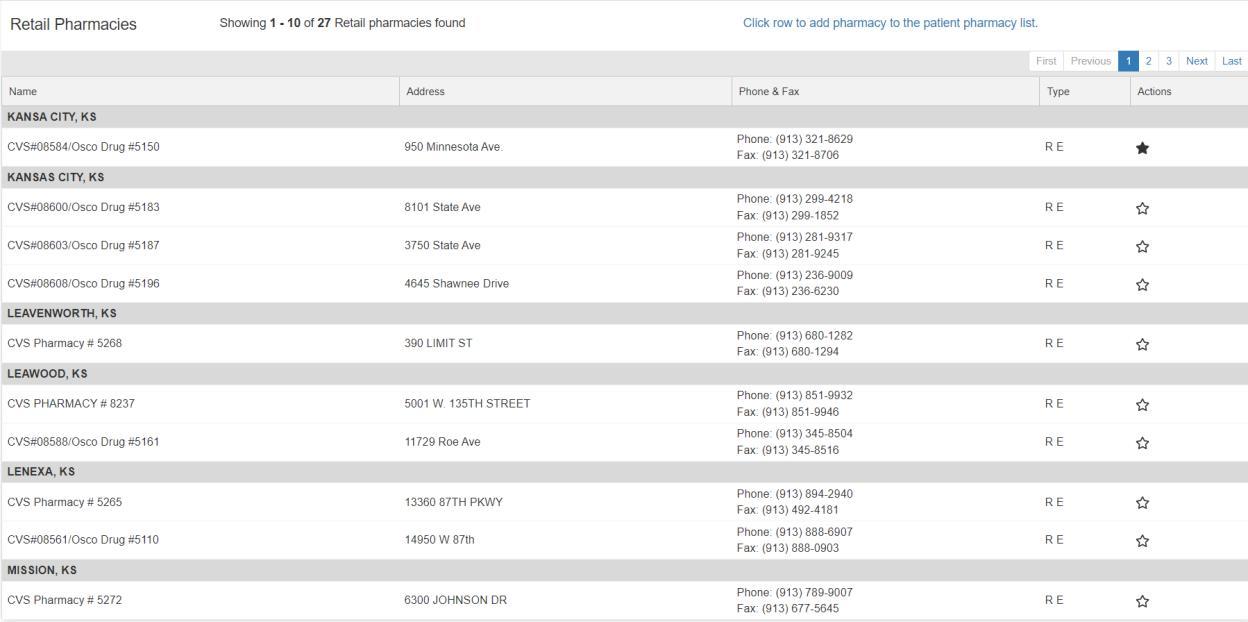
Click on the pharmacy row you wish to add to the patient's profile.
Add Pharmacy to Favorites
Click the Pharmacy drop-down menu, then select Browse Pharmacy.

Use the filters to narrow down your pharmacy search, then select Search. You do not have to fill out all the information, just enough to find the type of pharmacy you want.

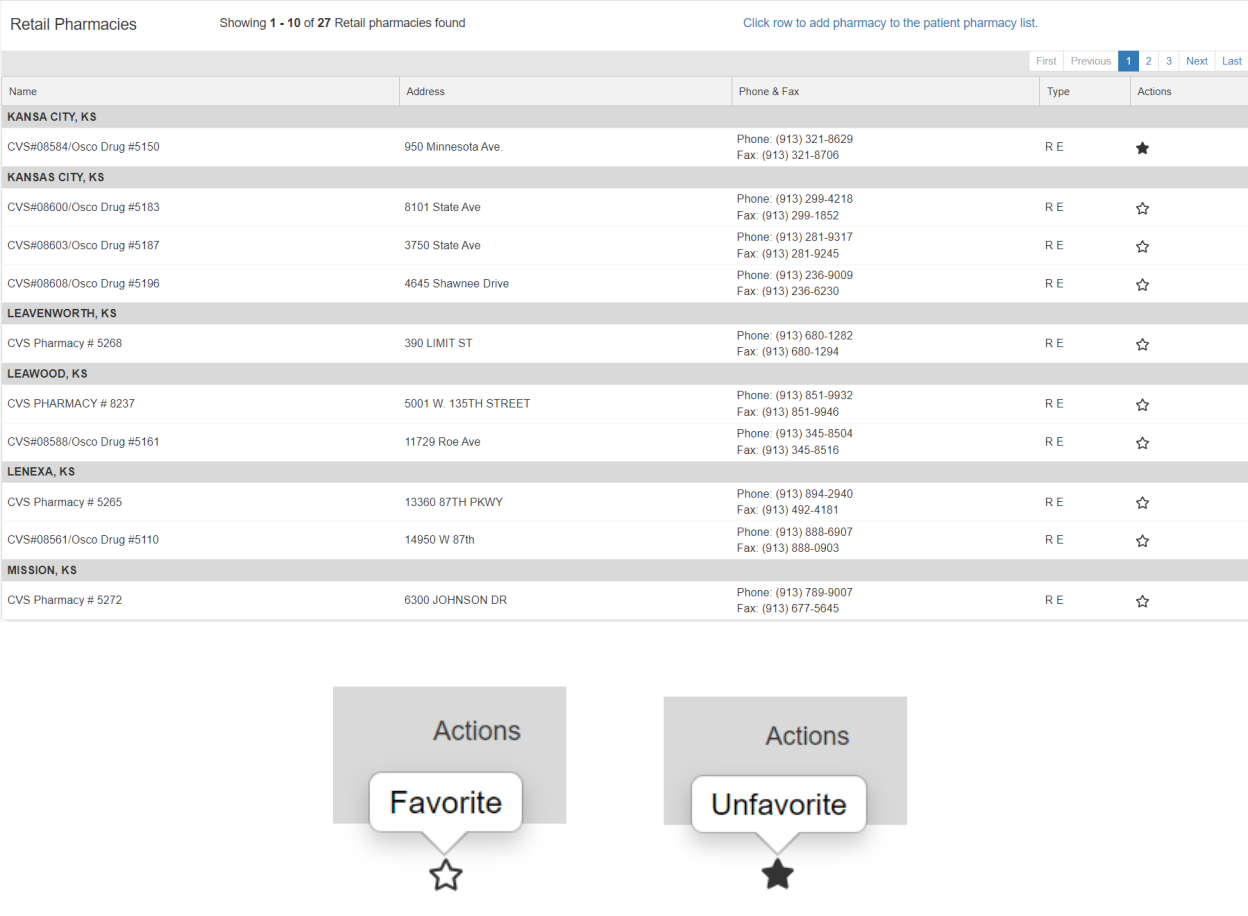
In the row of the pharmacy you want to add to your list of favorite pharmacies, hover over and select the star icon in the far right column (Actions column). To remove it from favorites, hover over and select the star icon again.
Remove Pharmacy
Click the Pharmacy drop-down menu, then select Browse Pharmacy, then select the trash can icon to remove that pharmacy.

Click 'Confirm Delete' in the window that appears.

View Pharmacy Details
Click the Pharmacy drop-down menu, then select Browse Pharmacy, then select the View Pharmacy Details icon.

Pharmacy Search
Next to the Pharmacy drop-down menu, select magnifying glass icon.

Use the filters to narrow down your pharmacy search, then select Search. You do not have to fill out all the information, just enough to find the type of pharmacy you want. Try using only the zip code.
