E-Prescribing: Add Medications & Send a Script
Last updated: October 9, 2026
Watch our 3-minute video on how to add medications and successfully send prescriptions within e-prescribing.
How to Send a Medication/Prescription
Add the medication to the patient’s chart in Osmind, including dosage, and check “Active.”
Important: Medication sync is one-way from Osmind to DrFirst. Always make medication updates and dose changes in the patient chart in Osmind — they will automatically sync to DrFirst. Changes made directly in DrFirst will not sync back to the Osmind chart.
Open the “e-Prescribing” tab. The medication should appear within a few seconds — if it’s not there yet, refresh the page.
To send the prescription, click Create New Rx.
Select the medication from the dropdown, confirm the strength, and fill in directions, quantity, and refills as usual.
Review and send.
Important: Medications prescribed through DrFirst do not automatically sync back to the patient's active medication list in Osmind. After sending a prescription, you must manually add or update the medication in the patient's Medications section within Osmind and mark it as “Active” to ensure it appears in the active medication list.
Tip: The first time you prescribe a medication, you’ll need to enter it here even if it’s already in the patient’s active medication list. See Using Favorites to Prescribe Faster below to avoid retyping it next time.
Using Favorites to Prescribe Faster
Favorites let you skip re-entering a medication from scratch every time you prescribe it.
Viewing and using your Favorites
Click the star icon next to Create New Rx.
This shows three groups: Organization Favorites (Practice and Location Favorites, managed by your e-Prescribing admin), My Favorites, and Recent (recently prescribed medications at your practice).
Click the drug name to open the Prescribe Medication window and adjust dosing before adding it.
Click the dose to add the drug straight to the pending prescription list with its preset instructions — no extra steps.
Adding a new Favorite
Click the menu icon, then Utilities.
Click Favorites.
Select from the medications listed, or if it’s not there, click Add Favorite.
Search for the medication and select it from the results.
Select the strength you’d like to favorite.
Complete the prescription instructions (sig) and select Save.
Add Historical Medications
DrFirst has the capability to allow you to add up to 1 year of historical medications to their active medication list. DrFirst automatically pulls patient medication history through Surescripts, typically covering up to 12 months of data where payers and pharmacies participate.
Open up E-prescribing in Osmind from the patient’s chart.
Scroll down to the “Medications” section.
Click “Show Medication History”.
From the drop-down, select the time value of what history you’d like to see. You can select to view up to a year’s worth of medication history.
Either select all or single-select the medications you’d like to add to the patient’s Active Medication list.
Click “Add to Active Medications”.
You will now see these medications added under their Active Medications section in DrFirst. You can now use them to prescribe refills.
Important: Because medication sync is one-way (Osmind to DrFirst), medications added from Medication History in DrFirst will not appear in the patient's Osmind chart. Add any medications the patient is currently taking to the patient's Medications section in Osmind, with a dosage and “Active” checked, so the chart stays accurate.
FAQ and Troubleshooting
E-Prescribing does not offer the dosage/medication I need. What do I do?
To request additional medications or dosages to use within DrFirst’s e-prescribing, please provide us with the following information which we will in turn provide to DrFirst Support to escalate for consideration to be added into the drug database.
Drug Name
Drug Strength
Drug Form
Manufacturer
NDC
Picture of the Drug (if available)
Note that drugs from compounding pharmacies that do not have NDC codes typically are not eligible to be added to DrFirst’s database. For these types of medications, you can add them as a free text non-formulary medication if they are not controlled substances. If the compounded medication is a controlled substance, you will need to find the closest drug within the database and write instructions to the pharmacist on the script in order to send the prescription electronically.
I'm seeing a "Sync error: We were unable to sync [medication] to DrFirst" message. How do I fix this?
This error occurs when DrFirst cannot match the medication entry from Osmind. To resolve:
Verify the medication in Osmind has a dose selected and is marked “Active.”
When adding the medication in Osmind, select a specific formulation from the search results, such as extended-release versus immediate-release or brand versus generic, rather than a general entry.
The software is telling me that my script can’t be sent electronically and must be faxed instead. Why?
Ensure that you have:
Completed identity proofing and Logical Access Control (LAC). After LAC is completed, log out of Osmind and log back in.
Selected the medication and appropriate dosage from what DrFirst offers within the portal.
Complete demographics (including an address) for the patient in DrFirst. Ensure the state is entered as a two-letter state code (e.g., “TX” not “Texas”). If any information is missing or incorrectly formatted, please contact us at getsupport@osmind.org.
Selected a drug that is contained in DrFirst’s database if trying to send a controlled substance. Non-formulary custom controlled medications (e.g. compounded formulations of medications like ketamine) cannot be sent electronically. We recommend finding the closest substitute within the database and clarifying in the instructions what the intended medication is.
If you’ve verified all of these and are still experiencing issues, please reach out to our team.
I’ve forgotten one of my passwords or the system says my password is wrong and won’t send the script.
The Signature Password should be your first name in all lowercase + “rx” at the end. For example, Jane Smith would be “janerx”.
The Signing Passphrase will be the passphrase you set during the identity proofing process. If you’ve forgotten this passphrase, you can reset it here: https://ui.epcsdrfirst.com/pob/forgotpass
Enter your NPI
Enter the credential ID from your authenticator app (Symantec VIP or ID.me)
You'll then verify with a one-time code and the email you used for identity proofing, receive a reset link by email, and answer your security question. See the full steps in E-Prescribing: Identity Proofing & EPCS (FAQ #5).
I am not seeing the correct dosage or compound of a controlled medication that I would like to prescribe electronically. What do I do?
To request electronically via DrFirst for XXX dosages:
Select the nearest available dose of XXXmg.
In the pharmacist’s instructions, provide specific details on your desired dosage, such as “utilize XXXmg instead of XXXmg, resulting in a total dosage of XXXmg.”
Then, save this as a favorite for future use.
Compound pharmacies are used to seeing requests like this and will be able to fulfill your request.
If the medication is not in DrFirst’s database and is not a controlled substance, you can create a free text entry and save it for future use as a favorite. Non-controlled medications that are entered as free-text medications can be sent electronically but are not eligible for interaction checking.
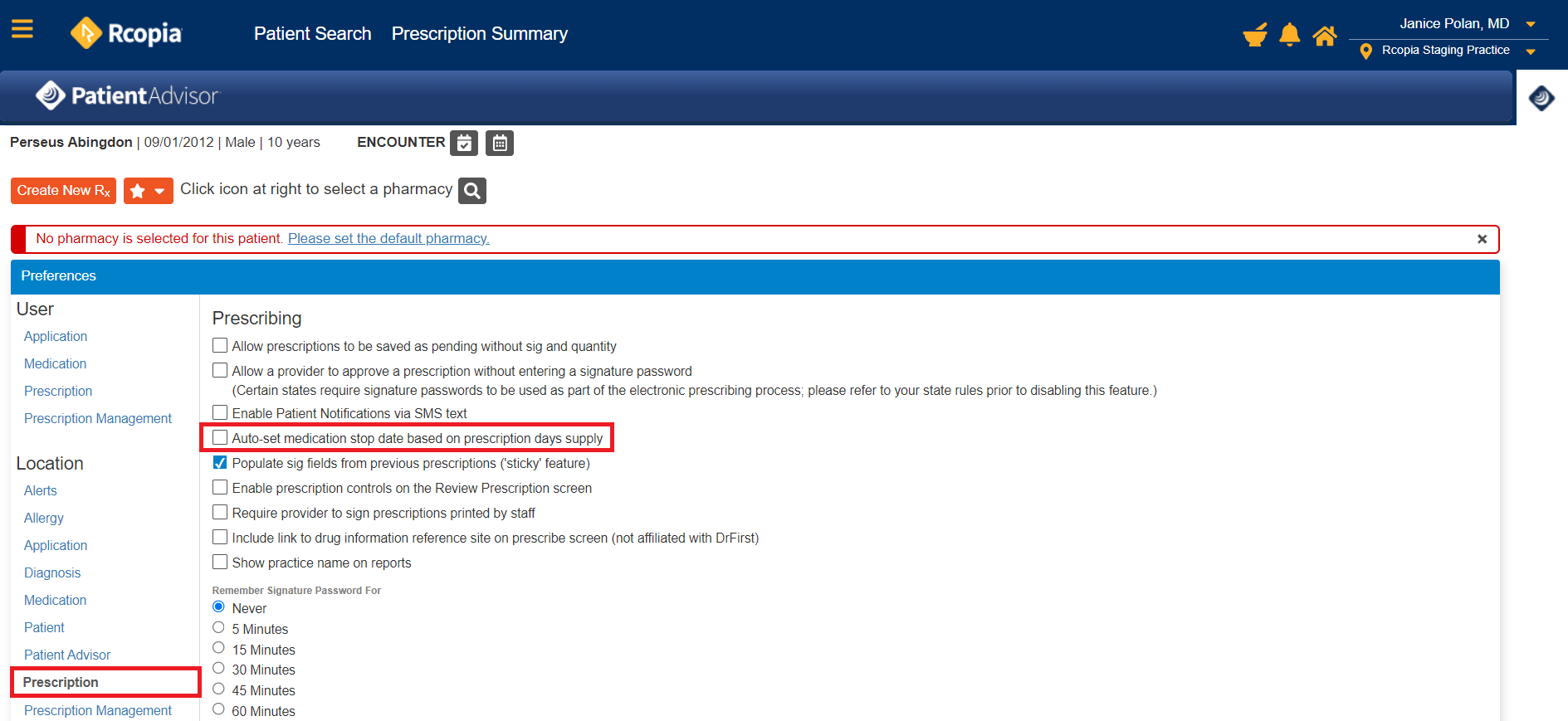
A stop date is automatically being applied to prescriptions and medications. How do I turn this off?
Go to Rcopia Settings.
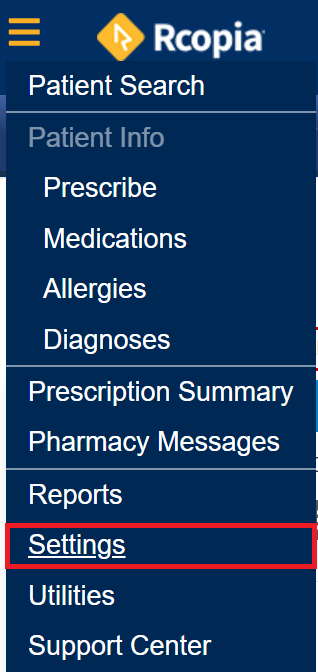
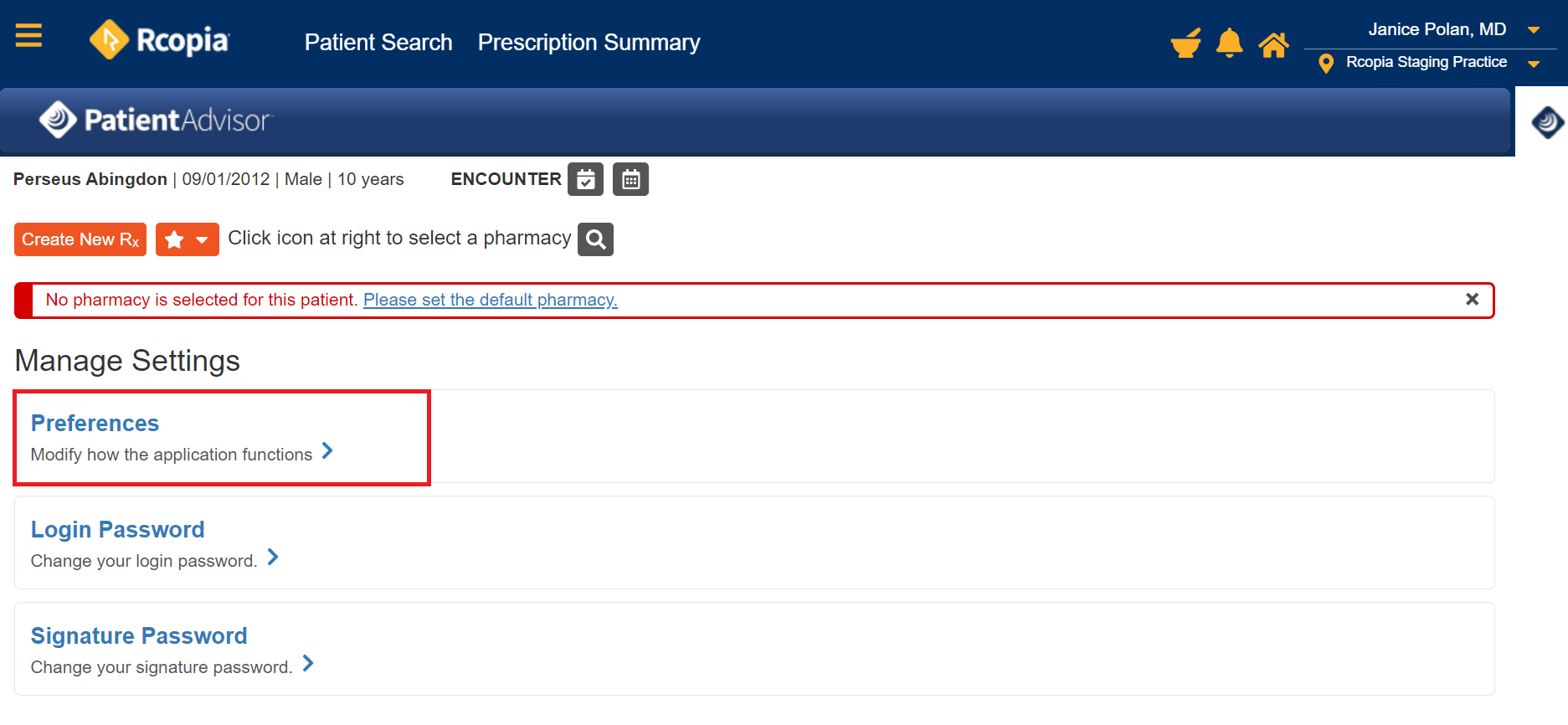
Select Preferences.
Under Location, select Prescription.
Uncheck Auto-set medication stop date based on prescription days supply and Save on the bottom of the screen to remove the default. Once un-checked in that location, the default will no longer set an automatic medication stop date; instead, the prescriber/clinical staff can select a stop date manually for a prescription, if desired.