E-Prescribing: Identity Proofing & EPCS
Last updated: October 9, 2026
Complete the below steps to be able to prescribe controlled substances through DrFirst.
⏱ About 10 minutes — Just follow each step carefully and you'll be all set! All steps are required to fully activate your EPCS account.
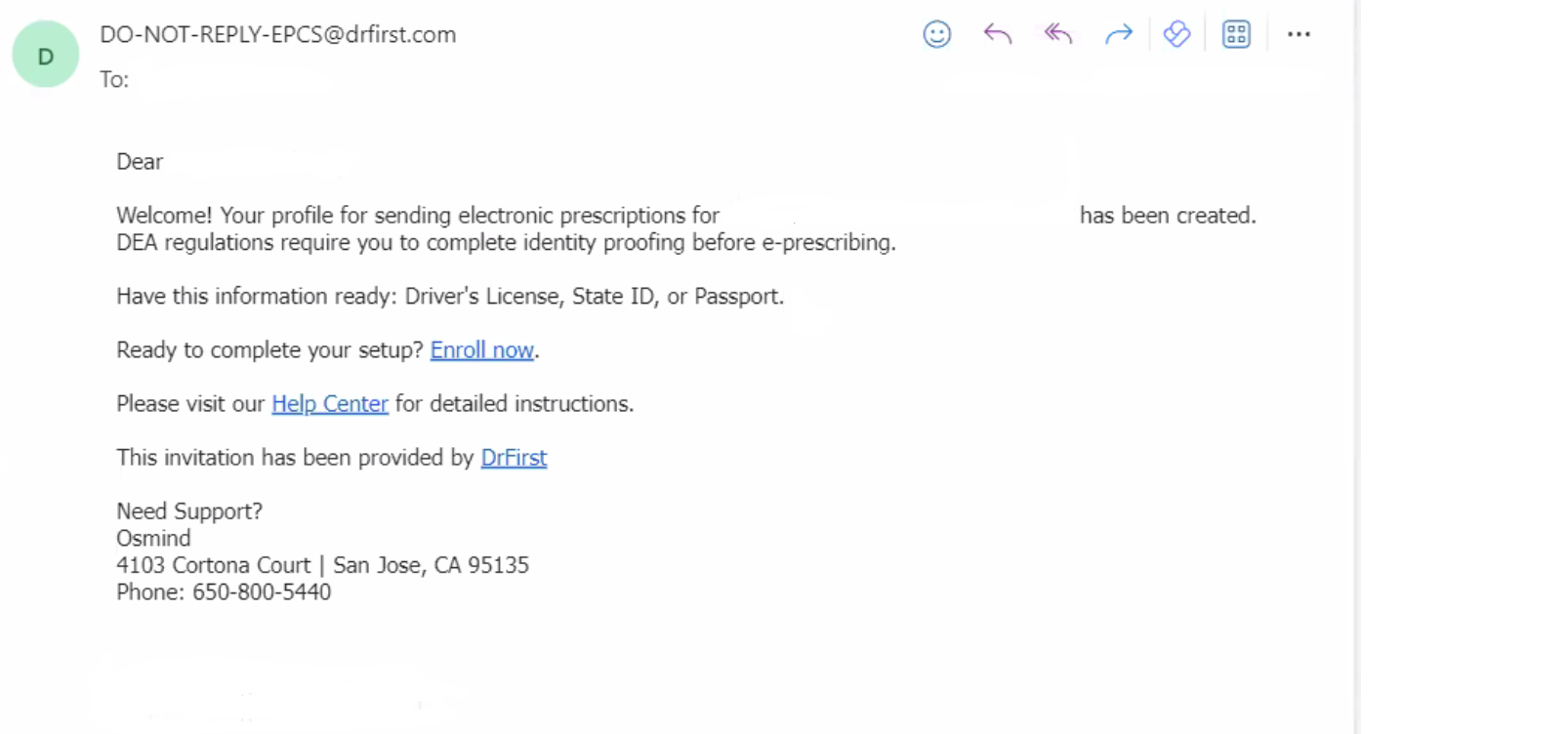
Important: After you submit your e‑prescribing enrollment request, Osmind completes the initial DrFirst setup in the background. You’ll then receive an email from DO‑NOT‑REPLY‑EPCS@drfirst.com with your enrollment link — check your spam folder if you don’t see it in your inbox.
Watch DrFirst's instructional video
In your email invitation from DrFirst, click the link "Enroll now".
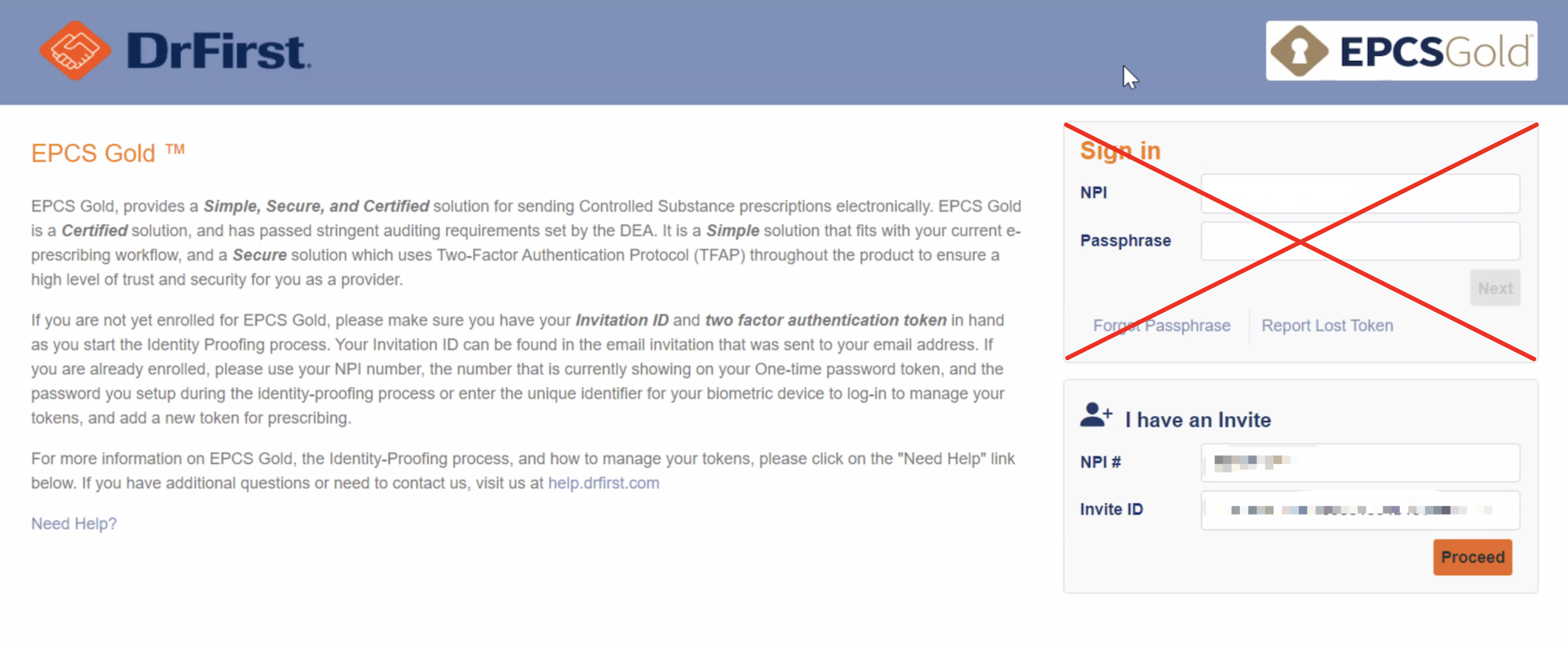
In the box labeled "I have an Invite," the NPI # and the Invite ID will auto-populate. Click on "Proceed".
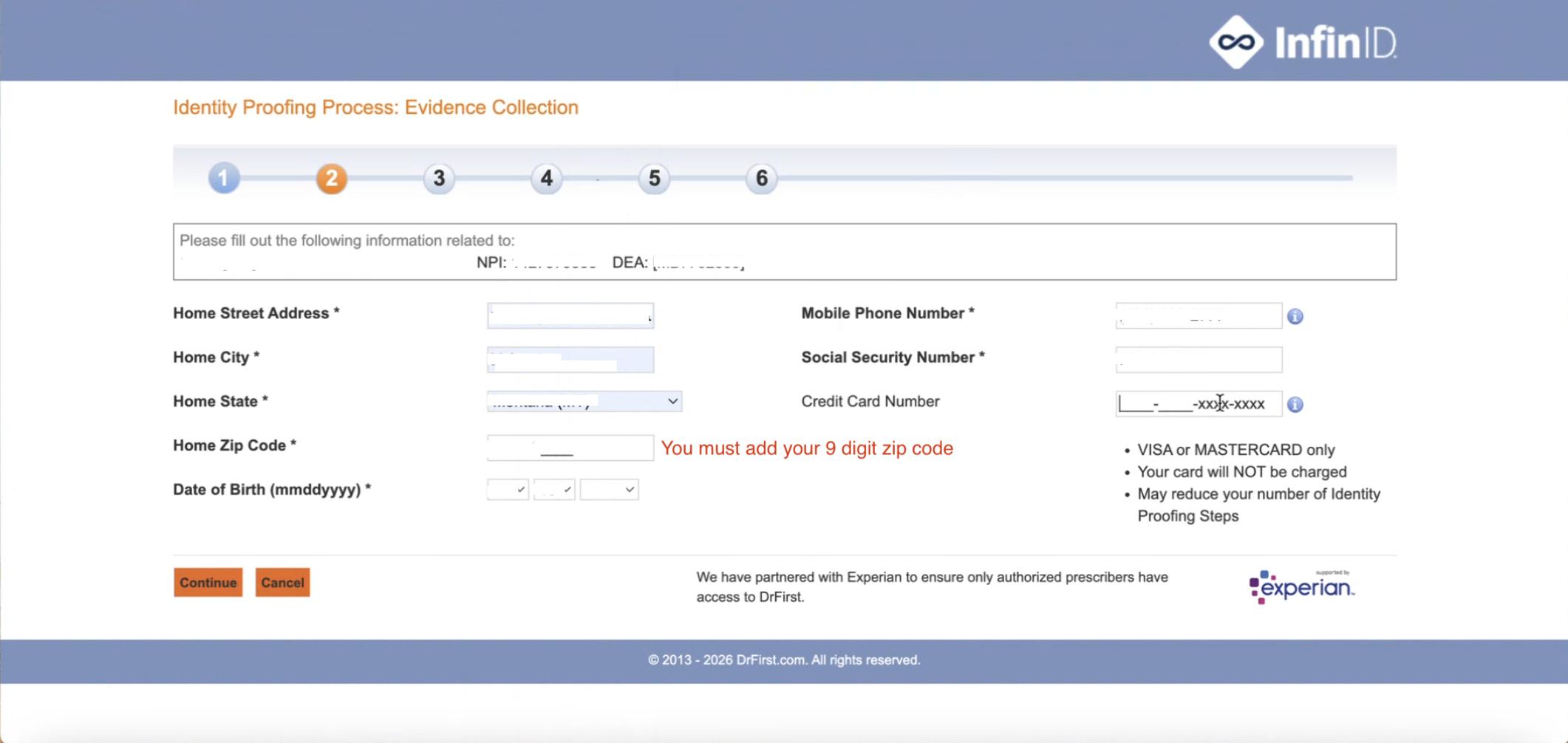
Complete your information. Enter your personal address and cell phone number.
Then scan the QR code with your phone — it will ask you to take a photo of your driver's license and a selfie.
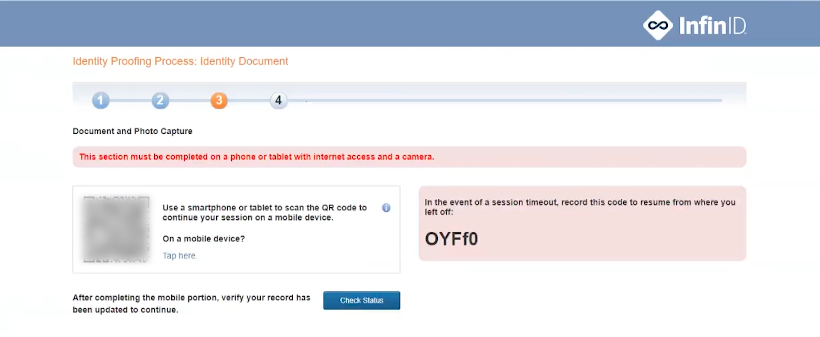
📝 Write down the alphanumeric code shown on screen (your Verification Code) — it saves your progress if something goes wrong!
Once done, go back to your computer and click "Check Status."
Download the VIP Access app on your phone: vip.symantec.com. Click Add New Token, then choose Code Generator as the 2MFA Method. Select Add and register new VIP app.
Enter the following details:
Token Manufacturer: SYMANTEC
Token Issuer: DRFIRST
Token Type: OTP SOFT TOKEN
Token Name: Any name you like (do not use an underscore "_")
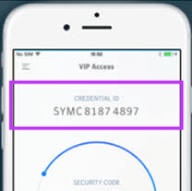
Serial / Credential ID: Found at the top of your app — format: SYMCXXXXXXXX (no spaces)
One-Time Password (OTP): The 6-digit code currently showing in the app; submit it before the code changes
Click Save when done.
Alternative method: If you need to add a token after initial enrollment or prefer not to use the QR code, you can add your VIP Access token directly through the DrFirst portal:
Log into https://ui.epcsdrfirst.com/ui/pob/login.
Select Tokens at the top.
In Token Management, select Add New Token and choose CODE GENERATOR.
Configure the token with these details:
Token Manufacturer: SYMANTEC
Token Type: Soft Token
Token Issuer: DRFIRST
Token Nickname: Your phone's make and model
Token Credential ID: The SYMC****** code from the top of your VIP app, including letters and numbers with no spaces
Token OTP: The 6-digit code currently showing in the VIP app
Select Continue before the 6-digit code refreshes in the VIP app.
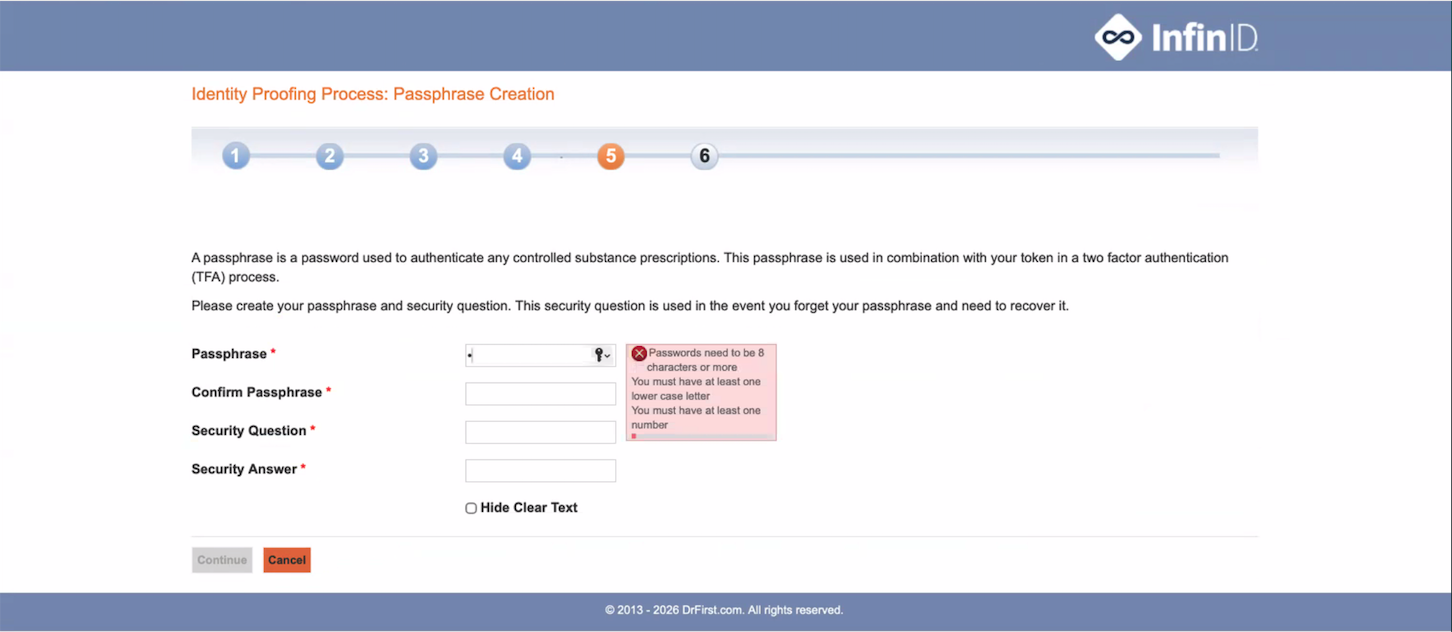
Create a passphrase you'll remember — you'll enter this every time you prescribe a controlled substance. Your passphrase must:
Be 8–20 characters
Include at least 1 uppercase letter and at least 1 number
Not include special characters (!@#$%^&*()." etc.)
Not repeat the same letter or number more than 2 times in a row (e.g., aaaa1111 won't work)
Examples: 2SignScripts, iw2sCS4you. You'll also set a security question and answer — remember it, as you'll need it if you ever reset your passphrase.
Click Continue when done.
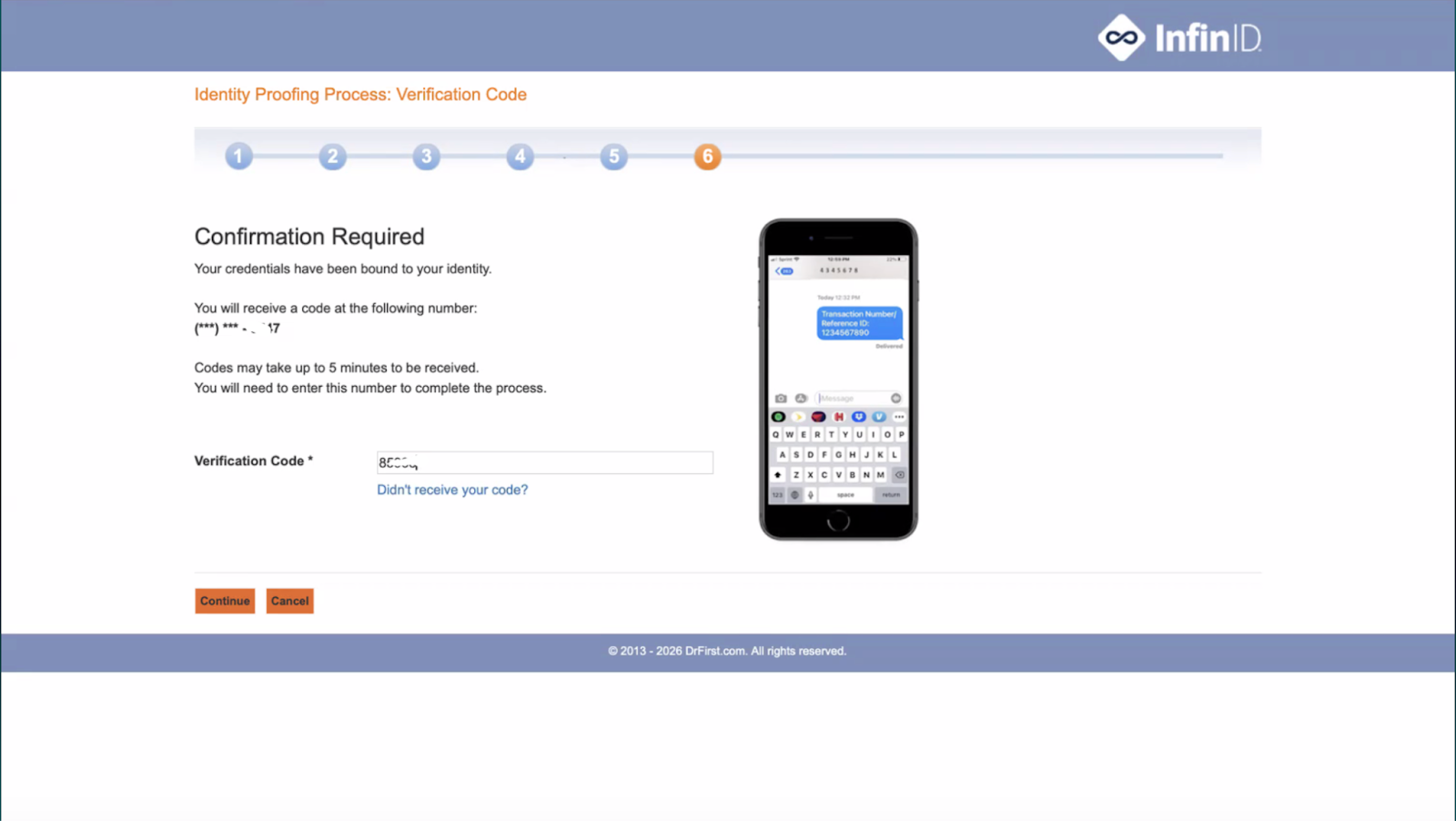
Enter the number texted to your mobile device. If you did not receive a text message, you will receive a letter in the mail with the number in 5-6 business days.
Complete the Logical Access Control (LAC) step. This requires help from another person. Instructions are HERE. If your admin has issues, contact support at getsupport@osmind.org. We are happy to help!
🎉 You're done! Log out of Osmind and log back in, then you can add medications and send prescriptions to pharmacies directly from the 'E-prescribing' tab in Osmind.
E-Prescribing Setup: Common Issues and Solutions
While the main setup checklist covers submitting your e-prescribing request, the actual enrollment process has several steps where users commonly get stuck. This guide addresses the most frequent pain points to help you complete EPCS setup smoothly.
Understanding the E-Prescribing Enrollment Process
After submitting your e-prescribing request through Osmind, you'll receive DrFirst credentials and need to complete two steps:
Identity Proofing — The prescriber completes this step to verify their identity
Logical Access Control (LAC) — Your designated admin completes this step with the prescriber present to authorize e-prescribing permissions
Resolving Common Setup Issues
Email Address Conflicts
If you get an "email address is in use" error during enrollment, you likely have an existing Dr. First account from a previous EHR. You'll need to either disable that account or provide a different email address for your Osmind e-prescribing setup. Contact support if you encounter this error.
LAC Process Confusion
Your designated admin (not the prescriber) logs into DrFirst to complete Logical Access Control. The prescriber must be present during this step to provide their NPI and passphrase for verification. If you encounter authentication errors when entering the prescriber's NPI during LAC, try switching to Chrome browser.
Password Requirements
DrFirst uses two different credentials that users often confuse:
Signature Password — Your first name in lowercase + "rx" (e.g., "janerx") — used for all prescriptions.
Signing Passphrase — The passphrase you create during identity proofing — used only for controlled substances.
Two-Factor Authentication Setup
Use the VIP Access app by Symantec (not iPrescribe) for two-factor authentication. Download from your app store or from https://vip.symantec.com/. The DEA requires this app be on a different device from the one you use to prescribe.
Feature Not Appearing After LAC
If e-prescribing doesn't appear in your Osmind account right after LAC is completed, log out of Osmind and log back in. If it still doesn't appear, contact us at getsupport@osmind.org.
Controlled Substance Prescribing Options Not Appearing
If you've completed EPCS setup but only see options for 'Print don't send' or 'Sign don't send' when attempting to prescribe controlled substances, try these troubleshooting steps:
Clear your browser cache and cookies
Log out of Osmind and log back in
Delete any pending or old prescriptions and create a new one from scratch
FAQ
1. What is a token? How do I get one?
A token is used for completing identity proofing and using EPCS. A Soft Token can be downloaded. A Hard Token, which is optional, can be requested from DrFirst. Please contact us at getsupport@osmind.org. It may have an additional fee.
We recommend registering a second token (for example, on a tablet) so you don't lose EPCS access if you lose or replace your phone.
2. What if I'm using DrFirst with another EHR currently?
You will not lose access to your other account. Your token(s) and passphrase may be used to sign controlled prescriptions for both accounts.
3. Does medication history transfer?
DrFirst can display up to 12 months of medication history from Surescripts. Medication sync is one-way, from Osmind to DrFirst, so medications marked active in DrFirst will not appear in the Osmind chart. Add any medications the patient is currently taking to the patient's chart in Osmind. Check out the e-prescribing collection of articles in our support center or reach out for more information on using DrFirst.
4. I got a new phone. What do I do now?
Before you trade in or reset your old phone, register your new phone as a second token while you still have the old one:
Install the VIP Access app on your new phone. (An app transferred from your old phone gets a new Credential ID, so it must be registered as a new token.)
Log in to Token Management with your NPI and passphrase — either at https://ui.epcsdrfirst.com/ui/pob/login or from the e-Prescribing tab via the main menu > Utilities > Token Management.
Complete two-factor login using your old phone's token and one-time code.
Select the Tokens tab > Add New Token > Code Generator, and enter the new phone's Credential ID (no spaces) and current 6-digit code. See Add & Manage Soft Tokens for details. Note: three failed save attempts will lock your account, so enter the Credential ID carefully.
Once the new token shows as active, disable the old token (only after the new one is working).
Already gave up your old phone? If you have another registered token (e.g., a tablet or hard token), use it to log in and add your new phone. If you have no working token, you will need to complete identity proofing with DrFirst again, which pauses your controlled substance prescribing until EPCS enrollment and LAC are complete. Please contact us at getsupport@osmind.org.
5. I forgot my passphrase or got locked out. What should I do?
If you've forgotten your passphrase, follow these steps to reset it:
Go to https://ui.epcsdrfirst.com/pob/forgotpass (or from the e-Prescribing tab, go to Utilities > Token Management and click Forgot Passphrase).
Enter your NPI and the Credential ID from your authenticator app (not your SSN). The Credential ID starts with SYMC and should be entered without dashes or spaces — you can find it at the top of your VIP Access app. Click Next Step.
Select your token, enter the email address you used for identity proofing, and enter the 6-digit code currently displayed in your VIP Access app. Click Continue.
Check your email for the message "Prescriber reset passphrase notification" and click the Reset Passphrase Link.
Re-enter your NPI and Credential ID, then enter a new one-time code from your token.
Answer your security question (answers are case sensitive).
Create a new passphrase that meets the requirements in step 5 above (8–20 characters, 1 uppercase, 1 number, no special characters). You can use it right away.
Don't remember your security answer? You'll need a new EPCS registration link, which turns off your controlled substance prescribing until you complete EPCS enrollment and LAC again. Contact us at getsupport@osmind.org.
Want to change (not reset) your passphrase? Log in to Token Management, go to the Profile tab, select Change EPCS Passphrase, enter a one-time code from your token, then enter your current and new passphrase.
Troubleshooting: If you receive the error "Sorry. This NPI does not have this active valid token," verify you're entering your Credential ID (which starts with SYMC, without dashes or spaces) instead of your SSN. The Credential ID is found at the top of your VIP Access app.
If you're locked out after multiple failed attempts:
Wait 15 minutes for the lockout period to expire before trying again
Verify you're using the correct token—the credential ID must match what's on your phone
If you've changed phones, see FAQ #4 above.