E-Prescribing: Complete Logical Access Control (LAC)
Last updated: July 22, 2026
Logical Access Control (LAC) is the final step in registering for Electronic Prescribing of Controlled Substances (EPCS). This step must be completed by the LAC contact before a provider can electronically prescribe controlled medications. If LAC is not completed, e-prescribing for controlled substances will not be activated.
What is LAC?
LAC is a security step required by DrFirst to authorize a provider to prescribe controlled substances electronically. It verifies that the e-prescribing permissions are granted to the correct provider.
Important: If you add additional DEA licenses to your account after initial enrollment, you must complete LAC activation separately for each new DEA license.
Who Completes LAC?
LAC must be completed by your DrFirst Admin, with the prescribing clinician present.
You designated your DrFirst Admin when you completed the DrFirst Registration Form. If you have questions please contact our support team at getsupport@osmind.org.
DrFirst Admin Requirements
Your DrFirst Admin must:
Be a staff member, family member, friend, or colleague
Be at least 18 years old
Not have an NPI
Have an Osmind account set up as an admin for the practice (if you need to add a LAC admin to Osmind, use the add EHR user form first)
Step-by-step Instructions for your Admin
Note: You can complete LAC either through Osmind (steps below) or by logging in directly to DrFirst at https://web3.drfirst.com/login and navigating to Utilities > Logical Access Control.
Open the chart of any patient within Osmind. Go to the e-Prescribing tab located within the patient's chart. (Alternatively, log in directly at https://web3.drfirst.com/login and skip to step 2.)
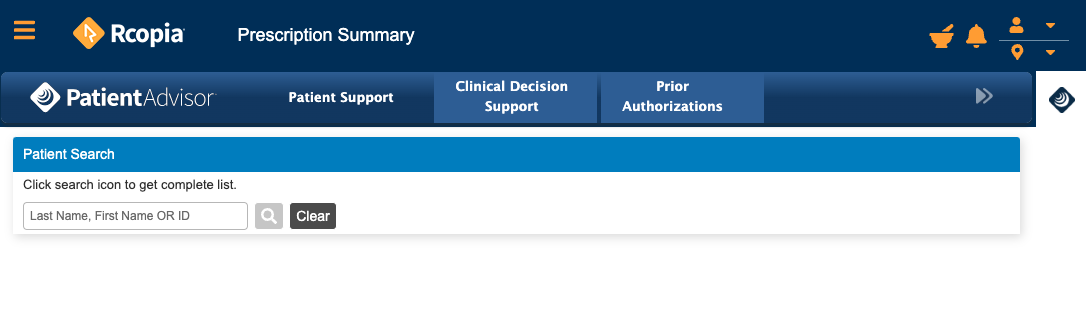
Go the the main (hamburger) menu on the top left corner. Select Utilities.
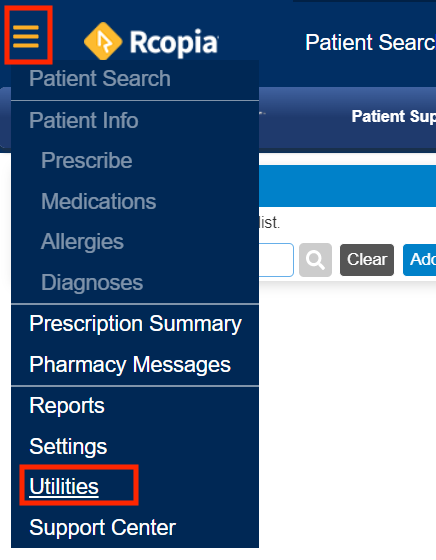
Select Logical Access Control (LAC).
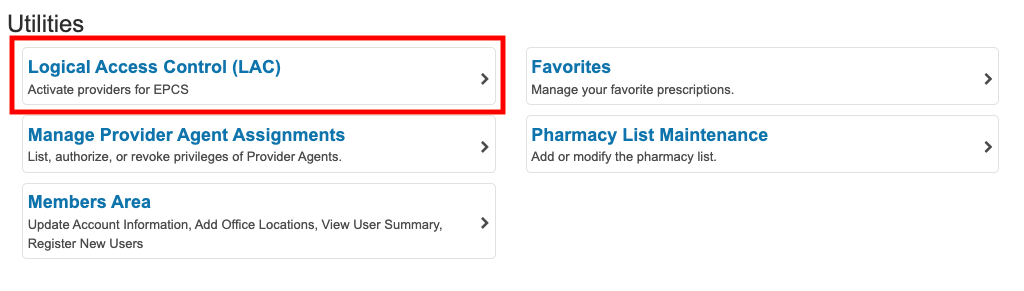
Click the Active radio button for the prescriber to grant EPCS authorization.
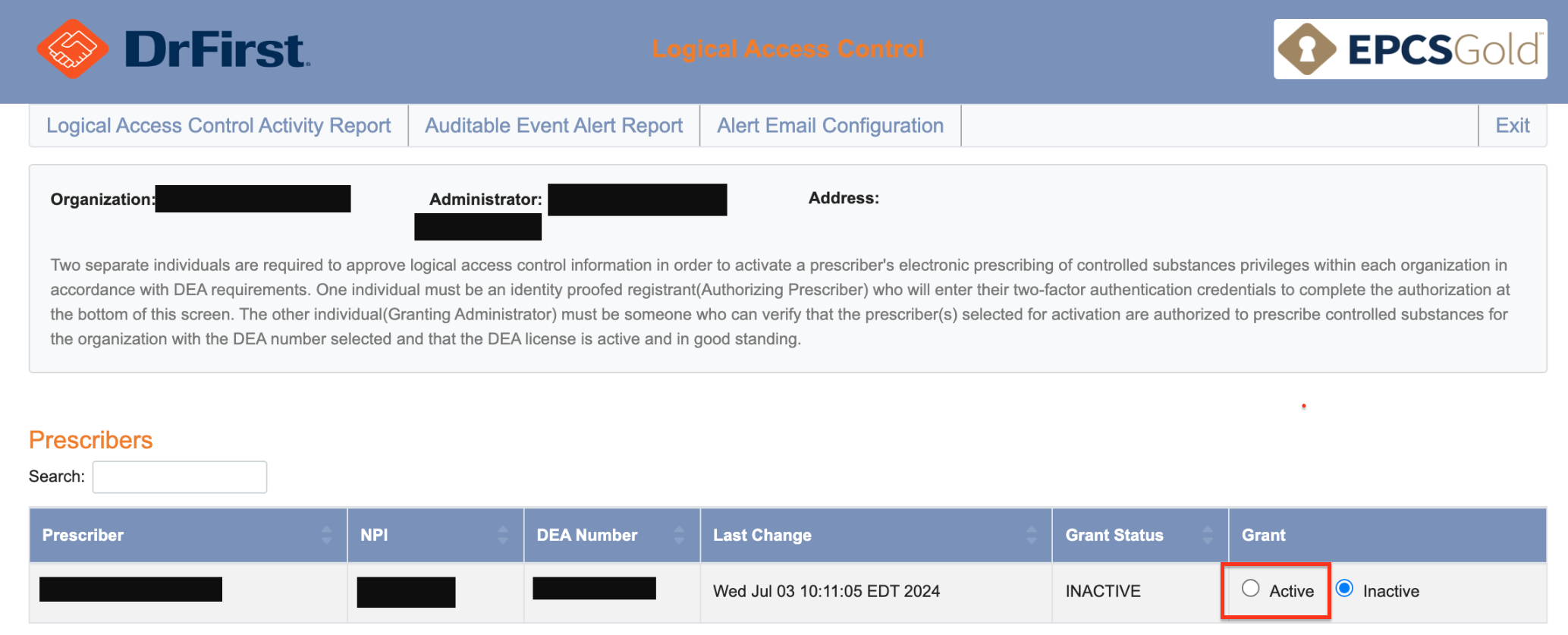
Under Granting Administrator, enter your first and last name as it appears on your user account.

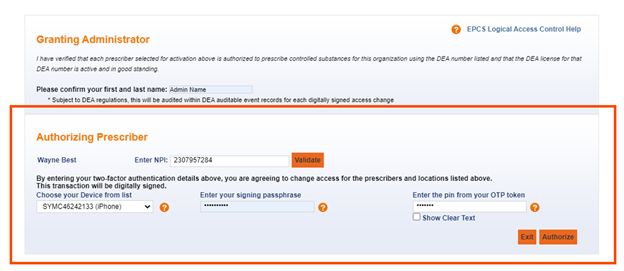
Under Authorizing Prescriber, populate the NPI field with the provider's NPI number, then click Validate.
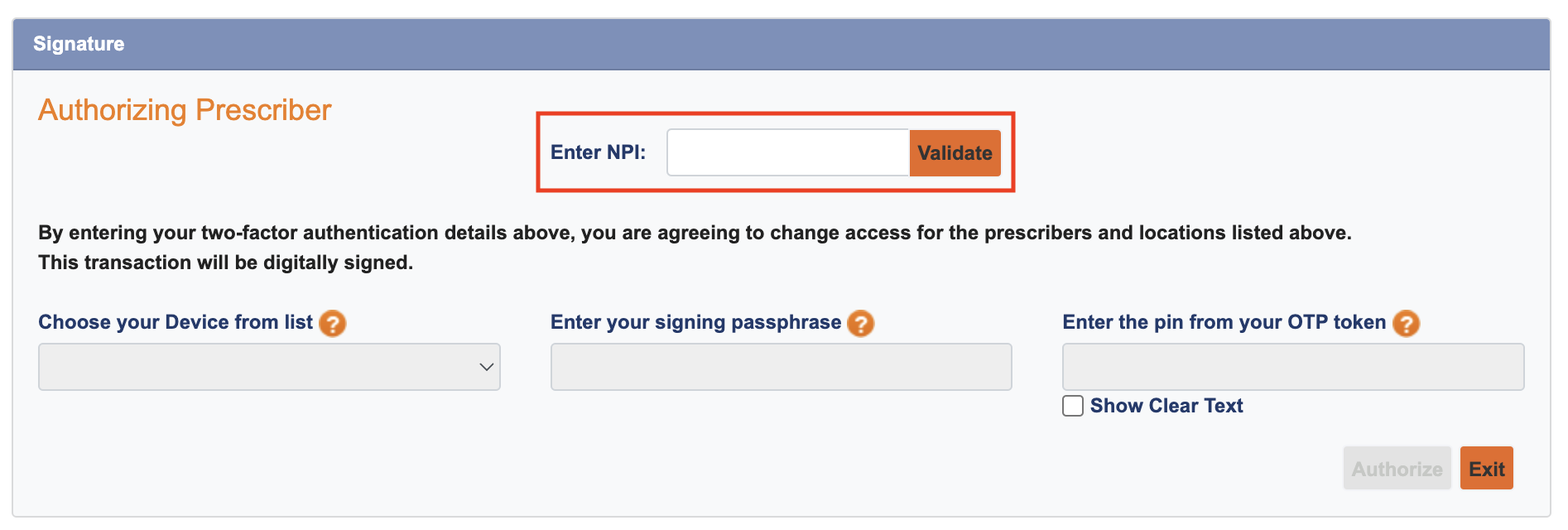
At this point, the provider will either 1) complete the remaining fields, then click Authorize, or 2) share the information with you, who will enter the information and click Authorize.
Choose a Device from list: This field should auto-populate all active registered tokens.
Please ensure the token being used is selected.
Enter the signing passphrase: The provider should have already set the signing passphrase (controlled substance password) during EPCS enrollment.
Enter the One Time Pin (OTP) from the selected token: This six-digit code generates every 30 seconds.
You will be redirected to a page that will prompt you to click Refresh. Doing so will reload the LAC page with the desired grant change(s) applied.
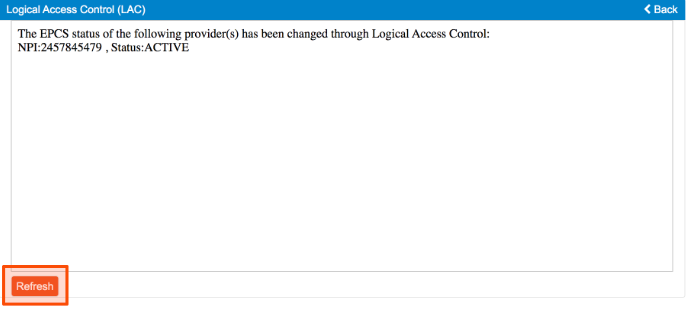
Congratulations! the provider has now been activated, and can now start prescribing controlled substances electronically!
Note: If you receive the error "Your Logical Access Control session has ended. No changes were made" please repeat this process and be sure the Active button is selected in Step 4.
E-Prescribing Setup: Common Issues and Solutions
The main setup checklist covers submitting your e-prescribing request, but the enrollment process has several common sticking points. This guide addresses frequent issues to help you complete EPCS setup smoothly.
Understanding the E-Prescribing Enrollment Process
After registering for e-prescribing through Osmind, you'll receive an email from DO-NOT-REPLY-EPCS@drfirst.com with a link to register for e-prescribing. You'll then complete:
Identity Proofing — The prescriber completes this step to verify their identity. HERE are the instructions.
Logical Access Control (LAC) — Your designated admin completes this step with the prescriber present to authorize e-prescribing permissions. HERE are the instructions.
Resolving Common Setup Issues
Email Address Conflicts
If you get an "email address is in use" error during enrollment, you likely have an existing Dr. First account from a previous EHR. You'll need to either disable that account or provide a different email address for your Osmind e-prescribing setup. Contact support if you encounter this error.
LAC Process Confusion
The prescriber cannot complete LAC for itself. Your designated Rcopia admin (LAC contact) logs into DrFirst to complete Logical Access Control. The prescriber must be present during this step to provide their NPI and passphrase for verification. If you encounter authentication errors when entering the prescriber's NPI during LAC, try switching to Chrome browser (Safari is known to have compatibility issues with DrFirst) and erasing your browser data.
Password Requirements
DrFirst uses two different credentials that users often confuse:
Signature Password — Your first name in lowercase + "rx" (e.g., "janerx") — used for all prescriptions.
Signing Passphrase — The passphrase you create during identity proofing — used only for controlled substances.
Two-Factor Authentication Setup
Use the VIP Access app by Symantec (Code Generator) for two-factor authentication. Download from your app store or from https://vip.symantec.com/. The DEA requires this app be on a different device from the one you use to prescribe.
Unable to ePrescribe After LAC
If you encounter any trouble prescribing right after completing LAC, please log in and out your Osmind account or contact us at getsupport@osmind.org.
FAQ
I can't see utilities section
You might not be the LAC contact/ Rcopia Admin. Remember Prescribers cannot complete this step for themselves.
Provider not listed in LAC screen
Verify that the provider has completed all Identity proofing process and has added a token and a created a passphrase.
What is the difference between a Rcopia Admin and an Office Admin/Osmind Staff?
A Rcopia Admin is the person responsible for authorizing providers to e-prescribe controlled substances (EPCS) through DrFirst: LAC contact. This role is specifically required for identity verification and EPCS authorization.
To serve as a DrFirst Admin, the individual must:
Be registered in DrFirst as clinical or non-clinical staff
Be 18 years or older
Not have an NPI
You do not need a dedicated office administrator to complete the EPCS authorization process. Any staff member who meets the requirements above can be designated as the DrFirst (LAC) Admin.
If you are a solo practitioner without staff, you may temporarily invite a spouse, friend, or colleague to your practice to act as the DrFirst Admin/ LAC contact for the purpose of completing EPCS authorization. Once the process is complete, their access can be removed.
When I try to validate the NPI, I receive the message, "Authentication failed. Access is denied"
This is likely a browser issue. Switch to a compatible browser (Chrome is best). If you are already using Chrome, please make sure you have cookies enabled. You may also need to clear your cache.
Need more help?
For additional assistance, please contact our support team at getsupport@osmind.org.